5 Android Keyboard Tricks That Make Typing Faster
Most of us type on our phones all day, but hardly anyone uses the clever tricks hidden in the keyboard.
These tips work in Gboard (Google's keyboard, the default on Pixel and many other phones) and most also work in Samsung Keyboard. Learn even two of them and you'll type noticeably faster.
Before you start: Android menus vary a little between phone makers. The steps below use Google Pixel / standard Android names, with Samsung Galaxy differences noted. If you can't find a setting, tap the search bar at the top of Settings and type its name.
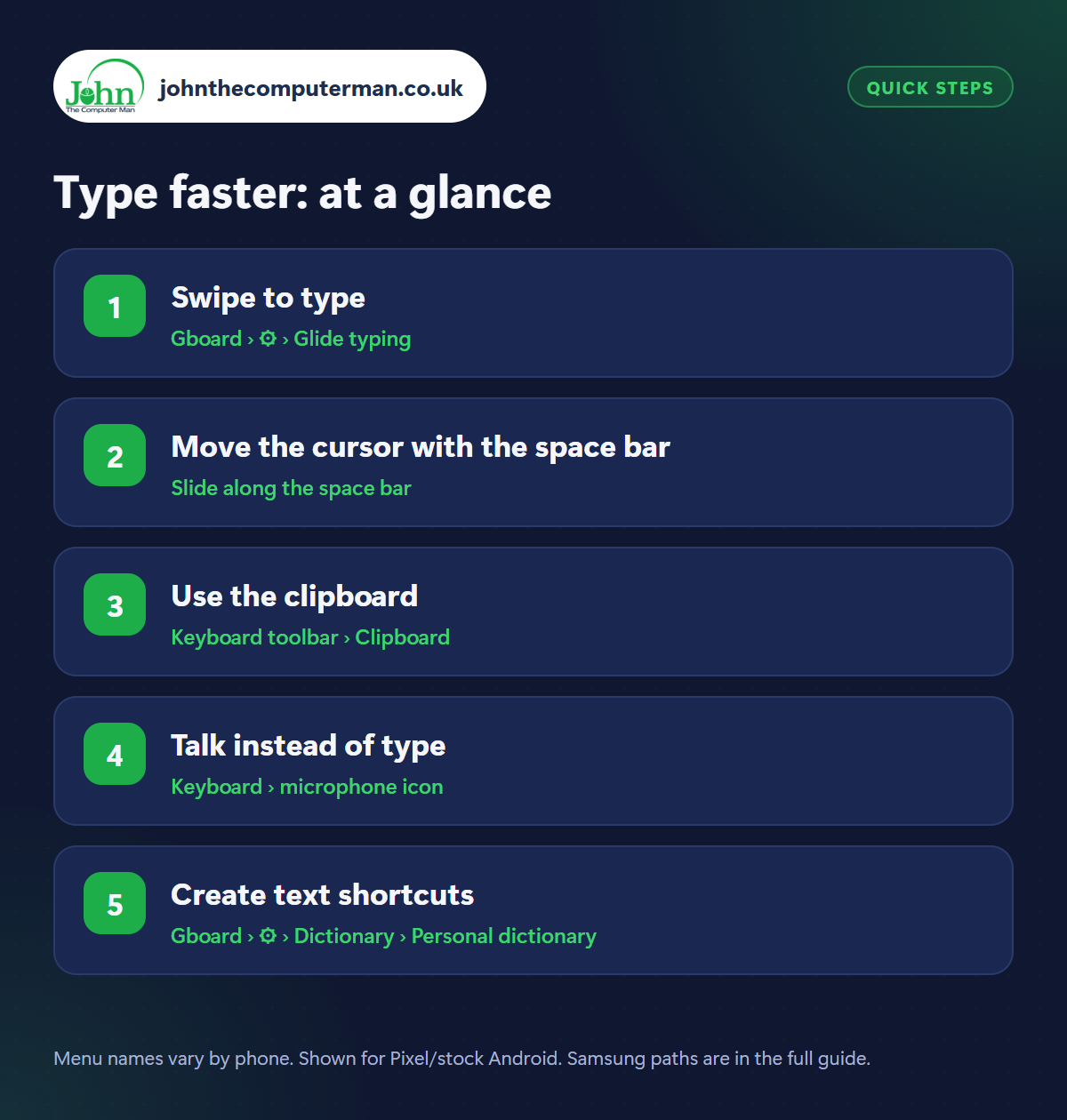
How to type faster on Android
Step 1: Swipe to type
Where: Gboard › ⚙ › Glide typing
Samsung: Samsung Keyboard › Settings › Swipe, touch and feedback
Samsung: Samsung Keyboard › Settings › Swipe, touch and feedback
Instead of tapping each letter, slide your finger from letter to letter and lift it at the end of the word. The keyboard works out what you meant, and it's surprisingly accurate. It's called Glide typing in Gboard (⚙ Settings › Glide typing). In Samsung Keyboard, turn on Swipe to type under Swipe, touch and feedback › Keyboard swipe controls.
Step 2: Move the cursor with the space bar
Where: Slide along the space bar
Tapping exactly between two letters to fix a typo is fiddly. Instead, press and slide your finger along the space bar and the cursor moves left or right, one letter at a time. In Gboard, sliding left from the backspace key selects whole words to delete them quickly. Samsung Keyboard can do the same when Cursor control is on in swipe settings.
Step 3: Use the clipboard
Where: Keyboard toolbar › Clipboard
Tap the clipboard icon in the keyboard's toolbar (you may need to tap the four-square menu to find it). It shows your recently copied text and screenshots, so you can paste something you copied a few minutes ago, not just the last thing. Pin items you use often, like your address. Unpinned items disappear after an hour for privacy.
Step 4: Talk instead of type
Where: Keyboard › microphone icon
Tap the microphone icon and speak your message. Voice typing is fast, accurate and great when you're walking or have a long message to write. Say punctuation out loud (‘full stop’, ‘comma’, ‘question mark’, ‘new line’). On many newer phones you can say ‘send’ to send it, and ‘delete’ to remove the last word.
Step 5: Create text shortcuts
Where: Gboard › ⚙ › Dictionary › Personal dictionary
Samsung: Samsung Keyboard › Settings › More typing options › Text shortcuts
Samsung: Samsung Keyboard › Settings › More typing options › Text shortcuts
Type the same things over and over? Create shortcuts. In Gboard go to ⚙ Settings › Dictionary › Personal dictionary, choose your language, tap +, type the full text (your email address) and a short shortcut (like @@). Now typing @@ suggests your full email address. In Samsung Keyboard, it's More typing options › Text shortcuts.
Pro tip
💡 Hold the full-stop key in Gboard for quick punctuation, or long-press any letter to type the number or symbol shown above it.
FAQ
How do I switch to Gboard on a Samsung?
Install Gboard from the Play Store, then choose it in Settings › General management › Keyboard list and default.
Is voice typing private?
On many newer phones voice typing is processed on the phone itself. Check your keyboard's voice settings for an offline option.
How do I make the keyboard bigger?
In Gboard, tap the four-square menu and choose Resize. In Samsung Keyboard, go to Settings › Size and transparency.
The bottom line
Swipe typing and space-bar cursor control are the two to learn first. Add text shortcuts for your email and address, and typing on your phone becomes a lot less painful.