How to Change Default Apps on Android (Browser, Messages and More)
Tap a link and it opens in a browser you never use. Tap an address and the wrong maps app pops up. Annoying, but easy to fix.
Android lets you choose your default apps: the ones it uses automatically for web links, text messages, phone calls, your keyboard and even your whole home screen. Here's where to change them.
Before you start: Android menus vary a little between phone makers. The steps below use Google Pixel / standard Android names, with Samsung Galaxy differences noted. If you can't find a setting, tap the search bar at the top of Settings and type its name.
How to change default apps on Android
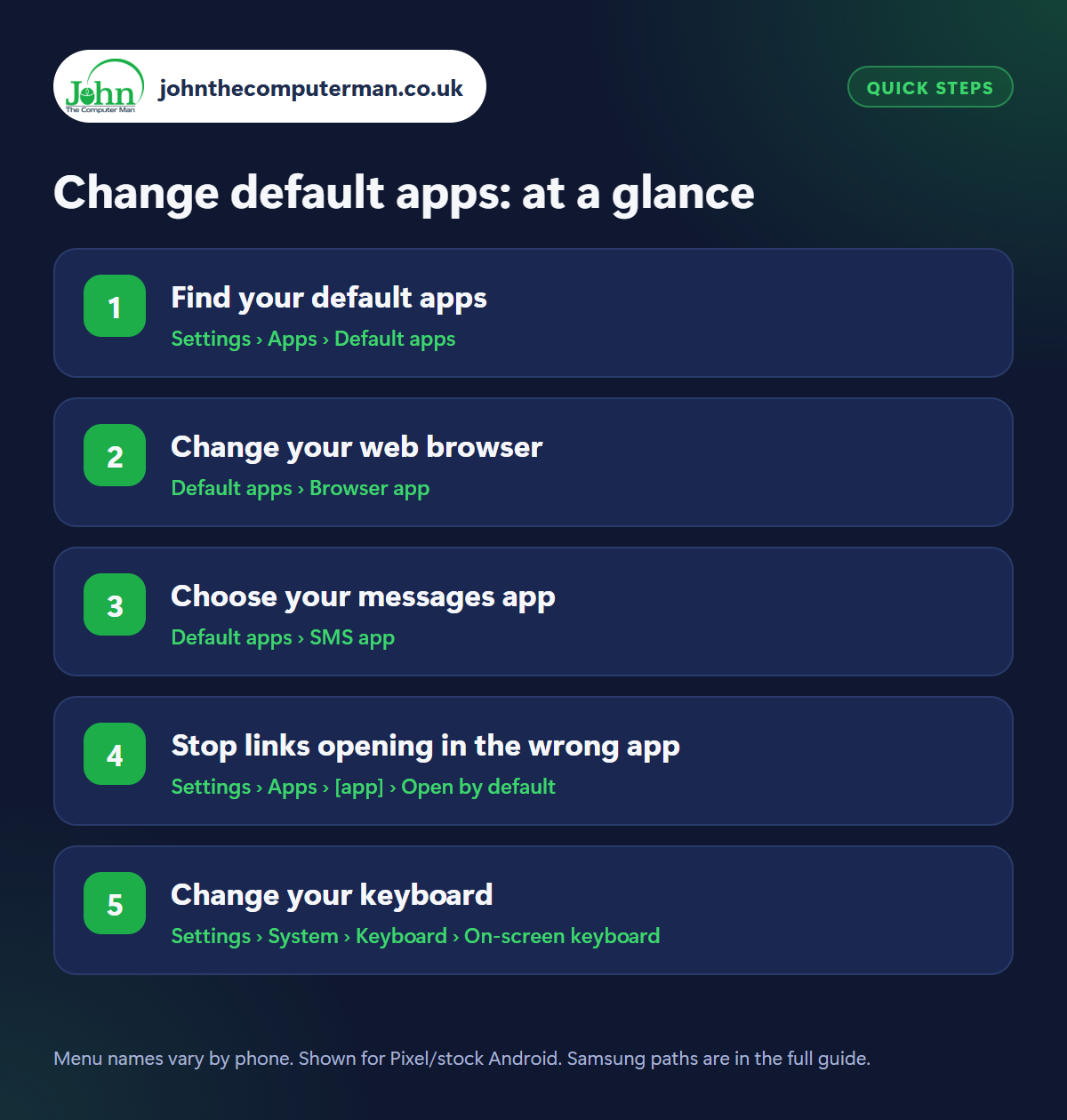
Step 1: Find your default apps
Where: Settings › Apps › Default apps
Samsung: Settings › Apps › Choose default apps
Samsung: Settings › Apps › Choose default apps
Go to Settings › Apps › Default apps (Samsung: Settings › Apps › Choose default apps). Here you'll see which app Android uses for your browser, phone calls, text messages (SMS), home screen and digital assistant. Tap any of them to see the other apps you can choose. The app has to be installed first.
Step 2: Change your web browser
Where: Default apps › Browser app
Tap Browser app and choose the one you prefer, whether that's Chrome, Samsung Internet, Firefox, Edge or another browser you've installed. From then on, links in emails, messages and other apps open there. It's worth using the same browser as on your computer so your bookmarks and passwords sync.
Step 3: Choose your messages app
Where: Default apps › SMS app
Tap SMS app to choose which app sends and receives your texts, usually Google Messages or Samsung Messages. Be careful switching back and forth: older conversations are stored on the phone and normally show up, but features like chat (RCS) messaging need turning on again in the new app. WhatsApp can't be your SMS app. It's a separate service.
Step 4: Stop links opening in the wrong app
Where: Settings › Apps › [app] › Open by default
Some apps grab links automatically. Tap a YouTube or Amazon link, for example, and it opens the app instead of the browser. To change this, go to Settings › Apps › [app] › Open by default (Samsung: Set as default) and turn Open supported links on or off. Turn it on for apps you want links to open in, and off for ones you don't.
Step 5: Change your keyboard
Where: Settings › System › Keyboard › On-screen keyboard
Samsung: Settings › General management › Keyboard list and default
Samsung: Settings › General management › Keyboard list and default
If you've installed a different keyboard like Gboard or SwiftKey, enable it in Settings › System › Keyboard › On-screen keyboard (Samsung: Settings › General management › Keyboard list and default) and set it as the default. You can also switch keyboards at any time by tapping the small keyboard icon at the bottom of the screen while typing. See our Gboard tips.
Pro tip
💡 Messed things up? Open any app's settings (Settings › Apps › [app]) and look for ‘Clear defaults’ to reset it.
FAQ
Why can't I see an app in the default list?
Only apps that can do that job appear. For example, a browser only shows up as a browser app after you've installed it from the Play Store.
Will changing my home app delete my layout?
No, your old home screen is still there. Switch back in Default apps › Home app and it returns as it was.
Can I set a default maps app?
Android doesn't have a single maps setting. Use ‘Open by default’ in Google Maps or Waze to choose which app handles map links.
The bottom line
Two minutes in Default apps puts you back in charge: the browser you like, the messaging app you use, and links that open where you expect.