How to Make Text Bigger and Your Android Easier to See
If you find yourself holding your phone at arm's length or reaching for your glasses to read a text, you don't have to put up with it.
Android has lots of settings to make everything bigger, bolder and clearer. They're brilliant for older relatives, anyone with tired eyes, or just reading in bright sunlight. Here are the five that help most.
Before you start: Android menus vary a little between phone makers. The steps below use Google Pixel / standard Android names, with Samsung Galaxy differences noted. If you can't find a setting, tap the search bar at the top of Settings and type its name.
How to make text bigger on Android
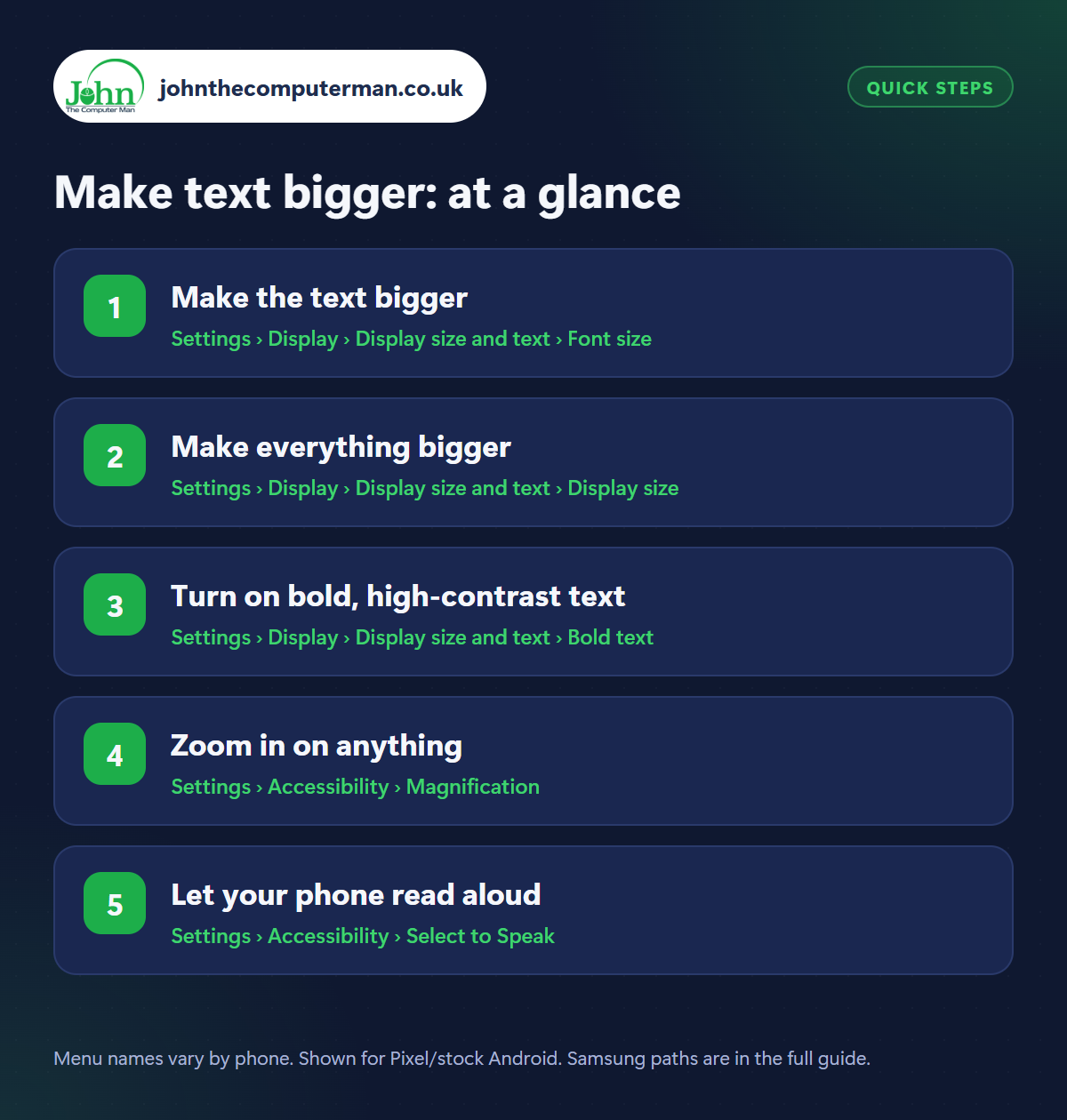
Step 1: Make the text bigger
Where: Settings › Display › Display size and text › Font size
Samsung: Settings › Display › Font size and style
Samsung: Settings › Display › Font size and style
Go to Settings › Display › Display size and text and drag the Font size slider to the right (Samsung: Settings › Display › Font size and style). A preview shows how it'll look. This makes text bigger in menus, messages and most apps. If some text gets cut off at the largest size, go down one step.
Step 2: Make everything bigger
Where: Settings › Display › Display size and text › Display size
Samsung: Settings › Display › Screen zoom
Samsung: Settings › Display › Screen zoom
Font size only changes text. Display size makes everything bigger: icons, buttons, and the gaps between them. Find it on the same screen (Samsung: Settings › Display › Screen zoom). It's great for anyone who finds buttons fiddly to tap. Try a combination of slightly bigger font and slightly bigger display size for the best balance.
Step 3: Turn on bold, high-contrast text
Where: Settings › Display › Display size and text › Bold text
Samsung: Settings › Display › Font size and style › Bold font
Samsung: Settings › Display › Font size and style › Bold font
On the same screen, switch on Bold text, which makes all text thicker and easier to read. High contrast text adds a subtle outline so words stand out against any background. On Samsung, turn on Bold font in Font size and style, and look for High contrast fonts under Settings › Accessibility › Vision enhancements.
Step 4: Zoom in on anything
Where: Settings › Accessibility › Magnification
Magnification lets you zoom into any part of the screen, including photos, maps and apps that don't respect your font size. Go to Settings › Accessibility › Magnification and turn on the Magnification shortcut. A small accessibility button appears. Tap it, then drag two fingers to move around and pinch to zoom. Tap it again to zoom back out.
Step 5: Let your phone read aloud
Where: Settings › Accessibility › Select to Speak
Select to Speak reads out loud whatever you tap. Turn it on in Settings › Accessibility › Select to Speak. A small button appears. Tap it, then tap or drag over any text to hear it read aloud. It even reads text in pictures. On Samsung, look for it under Settings › Accessibility › Installed apps, or install Android Accessibility Suite from the Play Store.
Pro tip
💡 Setting up a phone for an older relative? Samsung's Easy mode (Settings › Display › Easy mode) makes icons and text bigger and simplifies the home screen.
FAQ
Will bigger text break my apps?
Most apps adjust well. At the very largest sizes some text may be cut off. If so, go down a size or use Magnification instead.
Can I make just one app's text bigger?
Some apps (like Chrome and Kindle) have their own text size settings. Chrome's is in Settings › Accessibility › Text scaling.
How do I turn Magnification off?
Go back to Settings › Accessibility › Magnification and switch off the shortcut. The button disappears.
The bottom line
Start with Font size and Bold text, which fix most problems in a minute. Add Magnification for small print and Select to Speak for long messages, and your phone becomes much easier to use.