How to Move Everything to a New Android Phone (Step by Step)
A new phone should be exciting, not a weekend of re-downloading apps and hunting for lost photos.
Android can copy almost everything from your old phone to your new one during setup. There are just a few things (WhatsApp, authenticator apps and banking apps) that need a little extra care. Follow these steps in order and nothing gets left behind.
Before you start: Android menus vary a little between phone makers. The steps below use Google Pixel / standard Android names, with Samsung Galaxy differences noted. If you can't find a setting, tap the search bar at the top of Settings and type its name.
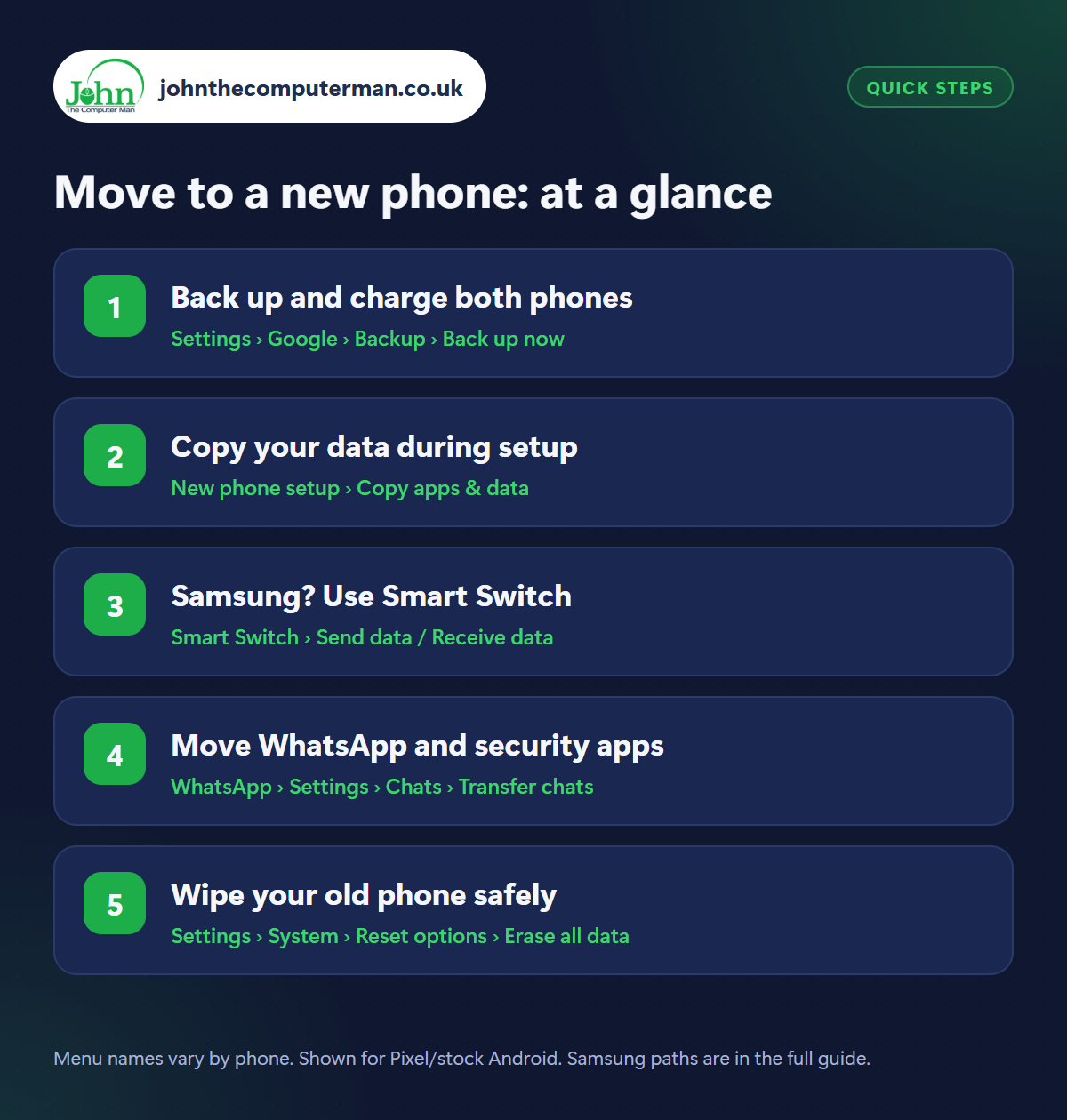
How to move to a new phone on Android
Step 1: Back up and charge both phones
Where: Settings › Google › Backup › Back up now
Before you touch the new phone, open Settings › Google › Backup on the old one and tap Back up now. Check Google Photos has finished backing up too (see how to back up your Android phone). Charge both phones to at least 50%, and have your Google account password to hand. You'll need it during setup.
Step 2: Copy your data during setup
Where: New phone setup › Copy apps & data
Turn on the new phone and follow the setup screens. When it offers to Copy apps & data, say yes and choose to copy from your old Android phone. You can connect the two with a USB-C cable (fastest, and copies the most) or wirelessly by scanning a QR code with the old phone. Choose what to bring across: apps, contacts, messages, photos, settings and call history. Leave both phones side by side until it finishes.
Step 3: Samsung? Use Smart Switch
Where: Smart Switch › Send data / Receive data
If your new phone is a Samsung Galaxy, setup will offer Smart Switch instead. It's also an app on the Play Store. Open it on both phones, choose Send data on the old one and Receive data on the new one, then connect by cable or wirelessly. Smart Switch copies extras like your home screen layout, Samsung Notes and many settings. It works from any Android phone (and from an iPhone) to a Galaxy.
Step 4: Move WhatsApp and security apps
Where: WhatsApp › Settings › Chats › Transfer chats
Some apps don't come across with your data. For WhatsApp, either restore from your Google backup when you set up WhatsApp with the same number, or use WhatsApp › Settings › Chats › Transfer chats with both phones side by side. For authenticator apps, sign into Google Authenticator with your Google account (it syncs your codes) or use the app's own transfer option. Banking apps usually need you to sign in and verify again.
Step 5: Wipe your old phone safely
Where: Settings › System › Reset options › Erase all data
Samsung: Settings › General management › Reset › Factory data reset
Samsung: Settings › General management › Reset › Factory data reset
When you're happy everything is on the new phone, take out your SIM and any memory card from the old one. Then factory reset it from Settings › System › Reset options › Erase all data (factory reset) (Samsung: Settings › General management › Reset › Factory data reset). This wipes everything and signs out of your accounts, so it's safe to sell, trade in or give away.
Pro tip
💡 Keep your old phone for a week before wiping it. If you find something missing, like a two-factor code or an old voice note, it's still there.
FAQ
Can I transfer from an iPhone to Android?
Yes. During setup choose to copy from an iPhone, or use Samsung Smart Switch on a Galaxy. Turn off iMessage on the iPhone first so you don't miss texts.
Will my text messages transfer?
Yes, if you choose Messages during the copy, or if they were in your Google backup. WhatsApp chats need moving separately.
Do I need to sign out of my Google account before resetting?
A factory reset from Settings signs you out and removes the phone from your account. Just don't reset it until you've signed in on the new phone.
The bottom line
Back up first, use a cable if you can, and deal with WhatsApp and authenticator apps before you wipe the old phone. Do that and your new phone will feel like home within an hour.