How to Pay with Your Android Phone Using Google Wallet
Paying with your phone is quick, and it's actually more secure than using your card. The shop never sees your real card number, and every payment needs your fingerprint, face or PIN.
On Android, it's done with Google Wallet (Samsung phones also have Samsung Wallet). Setup takes about five minutes. Here's how.
Before you start: Android menus vary a little between phone makers. The steps below use Google Pixel / standard Android names, with Samsung Galaxy differences noted. If you can't find a setting, tap the search bar at the top of Settings and type its name.
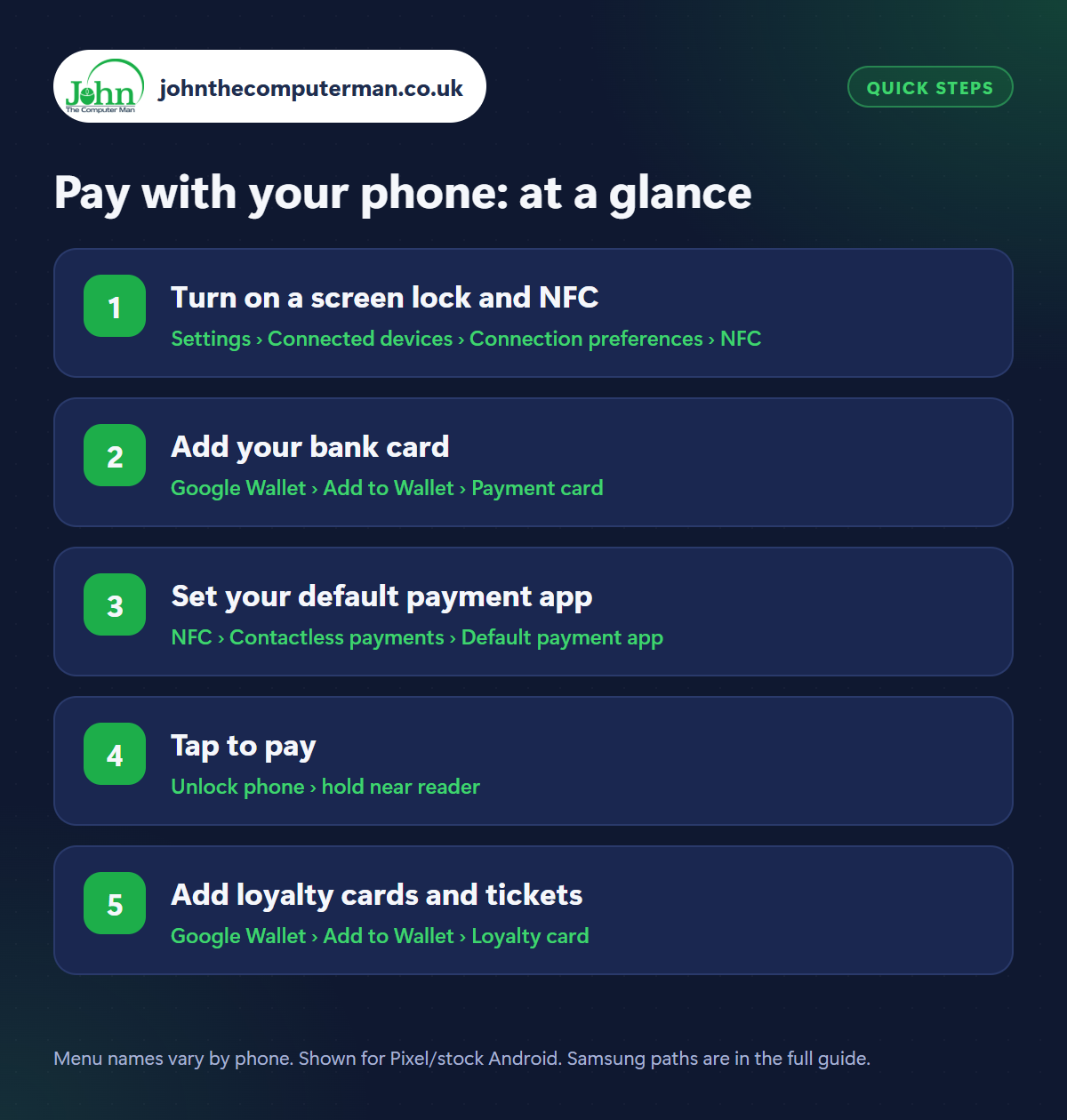
How to pay with your phone on Android
Step 1: Turn on a screen lock and NFC
Where: Settings › Connected devices › Connection preferences › NFC
Samsung: Settings › Connections › NFC and contactless payments
Samsung: Settings › Connections › NFC and contactless payments
Phone payments need two things. First, a screen lock (see our security settings guide). Second, NFC, the short-range radio used for contactless. Switch it on in Settings › Connected devices › Connection preferences › NFC (Samsung: Settings › Connections › NFC and contactless payments), or look for the NFC tile in Quick Settings.
Step 2: Add your bank card
Where: Google Wallet › Add to Wallet › Payment card
Open Google Wallet (install it from the Play Store if it isn't already on your phone). Tap Add to Wallet › Payment card and either scan your card with the camera or type the details. Your bank will ask you to verify it, usually with a text code or in your banking app. Some banking apps also have an ‘Add to Google Wallet’ button, which is even quicker.
Step 3: Set your default payment app
Where: NFC › Contactless payments › Default payment app
If you have more than one wallet app, tell Android which to use. Go to Settings › Connected devices › Connection preferences › NFC › Contactless payments and set Default payment app to Google Wallet (Samsung: Settings › Connections › NFC and contactless payments › Contactless payments). If you've added several cards, choose your default card in Google Wallet too.
Step 4: Tap to pay
Where: Unlock phone › hold near reader
At the till, unlock your phone (or wake it and use your fingerprint) and hold the back of the phone near the contactless reader for a second or two. You don't need to open the app. A tick and a small vibration mean it's done. If it doesn't work first time, move the phone slowly around the reader, as the NFC spot is usually near the camera.
Step 5: Add loyalty cards and tickets
Where: Google Wallet › Add to Wallet › Loyalty card
Google Wallet isn't just for payment cards. Tap Add to Wallet to add loyalty cards (scan the barcode), gift cards and transit cards. Many boarding passes, train tickets and event tickets have an Add to Google Wallet button in the airline or ticket app or email. They appear on your lock screen when you need them.
Pro tip
💡 Lost your phone? You can remove your cards and lock the phone remotely with Find Hub, and your bank card itself keeps working. See our lost phone guide.
FAQ
Is paying with my phone safe?
Yes. It's safer than a card: shops receive a one-off code instead of your real card number, and every payment needs your fingerprint, face or PIN.
Does it work without signal?
Yes, for most payments. Google Wallet stores a limited number of payment codes on your phone so you can pay without a connection.
Google Wallet or Samsung Wallet?
Both work well on Samsung phones. Samsung Wallet can also store Samsung-specific things like digital car keys. Pick one as your default.
The bottom line
Set up a screen lock, switch on NFC, add your card, and you can leave your wallet at home. Add your loyalty cards and tickets too, and everything is in one place.