How to Send Photos and Files with Quick Share on Android
Sending lots of photos or a big video by WhatsApp or email squashes the quality and eats your data. There's a much better way.
Quick Share (it used to be called Nearby Share) is built into Android. It sends files directly between phones, tablets and even Windows PCs at full quality, in seconds. Here's how to use it.
Before you start: Android menus vary a little between phone makers. The steps below use Google Pixel / standard Android names, with Samsung Galaxy differences noted. If you can't find a setting, tap the search bar at the top of Settings and type its name.
How to share files with Quick Share on Android
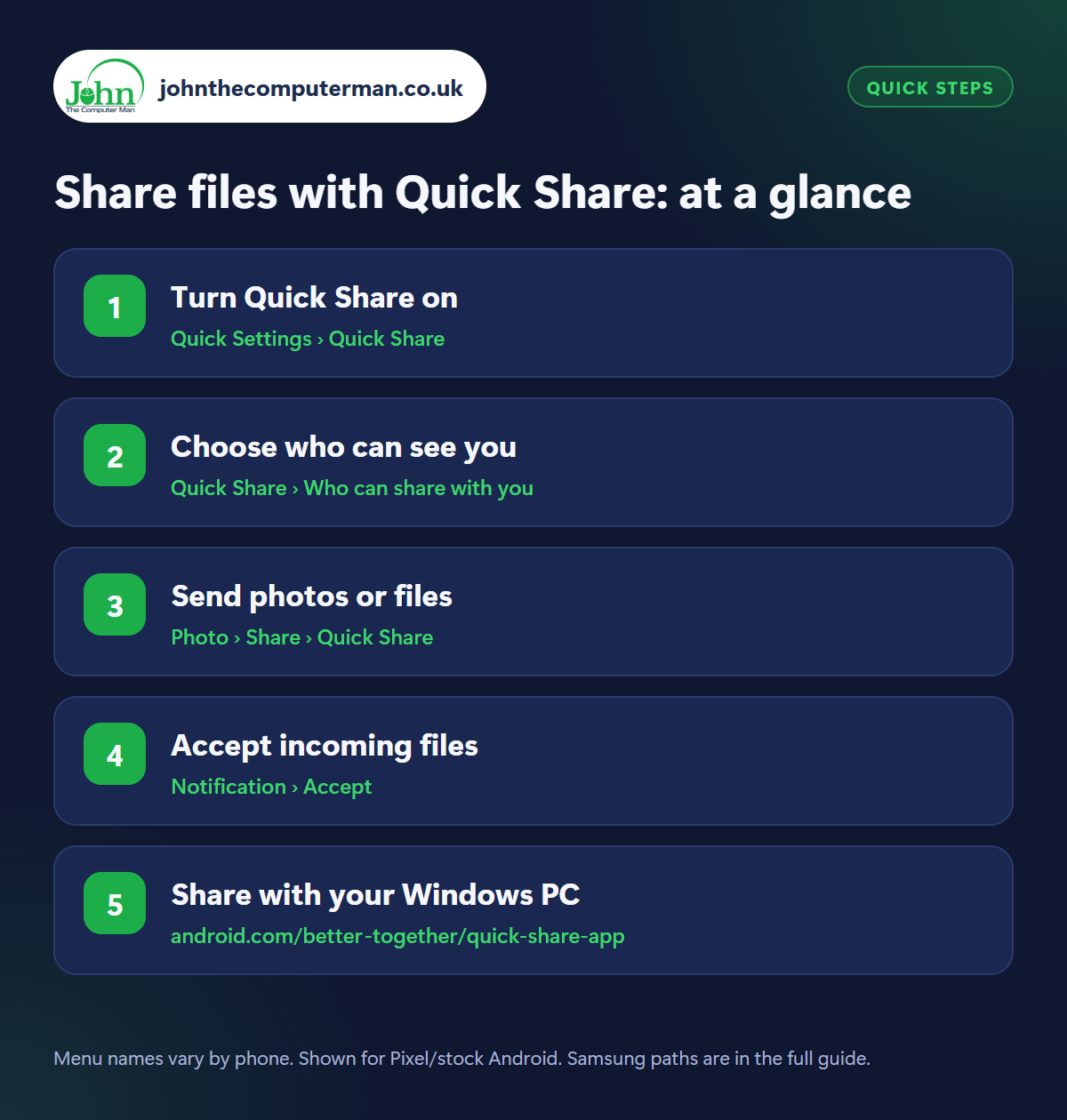
Step 1: Turn Quick Share on
Where: Quick Settings › Quick Share
Samsung: Quick panel › Quick Share
Samsung: Quick panel › Quick Share
Swipe down from the top of the screen twice to open Quick Settings and look for the Quick Share tile. If it isn't there, tap the pencil/edit icon and drag it in. You can also find it in Settings › Connected devices › Connection preferences › Quick Share (or search Settings for ‘Quick Share’). Bluetooth, Wi-Fi and Location need to be switched on for it to find nearby devices.
Step 2: Choose who can see you
Where: Quick Share › Who can share with you
Tap and hold the Quick Share tile to choose who can share with you. Your devices is for sending between your own phone and tablet. Contacts only is the best everyday setting. Everyone is handy when you're with someone who isn't in your contacts. Choose for 10 minutes so you don't stay visible to strangers.
Step 3: Send photos or files
Where: Photo › Share › Quick Share
Open your gallery or files app and select what you want to send. You can pick lots of photos at once. Tap Share, then Quick Share, and wait for the other person's phone to appear. Tap it to send. The other phone needs to be unlocked with its screen on and within a few metres. Files are sent at full quality and don't use mobile data.
Step 4: Accept incoming files
Where: Notification › Accept
When someone sends you something, a pop-up shows who it's from and what it is. Tap Accept to receive it or Decline if you weren't expecting it. Never accept files from people you don't know. Received photos appear in your gallery, and other files go to your Downloads folder (open Files › Downloads).
Step 5: Share with your Windows PC
Where: android.com/better-together/quick-share-app
Quick Share isn't just for phones. Install the free Quick Share app for Windows from android.com/better-together/quick-share-app, sign in with your Google account and your PC appears in the share list like any other device. Drag files onto the Quick Share window on your PC to send them to your phone. It's the easiest way to get photos onto your computer without a cable.
Pro tip
💡 Share your Wi-Fi without saying the password: open the Wi-Fi network's settings and tap Share. A friend can scan the QR code to join.
FAQ
Does Quick Share use my mobile data?
No. It connects phones directly using Bluetooth and Wi-Fi, so you can send huge videos without using any data.
Is Quick Share the same as Nearby Share?
Yes. Google's Nearby Share and Samsung's Quick Share were merged into one feature called Quick Share, so any Android phone can share with any other.
Why can't I see the other phone?
Make sure both phones are unlocked, close together, and have Bluetooth, Wi-Fi and Location on. Check the other person's visibility setting too.
The bottom line
Quick Share is the fastest way to share photos at full quality. Set it to Contacts only, use ‘Everyone for 10 minutes’ when you need it, and install the Windows app to ditch the USB cable for good.