How to Stop Spam Calls and Scam Texts on Android
“Your parcel is waiting.” “We've tried to reach you about your car accident.” “Mum, I've got a new number.” Spam calls and scam texts are annoying at best and expensive at worst.
You don't need a paid blocking app. Android's own Phone and Messages apps can identify spam, send it straight to a spam folder and block numbers for good. Here's how to switch it all on.
Before you start: Android menus vary a little between phone makers. The steps below use Google Pixel / standard Android names, with Samsung Galaxy differences noted. If you can't find a setting, tap the search bar at the top of Settings and type its name.
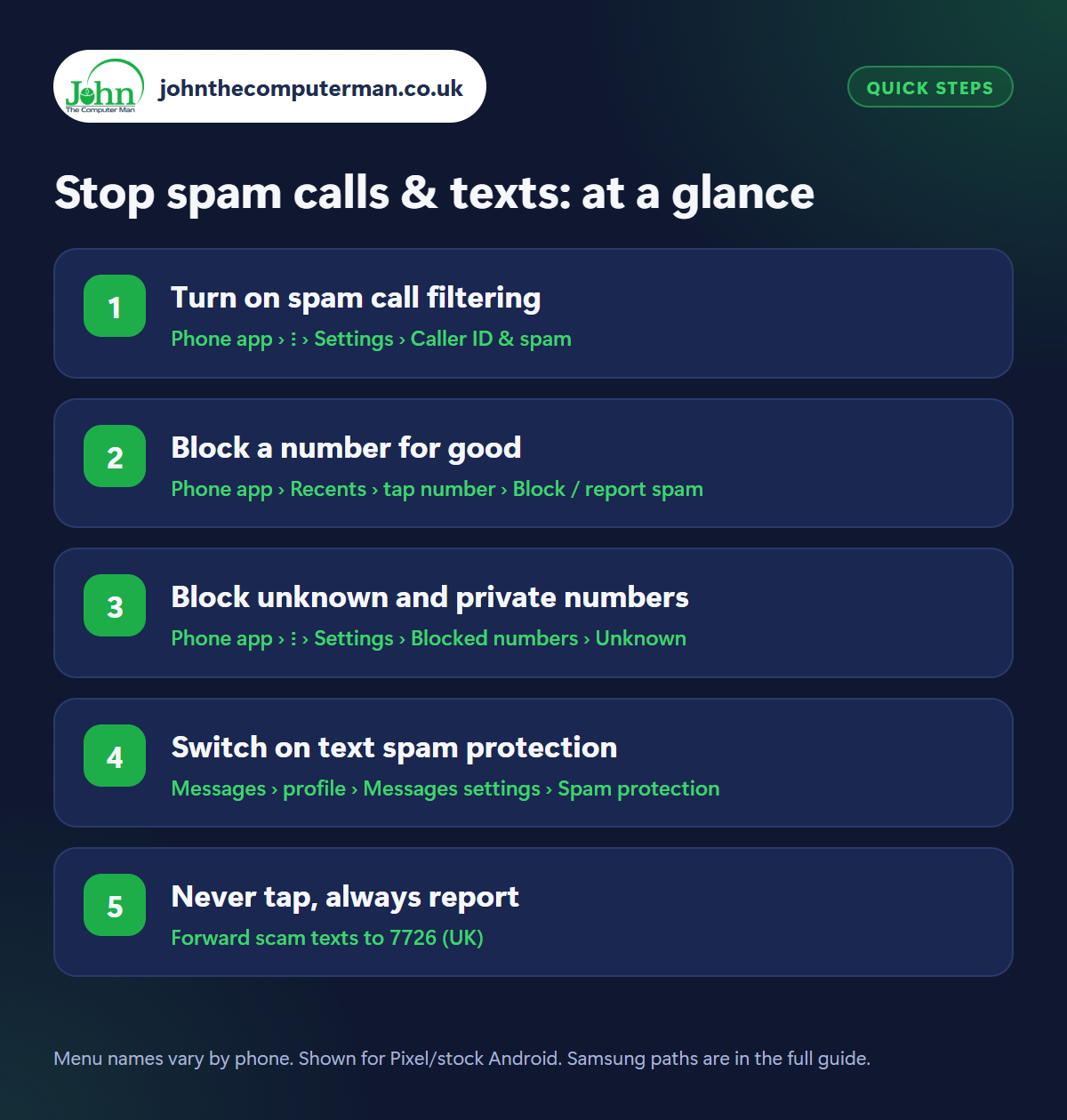
How to stop spam calls & texts on Android
Step 1: Turn on spam call filtering
Where: Phone app › ⋮ › Settings › Caller ID & spam
Samsung: Phone app › ⋮ › Settings › Caller ID and spam protection
Samsung: Phone app › ⋮ › Settings › Caller ID and spam protection
Open the Phone app, tap the three dots › Settings › Caller ID & spam and switch on See caller and spam ID and Filter spam calls. Suspected spam calls then go straight to your call history without ringing. On Samsung, open Phone › ⋮ › Settings › Caller ID and spam protection, switch it on and choose to block high-risk spam calls.
Step 2: Block a number for good
Where: Phone app › Recents › tap number › Block / report spam
When a spam call gets through, open Phone › Recents, tap the number and choose Block / report spam (on Samsung, tap the number, then the info icon and Block). Tick Report call as spam so the number is flagged for other people too. Blocked callers go straight to voicemail and their texts are blocked as well.
Step 3: Block unknown and private numbers
Where: Phone app › ⋮ › Settings › Blocked numbers › Unknown
Samsung: Phone app › ⋮ › Settings › Block numbers
Samsung: Phone app › ⋮ › Settings › Block numbers
Scammers often hide their caller ID. In the Phone app, go to ⋮ › Settings › Blocked numbers and switch on Unknown to block calls from private or unidentified numbers (Samsung: Block numbers › Block calls from unknown numbers). Only do this if you don't get legitimate calls from withheld numbers. Some doctors' surgeries and hospitals call that way.
Step 4: Switch on text spam protection
Where: Messages › profile › Messages settings › Spam protection
Samsung: Messages › ⋮ › Settings › Block numbers and spam
Samsung: Messages › ⋮ › Settings › Block numbers and spam
In Google Messages, tap your profile picture › Messages settings › Spam protection and make sure Enable spam protection is on. Suspicious texts are moved into a spam folder and scam warnings appear on risky messages. In Samsung Messages, go to ⋮ › Settings › Block numbers and spam. To block a sender, long-press the conversation and tap Block, ticking Report spam.
Step 5: Never tap, always report
Where: Forward scam texts to 7726 (UK)
The golden rule: never tap a link, reply or call back a number from an unexpected text, even to say STOP. That just confirms your number is live. If you're in the UK, forward scam texts free to 7726 (it spells SPAM on a keypad) so your network can block the sender, then delete the message. If a text claims to be your bank, call the number on the back of your card instead.
Pro tip
💡 Got a “Hi Mum, new number” text? Call your child on their old number before doing anything. It's one of the most common scams around.
FAQ
Why do I still get some spam calls?
Spammers constantly change numbers, so no filter catches everything. Blocking and reporting the ones that get through helps improve the filters for everyone.
Will blocking unknown numbers block my contacts?
No. It only blocks calls with no caller ID. Contacts and normal numbers still ring as usual.
Do I need a spam-blocking app?
Most people don't. Android's built-in protection is free, and some third-party blockers ask for access to your contacts and call logs.
The bottom line
Two switches (spam call filtering and text spam protection) stop most of it. Block and report the rest, and never tap a link in a text you weren't expecting.