How to Use Circle to Search and Google Lens on Android
Seen a jacket in a video, a plant in a photo, or a menu in another language? Instead of trying to describe it in a search box, you can just draw a circle around it.
Circle to Search is available on most recent Samsung Galaxy and Google Pixel phones and many others. Google Lens does the same with your camera, and it works on any Android phone. Here's how to get the most from both.
Before you start: Android menus vary a little between phone makers. The steps below use Google Pixel / standard Android names, with Samsung Galaxy differences noted. If you can't find a setting, tap the search bar at the top of Settings and type its name.
How to circle to Search & Lens on Android
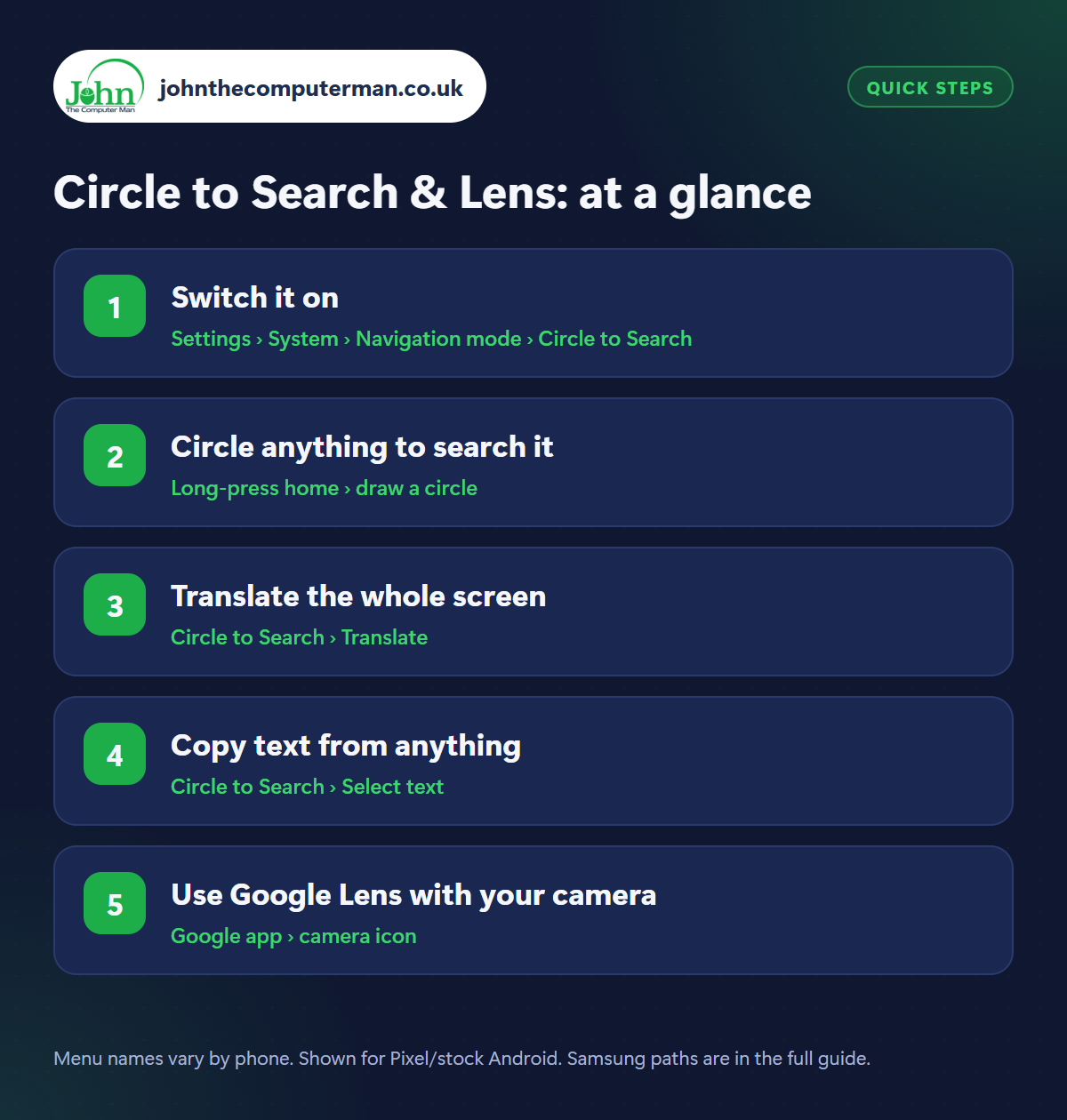
Step 1: Switch it on
Where: Settings › System › Navigation mode › Circle to Search
Samsung: Settings › Display › Navigation bar › Circle to Search
Samsung: Settings › Display › Navigation bar › Circle to Search
Long-press the home button or the navigation handle (the thin bar at the bottom of the screen). If Circle to Search opens, you're ready. If not, check it's switched on in Settings › System › Navigation mode (Samsung: Settings › Display › Navigation bar). If your phone doesn't have Circle to Search, use Google Lens instead (step 5), which works on any Android phone.
Step 2: Circle anything to search it
Where: Long-press home › draw a circle
With Circle to Search open, draw a circle around anything on screen, whether it's a pair of trainers in a video, a building in a photo or an unfamiliar word. You can also scribble, highlight or just tap it. Results slide up from the bottom: where to buy it, what it is, or what the word means. Add words in the search box to refine it, like ‘in blue’ or ‘near me’.
Step 3: Translate the whole screen
Where: Circle to Search › Translate
Open Circle to Search and tap the Translate icon. Everything on your screen is translated into your language right where it is, keeping the layout. It's brilliant for foreign websites, social media posts and messages in other languages. Tap the language at the top to change it.
Step 4: Copy text from anything
Where: Circle to Search › Select text
Need a phone number from a photo, or text from a screenshot? Open Circle to Search, circle the text, then tap Select text (or Copy). You can copy it, search it, or tap a phone number to call it. It works on text inside images and videos too, which normally can't be copied.
Step 5: Use Google Lens with your camera
Where: Google app › camera icon
Google Lens does the same for the real world. Open the Google app (or the Google search bar on your home screen) and tap the camera icon. Many phones also have a Lens button in the camera app. Point it at a plant, a dog, a landmark, a product or a sign in another language. Lens can identify it, find it online, translate it or solve a maths problem step by step.
Pro tip
💡 Hear a song and don't know what it is? Open Circle to Search and tap the music note button to identify it.
FAQ
Which phones have Circle to Search?
Most recent Samsung Galaxy and Google Pixel phones, plus many newer phones from other brands. Google Lens works on any Android phone with the Google app.
Is Circle to Search free?
Yes. It's built into supported phones and doesn't need a subscription.
Does Circle to Search work in every app?
It works over almost anything on screen. Some banking and streaming apps block it, just as they block screenshots.
The bottom line
Once you get used to long-pressing the home bar, you'll use Circle to Search every day to identify things, translate pages and copy text you couldn't before.