How to Use Google Maps Offline on Android (No Signal Needed)
Losing signal halfway through a journey, or landing abroad without a data plan, is exactly when you need a map the most.
Google Maps lets you download whole areas (a city, a county, even a small country) to your phone for free. You can then search for places and get driving directions with no signal at all. Here's how.
Before you start: Android menus vary a little between phone makers. The steps below use Google Pixel / standard Android names, with Samsung Galaxy differences noted. If you can't find a setting, tap the search bar at the top of Settings and type its name.
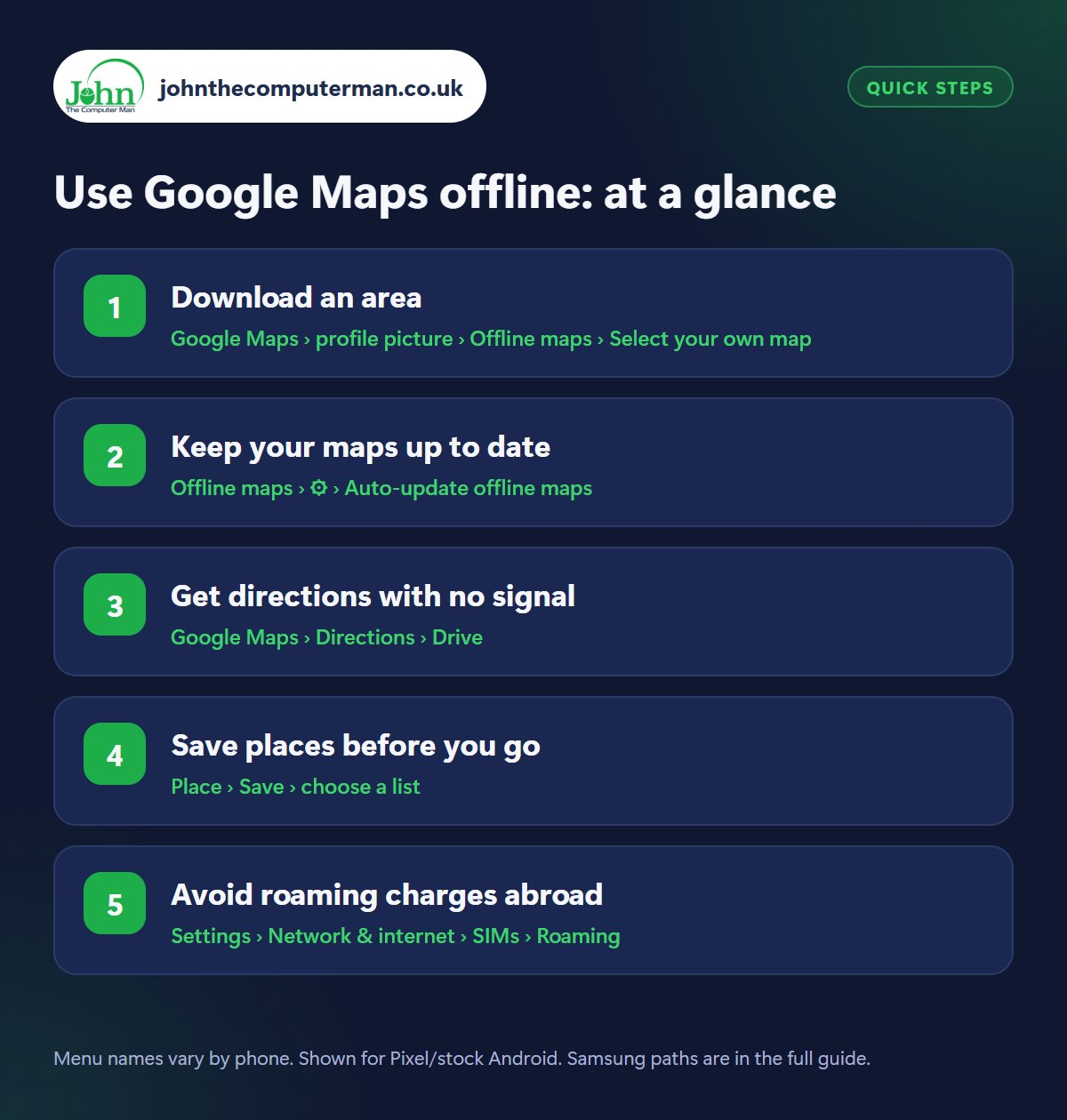
How to use Google Maps offline on Android
Step 1: Download an area
Where: Google Maps › profile picture › Offline maps › Select your own map
Open Google Maps, tap your profile picture › Offline maps › Select your own map. Pinch and drag so the blue box covers the area you need. Maps shows how much storage it'll use at the bottom. Tap Download. Do this on Wi-Fi before you travel, as larger areas can be several hundred megabytes.
Step 2: Keep your maps up to date
Where: Offline maps › ⚙ › Auto-update offline maps
Offline maps go out of date and eventually expire if they're never refreshed. Tap the gear icon on the Offline maps screen and switch on Auto-update offline maps. Set downloads to Over Wi-Fi only so updates never use your mobile data. You can also rename maps here (‘Cornwall holiday’) and delete old ones to free up space.
Step 3: Get directions with no signal
Where: Google Maps › Directions › Drive
With an offline map downloaded, Google Maps works as normal for driving directions and searching places in that area, even with no signal or in airplane mode. There are a few limits. Walking, cycling and public transport directions and live traffic need a connection, and routes can't go outside the downloaded area. Download a slightly bigger area than you think you'll need.
Step 4: Save places before you go
Where: Place › Save › choose a list
Before a trip, search for your hotel, restaurants and places you want to visit, then tap Save and add them to a list (like Want to go, or make a new one called ‘Paris trip’). Saved places show as icons on the map, so you can find them and navigate to them offline. Find your lists under the You tab.
Step 5: Avoid roaming charges abroad
Where: Settings › Network & internet › SIMs › Roaming
GPS doesn't need mobile data. Your phone can show where you are on an offline map anywhere in the world for free. If you don't have an EU or travel data plan, switch off Roaming in Settings › Network & internet › SIMs (Samsung: Settings › Connections › Mobile networks › Data roaming) and rely on your offline maps and Wi-Fi to avoid a surprise bill.
Pro tip
💡 Parked somewhere unfamiliar? Tap the blue dot in Google Maps and choose ‘Save parking’ to find your car again later.
FAQ
How long do offline maps last?
They stay usable for about a year. With auto-update on, they're refreshed automatically whenever you're on Wi-Fi, so they never expire.
Can I download a whole country?
Small countries, yes. For bigger ones, download several areas (the regions you'll actually visit) to save space.
Does offline navigation use battery?
Navigation uses GPS and the screen, so it does use battery on long drives. Keep a car charger handy.
The bottom line
Download the area before you leave home, turn on auto-update, and save the places you want to visit. You'll never be stranded without a map again.