How to Use Your Android Phone as a Wi-Fi Hotspot
Train Wi-Fi not working? Broadband down at home? Working from a café with no internet? Your phone can share its mobile data with your laptop or tablet in seconds.
It's called a mobile hotspot (or tethering), and it's built into every Android phone. Here's how to set it up safely and without blowing through your data allowance.
Before you start: Android menus vary a little between phone makers. The steps below use Google Pixel / standard Android names, with Samsung Galaxy differences noted. If you can't find a setting, tap the search bar at the top of Settings and type its name.
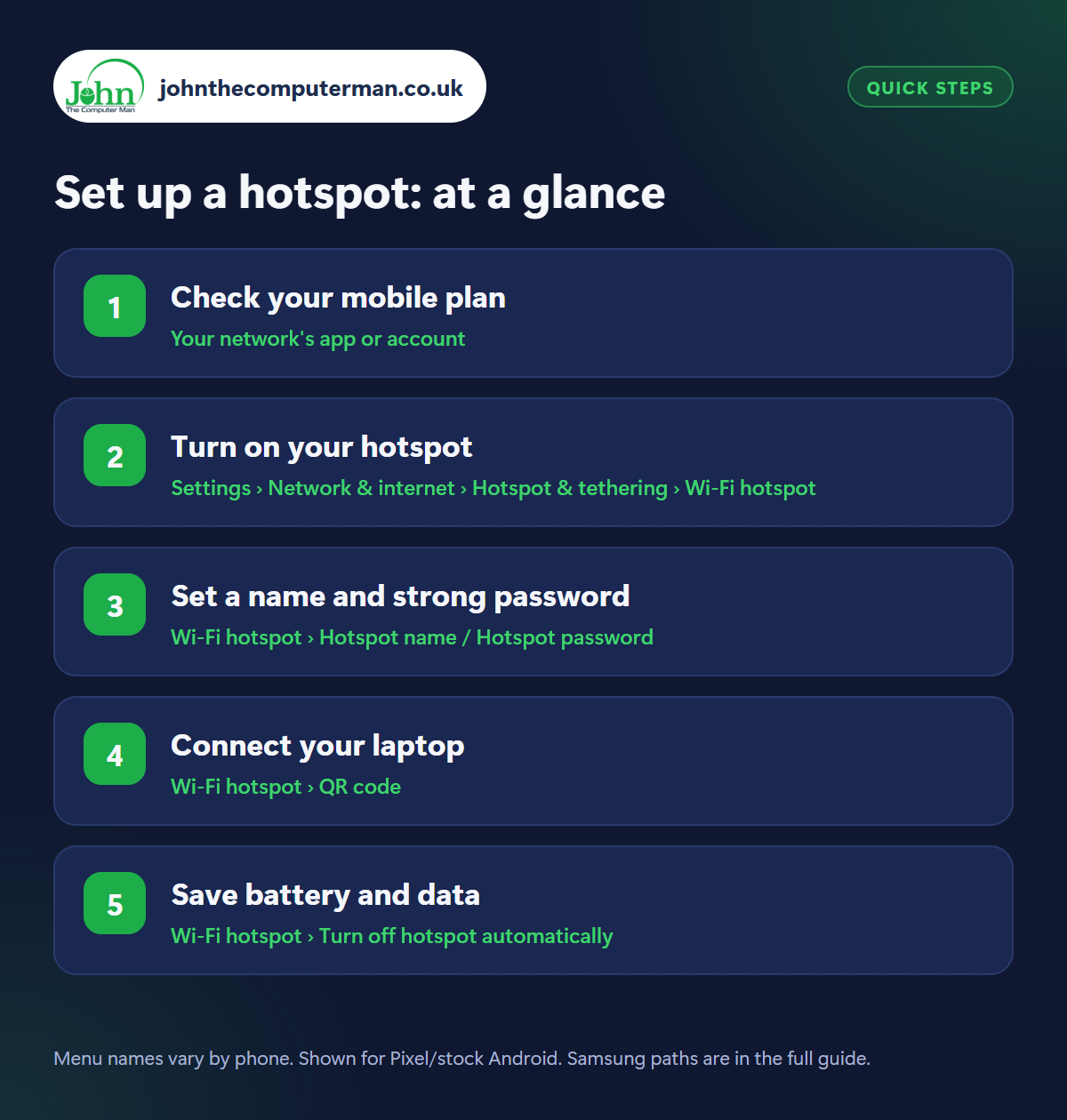
How to set up a hotspot on Android
Step 1: Check your mobile plan
Where: Your network's app or account
Most UK mobile plans let you use your data as a hotspot, but some limit how much or don't allow it, especially ‘unlimited’ plans. Check your network's app or website first. Remember that laptops use far more data than phones: they download updates, sync files and load full-size websites.
Step 2: Turn on your hotspot
Where: Settings › Network & internet › Hotspot & tethering › Wi-Fi hotspot
Samsung: Settings › Connections › Mobile Hotspot and Tethering
Samsung: Settings › Connections › Mobile Hotspot and Tethering
The quickest way is the Hotspot tile in Quick Settings (swipe down twice). For the full settings, go to Settings › Network & internet › Hotspot & tethering › Wi-Fi hotspot (Samsung: Settings › Connections › Mobile Hotspot and Tethering › Mobile Hotspot) and switch it on. Your phone now appears as a Wi-Fi network for other devices.
Step 3: Set a name and strong password
Where: Wi-Fi hotspot › Hotspot name / Hotspot password
On the hotspot settings screen, change the Hotspot name to something you'll recognise (avoid using your full name) and set a strong Hotspot password of at least 12 characters. Make sure Security is set to WPA2 or WPA3, never ‘None’. Otherwise anyone nearby could use your data.
Step 4: Connect your laptop
Where: Wi-Fi hotspot › QR code
On your laptop, open the Wi-Fi list, pick your phone's hotspot name and type the password. For a tablet or another phone, tap the QR code on your hotspot screen and scan it with their camera to join instantly. No Wi-Fi on the laptop? Plug your phone in with a USB cable and turn on USB tethering on the same settings screen.
Step 5: Save battery and data
Where: Wi-Fi hotspot › Turn off hotspot automatically
Hotspot drains your battery quickly, so keep your phone plugged in if you can. Turn on Turn off hotspot automatically so it switches off when nothing is connected. On a Windows laptop, set the connection to metered (Settings › Network & internet › Wi-Fi › [network] › Metered connection) to stop big updates using your mobile data.
Pro tip
💡 Set a mobile data warning before you start (Settings › Network & internet › SIMs › Data warning & limit) so you're alerted before you hit your allowance.
FAQ
How much data does a laptop use on a hotspot?
Browsing and email use a little; video calls use roughly 1–2 GB an hour, and HD streaming even more. Set a data warning to keep track.
Is a phone hotspot safe to use?
Yes, with a strong password and WPA2/WPA3 security it's often safer than public café or hotel Wi-Fi.
Why is my hotspot slow?
Hotspot speed depends on your mobile signal. Move near a window, and connect fewer devices at once.
The bottom line
A phone hotspot is a brilliant backup internet connection. Set a strong password, connect by QR code, and keep an eye on your data, and you can work from almost anywhere.