How to Copy and Paste Photo Edits on iPhone

You took forty photos at the same dull, grey event, and every one needs brightening.
Edit one photo until it looks right, copy those edits, and paste them onto all the others in one go.
What does Copy photo edits do?
Copy Edits takes the adjustments you made to one photo, such as brightness, contrast, warmth and filters, and applies them to any others. It works on a single photo or a whole selection, and you can always revert.
Takes: 1 minute · Works on: iOS 16 or later · Cost: free, built into your iPhone
Where to find it
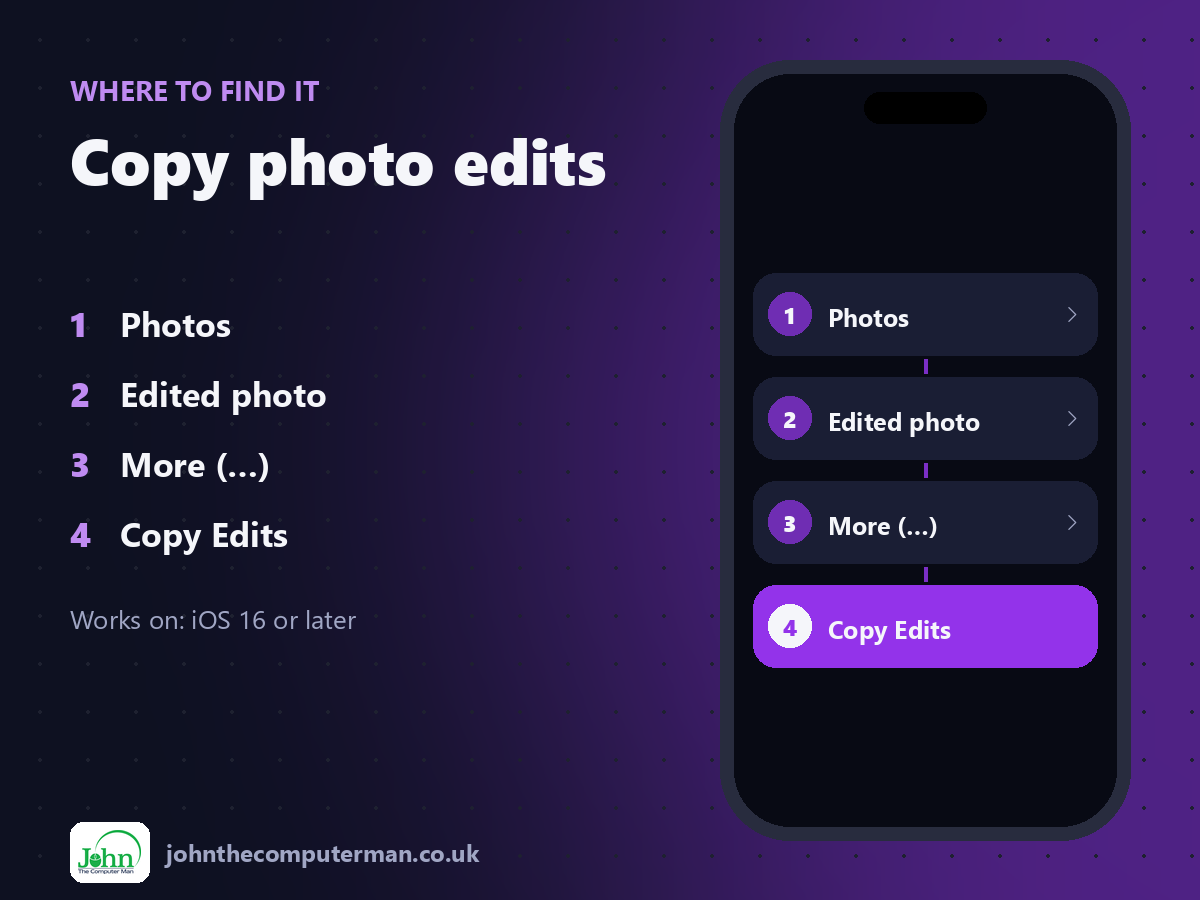
Photos > Edited photo > More (…) > Copy Edits
Copy photo edits: step by step
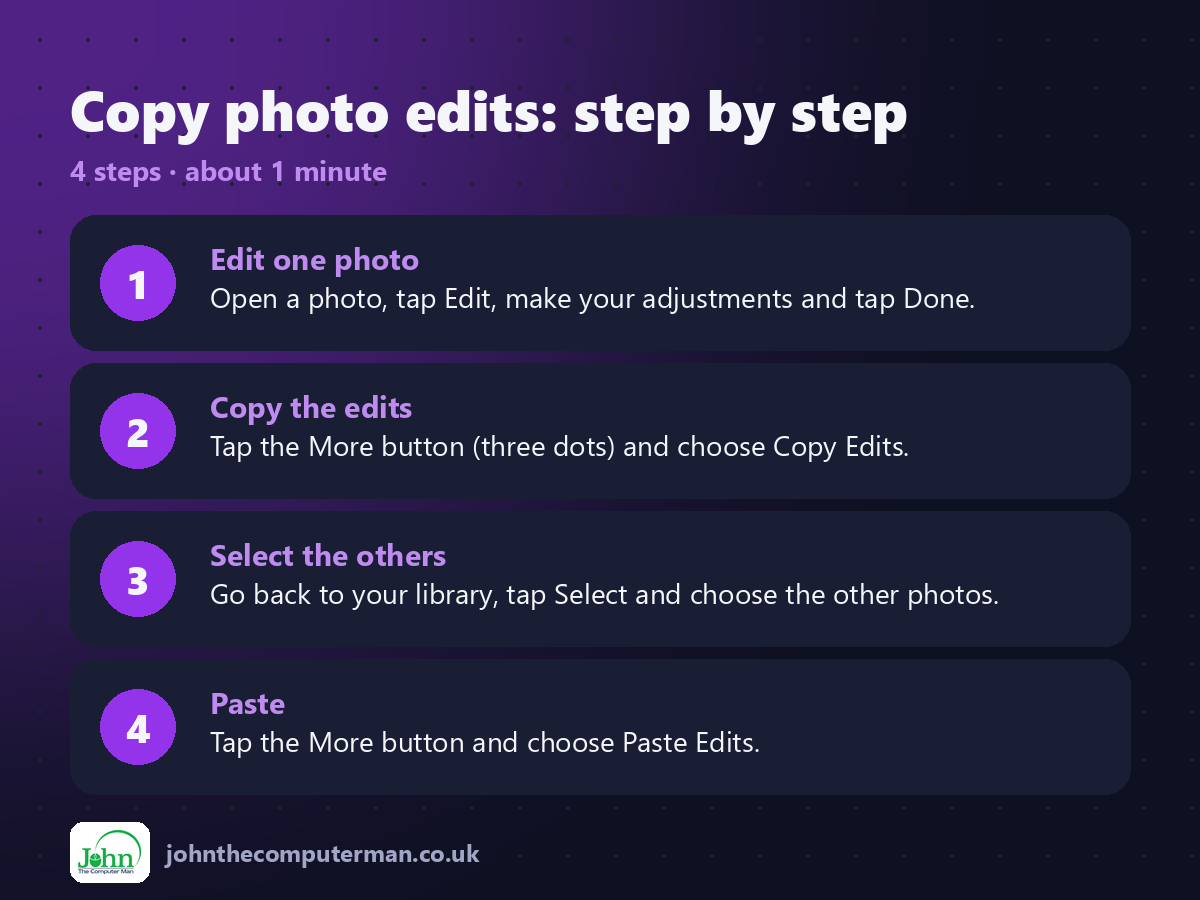
1. Edit one photo. Open a photo, tap Edit, make your adjustments and tap Done.
2. Copy the edits. Tap the More button (three dots) and choose Copy Edits.
3. Select the others. Go back to your library, tap Select and choose the other photos.
4. Paste. Tap the More button and choose Paste Edits.
2. Copy the edits. Tap the More button (three dots) and choose Copy Edits.
3. Select the others. Go back to your library, tap Select and choose the other photos.
4. Paste. Tap the More button and choose Paste Edits.
Pro tip
💡 Not sure? Touch and hold an edited photo and choose Revert to Original. Your edits never destroy the original.
More tips
• It works best on photos taken in the same place and light.
• Your iPhone adjusts the pasted edits slightly to suit each photo.
• Crops aren't always copied, as they depend on the photo.
• Use Auto (the magic wand) first for a quick starting point.
• Your iPhone adjusts the pasted edits slightly to suit each photo.
• Crops aren't always copied, as they depend on the photo.
• Use Auto (the magic wand) first for a quick starting point.
FAQ
Can I undo pasted edits?
Yes. Select the photos, tap More and choose Revert to Original.
Does it work on videos?
Yes, colour and light adjustments can be pasted onto videos too.