How to Customise Control Centre on iPhone
Control Centre is the panel you get when you swipe down from the top-right corner. Out of the box, half of it is things you never use.
You can change that. Add the torch, a QR scanner, screen recording, Shazam and more, and get rid of the rest.
What does Customise Control Centre do?
Control Centre gives you quick access to settings and shortcuts from anywhere, even the Lock Screen. On iOS 18 and later you can edit it right there: add controls from a gallery, resize them, drag them around and spread them over several pages.
Takes: 2 minutes · Works on: iOS 18 or later (Settings > Control Centre on older versions) · Cost: free, built into your iPhone
Where to find it
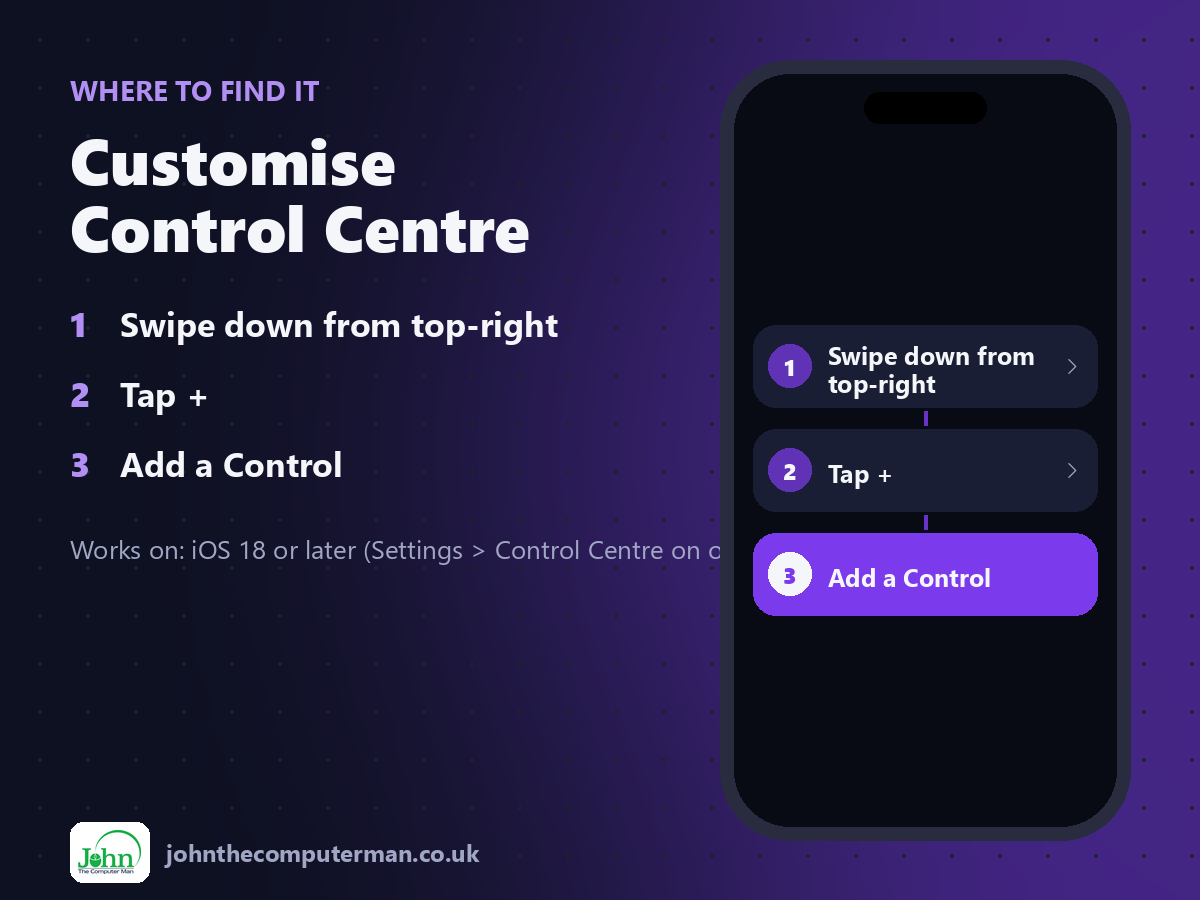
Swipe down from top-right > Tap + > Add a Control
Customise Control Centre: step by step
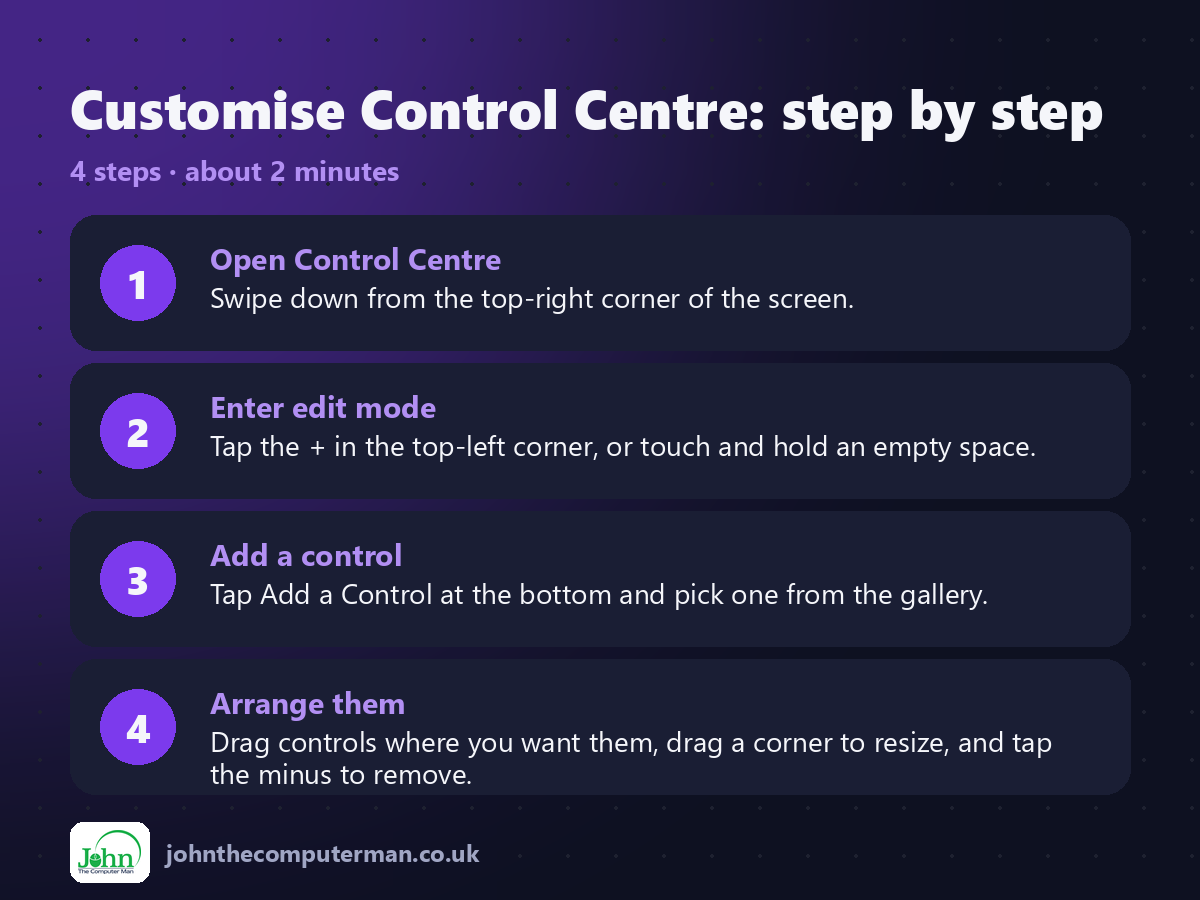
1. Open Control Centre. Swipe down from the top-right corner of the screen.
2. Enter edit mode. Tap the + in the top-left corner, or touch and hold an empty space.
3. Add a control. Tap Add a Control at the bottom and pick one from the gallery.
4. Arrange them. Drag controls where you want them, drag a corner to resize, and tap the minus to remove.
2. Enter edit mode. Tap the + in the top-left corner, or touch and hold an empty space.
3. Add a control. Tap Add a Control at the bottom and pick one from the gallery.
4. Arrange them. Drag controls where you want them, drag a corner to resize, and tap the minus to remove.
Pro tip
💡 Worth adding: Screen Recording, Code Scanner, Text Size, Hearing and Low Power Mode.
More tips
• On iOS 17 and earlier, go to Settings > Control Centre to add and remove controls.
• Swipe up and down in Control Centre to move between pages.
• Touch and hold a control to see more options, like torch brightness.
• You can also swap the two Lock Screen buttons (torch and camera) for other controls.
• Swipe up and down in Control Centre to move between pages.
• Touch and hold a control to see more options, like torch brightness.
• You can also swap the two Lock Screen buttons (torch and camera) for other controls.
FAQ
How do I reset Control Centre?
Go to Settings > Control Centre and tap Reset Control Centre.
Can I use it on the Lock Screen?
Yes, unless you turn it off in Settings > Face ID & Passcode under Allow Access When Locked.