How to Customise Your iPhone Lock Screen
You look at your Lock Screen dozens of times a day. It might as well show you something useful, and something you like.
You can change the wallpaper, restyle the clock, add widgets like the weather or your next appointment, and keep several Lock Screens to switch between.
What does Customise the Lock Screen do?
The Lock Screen editor lets you create different Lock Screens, each with its own wallpaper, clock font and colour, and widgets. You can link a Lock Screen to a Focus, so your phone looks different at work and at home.
Takes: 3 minutes · Works on: iOS 16 or later · Cost: free, built into your iPhone
Where to find it
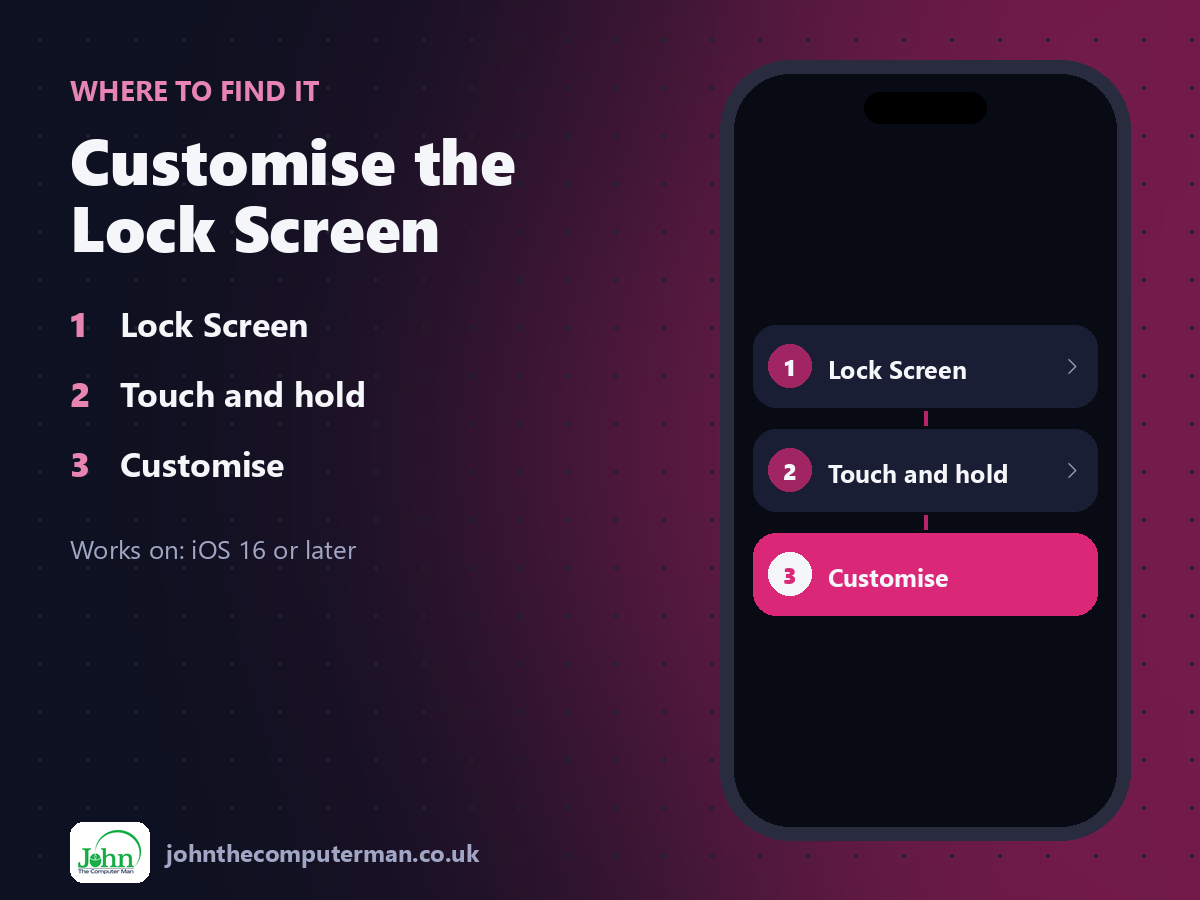
Lock Screen > Touch and hold > Customise
Customise the Lock Screen: step by step
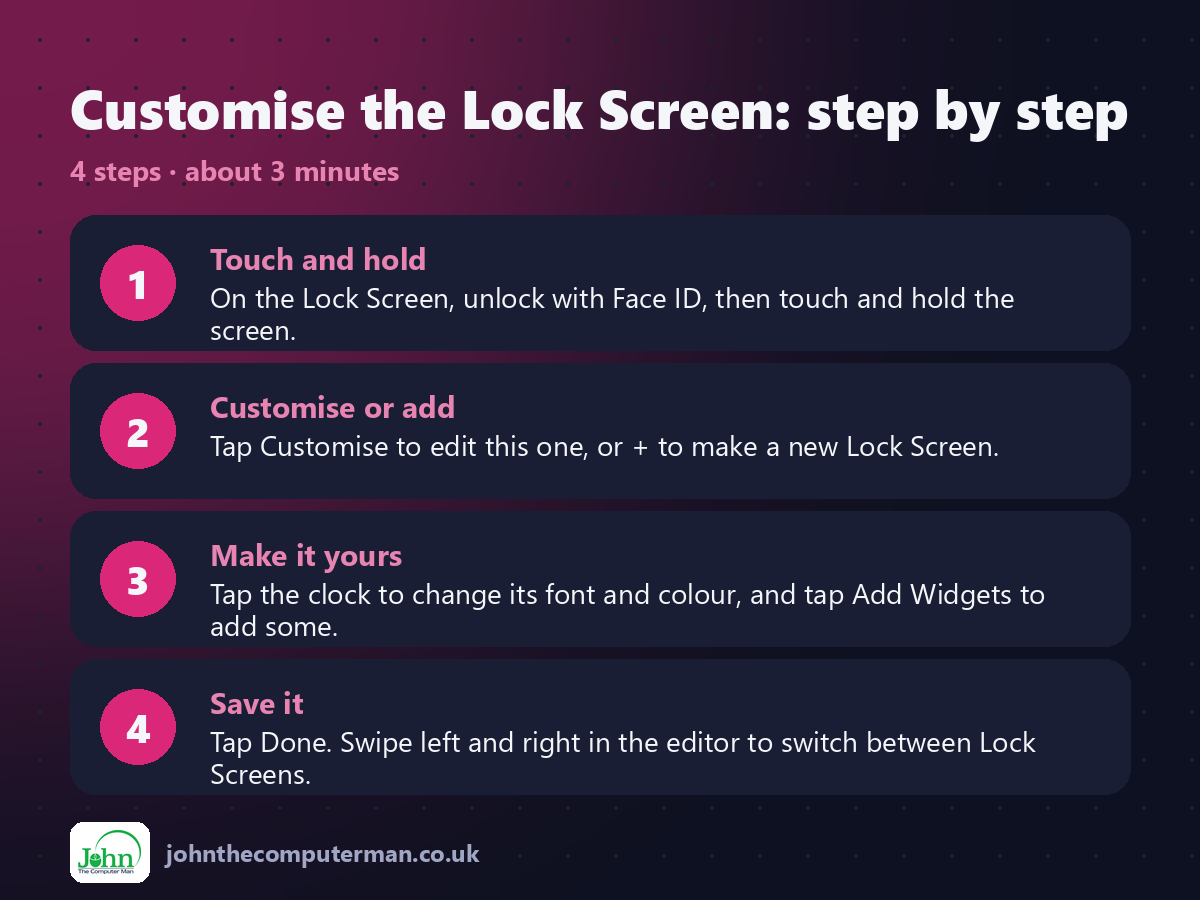
1. Touch and hold. On the Lock Screen, unlock with Face ID, then touch and hold the screen.
2. Customise or add. Tap Customise to edit this one, or + to make a new Lock Screen.
3. Make it yours. Tap the clock to change its font and colour, and tap Add Widgets to add some.
4. Save it. Tap Done. Swipe left and right in the editor to switch between Lock Screens.
2. Customise or add. Tap Customise to edit this one, or + to make a new Lock Screen.
3. Make it yours. Tap the clock to change its font and colour, and tap Add Widgets to add some.
4. Save it. Tap Done. Swipe left and right in the editor to switch between Lock Screens.
Pro tip
💡 Choose Photo Shuffle as the wallpaper and your iPhone picks a different favourite photo throughout the day.
More tips
• Add the Battery widget to see your AirPods and iPhone charge at a glance.
• To delete a Lock Screen, swipe up on it in the editor and tap the bin.
• Link a Lock Screen to a Focus with the Focus button in the editor.
• Portrait photos can overlap the clock for a depth effect.
• To delete a Lock Screen, swipe up on it in the editor and tap the bin.
• Link a Lock Screen to a Focus with the Focus button in the editor.
• Portrait photos can overlap the clock for a depth effect.
FAQ
Why can't I edit my Lock Screen?
Your iPhone must be unlocked first. Look at it to unlock with Face ID, then touch and hold.
Do widgets drain the battery?
Very little. They update occasionally rather than constantly.