How to Download Offline Maps on iPhone in Apple Maps
Countryside with one bar of signal. A festival where the network gives up. Abroad with expensive data. That's exactly when you need a map.
Apple Maps can download whole areas to your iPhone, so search and turn-by-turn directions keep working offline.
What does Offline maps do?
Offline maps download an area you choose, so Apple Maps works without an internet connection. You can search for places, see opening hours and get driving, walking, cycling and public transport directions. Downloads update automatically when you're on Wi-Fi.
Takes: 2 minutes · Works on: iOS 17 or later · Cost: free, built into your iPhone
Where to find it
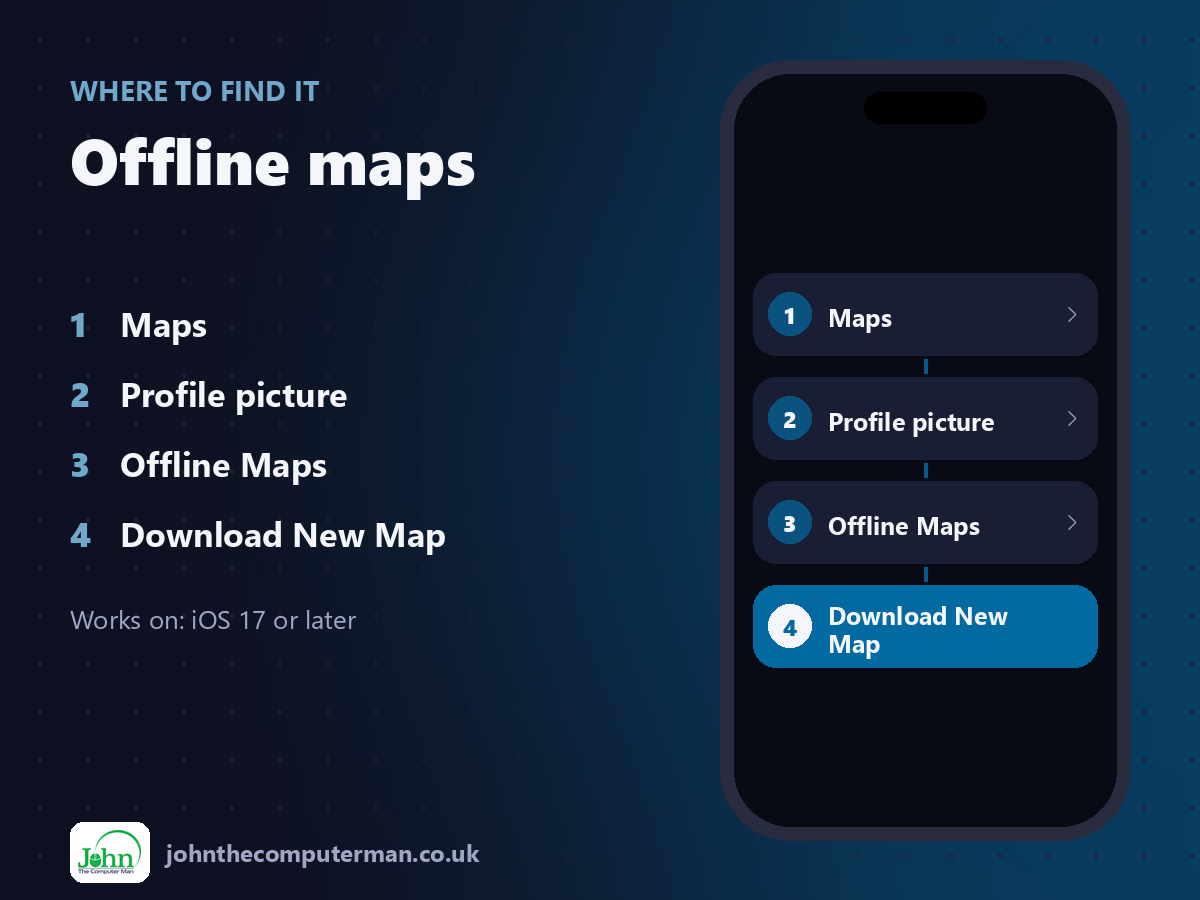
Maps > Profile picture > Offline Maps > Download New Map
Offline maps: step by step
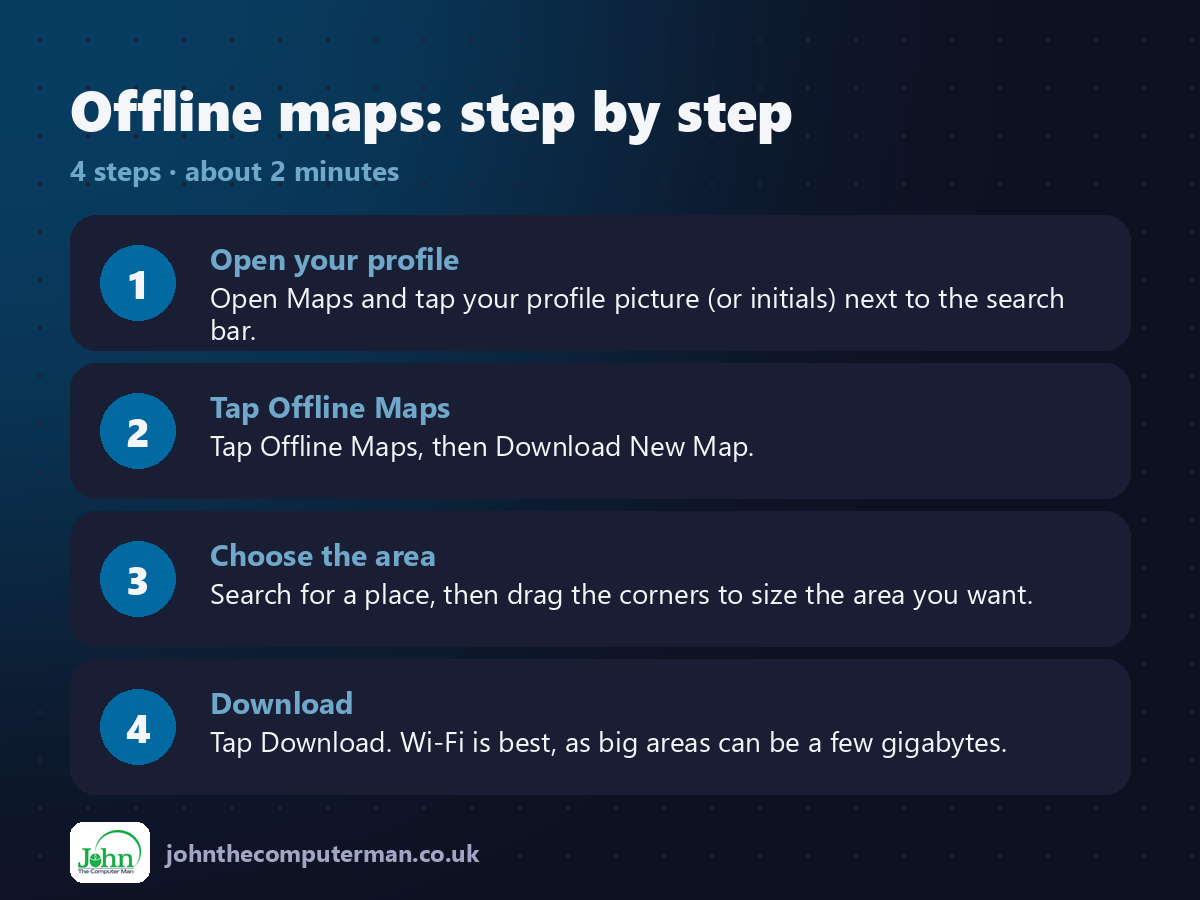
1. Open your profile. Open Maps and tap your profile picture (or initials) next to the search bar.
2. Tap Offline Maps. Tap Offline Maps, then Download New Map.
3. Choose the area. Search for a place, then drag the corners to size the area you want.
4. Download. Tap Download. Wi-Fi is best, as big areas can be a few gigabytes.
2. Tap Offline Maps. Tap Offline Maps, then Download New Map.
3. Choose the area. Search for a place, then drag the corners to size the area you want.
4. Download. Tap Download. Wi-Fi is best, as big areas can be a few gigabytes.
Pro tip
💡 Going abroad? Download the maps at home on Wi-Fi before you leave, so you're never paying roaming data to find your hotel.
More tips
• Maps may suggest a download automatically before you head somewhere with poor signal.
• Turn on Only Use Offline Maps in the same menu to save mobile data.
• Delete old downloads to free up storage when you're home.
• Live traffic and some details need a connection, but directions still work.
• Turn on Only Use Offline Maps in the same menu to save mobile data.
• Delete old downloads to free up storage when you're home.
• Live traffic and some details need a connection, but directions still work.
FAQ
How much space do offline maps use?
It depends on the area. A city might be a few hundred megabytes. Maps shows the size before you download.
Do offline maps expire?
They update automatically on Wi-Fi. If they're not updated for a while, Maps may ask you to refresh them.