How to Find and Share Your Wi-Fi Password on iPhone
A guest asks for the Wi-Fi password, and you end up on your knees behind the TV reading 16 random characters off the router.
Your iPhone already knows the password. You can view it, copy it, send it to another iPhone in one tap, or show a QR code.
What does Share your Wi-Fi password do?
Your iPhone saves the password for every Wi-Fi network you join. You can see it in Wi-Fi settings, or in the Passwords app on iOS 18 and later, which can also make a QR code guests can scan. Nearby Apple devices can even get the password automatically with one tap.
Takes: 30 seconds · Works on: iOS 16 or later (QR code needs iOS 18) · Cost: free, built into your iPhone
Where to find it
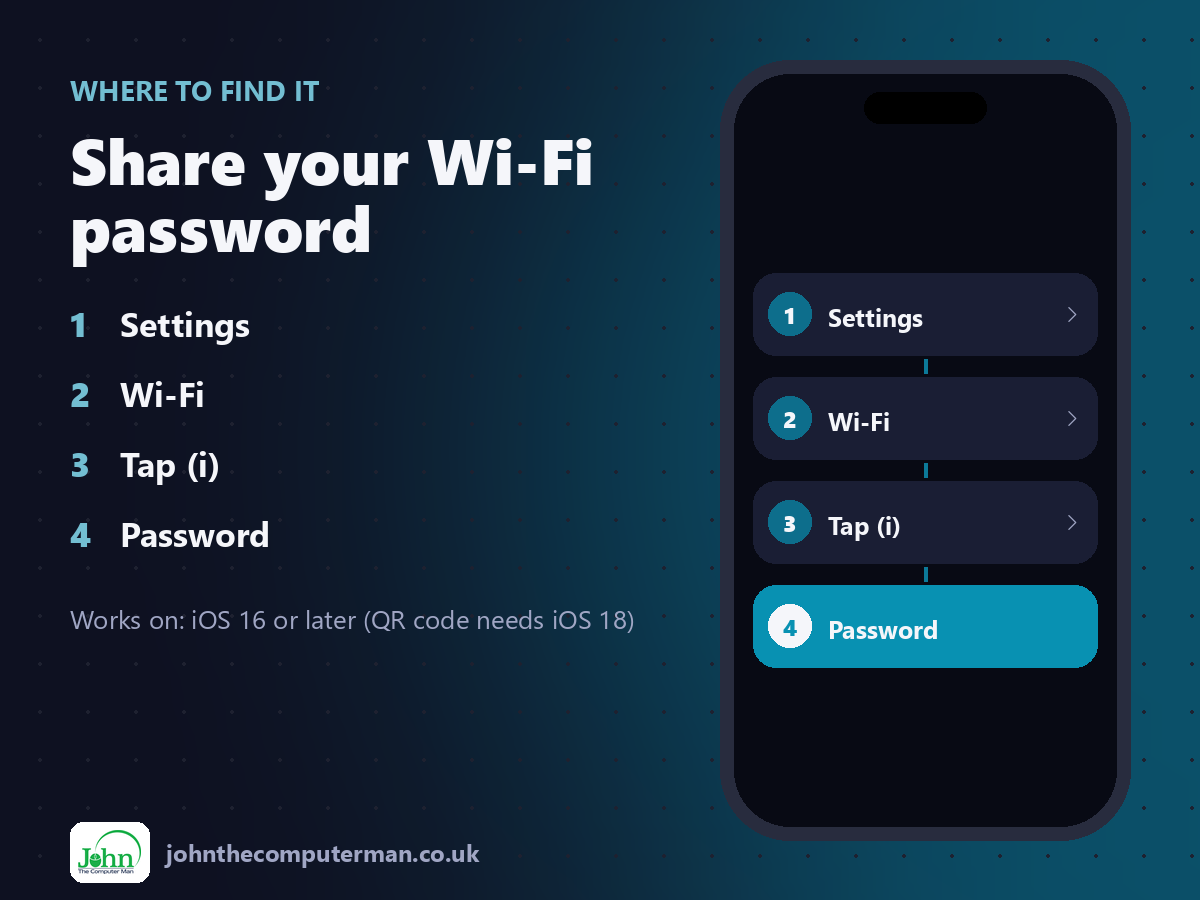
Settings > Wi-Fi > Tap (i) > Password
Share your Wi-Fi password: step by step
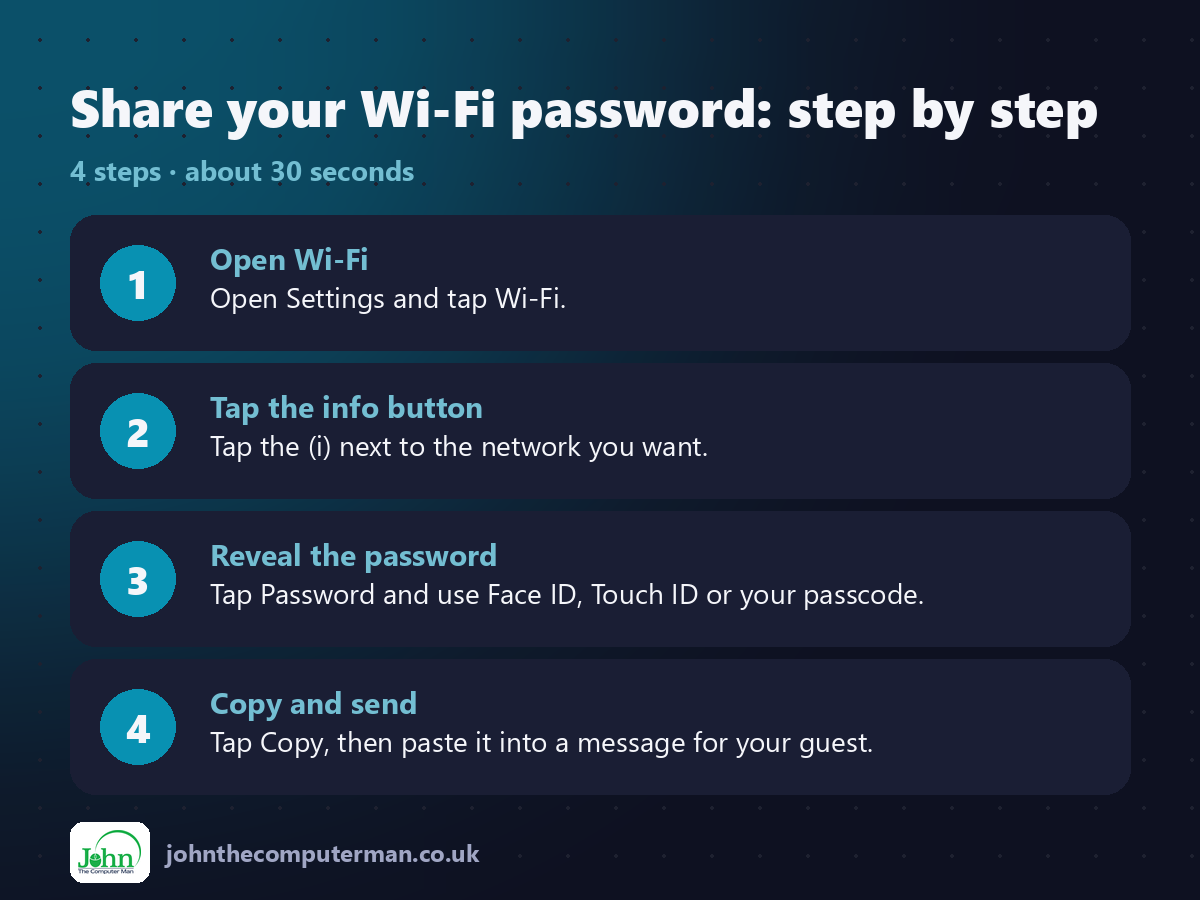
1. Open Wi-Fi. Open Settings and tap Wi-Fi.
2. Tap the info button. Tap the (i) next to the network you want.
3. Reveal the password. Tap Password and use Face ID, Touch ID or your passcode.
4. Copy and send. Tap Copy, then paste it into a message for your guest.
2. Tap the info button. Tap the (i) next to the network you want.
3. Reveal the password. Tap Password and use Face ID, Touch ID or your passcode.
4. Copy and send. Tap Copy, then paste it into a message for your guest.
Pro tip
💡 Friend has an iPhone? Unlock yours and hold it near theirs as they pick the network. Tap Share Password. Done.
More tips
• In the Passwords app (iOS 18 or later), tap Wi-Fi, pick your network and choose Show Network QR Code.
• For one-tap sharing, you each need to be in each other's Contacts, with Wi-Fi and Bluetooth on.
• It works for any network you've joined before, like a friend's house or the office.
• Print the QR code and stick it on the fridge for visitors.
• For one-tap sharing, you each need to be in each other's Contacts, with Wi-Fi and Bluetooth on.
• It works for any network you've joined before, like a friend's house or the office.
• Print the QR code and stick it on the fridge for visitors.
FAQ
Can I see passwords for networks I'm not connected to?
Yes. In Wi-Fi settings, tap Edit to see known networks, or look in the Passwords app.
Can I share with an Android phone?
Yes. Copy the password and send it, or show the QR code for them to scan.