How to Hide Photos on iPhone in a Locked Hidden Album

You're showing a friend your holiday pictures, and you really don't want them to swipe onto that screenshot of your bank statement or a surprise gift.
Hiding a photo moves it out of your main library into the Hidden album, which is locked with Face ID.
What does Hide photos do?
Hidden photos and videos don't appear in your library, in widgets or in Memories. They sit in the Hidden album in Photos, which needs Face ID, Touch ID or your passcode to open. You can unhide them at any time.
Takes: 30 seconds · Works on: iOS 16 or later for the locked album · Cost: free, built into your iPhone
Where to find it
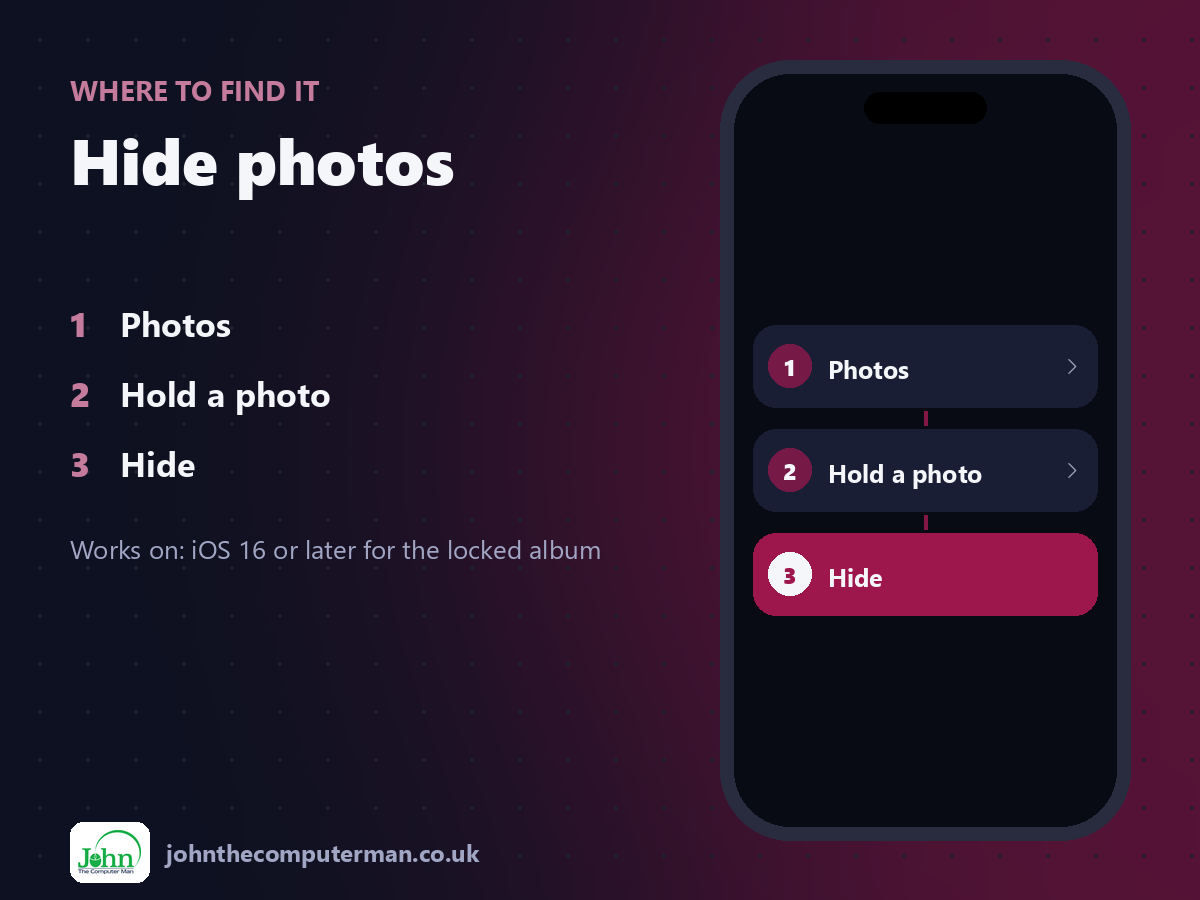
Photos > Hold a photo > Hide
Hide photos: step by step
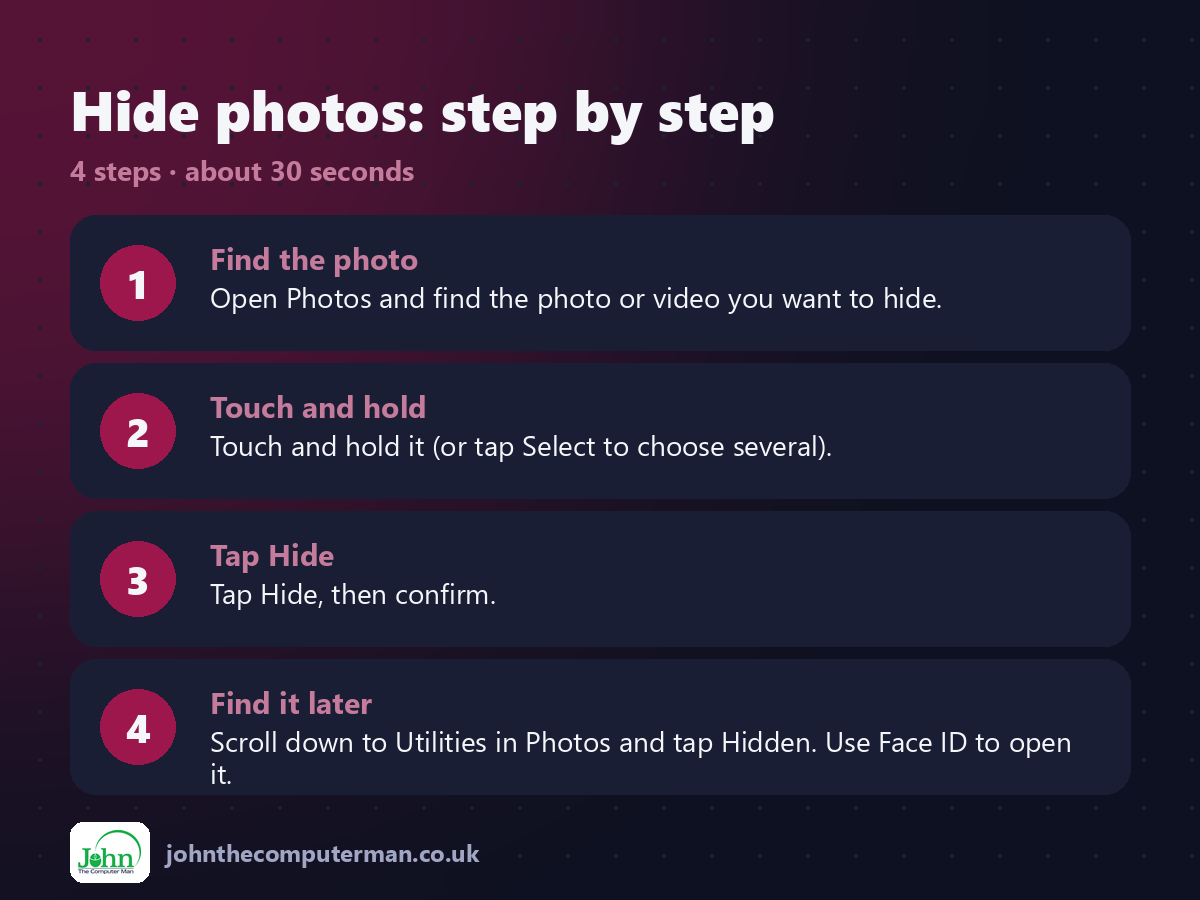
1. Find the photo. Open Photos and find the photo or video you want to hide.
2. Touch and hold. Touch and hold it (or tap Select to choose several).
3. Tap Hide. Tap Hide, then confirm.
4. Find it later. Scroll down to Utilities in Photos and tap Hidden. Use Face ID to open it.
2. Touch and hold. Touch and hold it (or tap Select to choose several).
3. Tap Hide. Tap Hide, then confirm.
4. Find it later. Scroll down to Utilities in Photos and tap Hidden. Use Face ID to open it.
Pro tip
💡 To unhide, open the Hidden album, touch and hold the photo and tap Unhide. It goes back to where it was.
More tips
• Hidden photos still sync across your devices with iCloud Photos.
• You can also hide the Hidden album entirely: Settings > Apps > Photos, then turn off Show Hidden Album.
• Locking the album uses the same Face ID as unlocking your phone.
• Remember anyone who knows your passcode can still open it.
• You can also hide the Hidden album entirely: Settings > Apps > Photos, then turn off Show Hidden Album.
• Locking the album uses the same Face ID as unlocking your phone.
• Remember anyone who knows your passcode can still open it.
FAQ
Are hidden photos backed up?
Yes. They're included in iCloud Photos and backups like the rest of your library.
Can I hide photos from search?
Yes. Hidden photos don't show up in search results in Photos.