How to Make Text Bigger and Easier to Read on iPhone
Reaching for your glasses every time you check a message? Or holding your phone at arm's length?
Your iPhone can make text bigger and bolder across the whole phone. It takes a few seconds and makes a real difference.
What does Make text bigger do?
Text Size makes text bigger in apps that support Dynamic Type, which includes most Apple apps and many others. Bold Text makes letters thicker and easier to read. Display Zoom goes further and makes everything on screen bigger, including icons and buttons.
Takes: 1 minute · Works on: Any iPhone · Cost: free, built into your iPhone
Where to find it
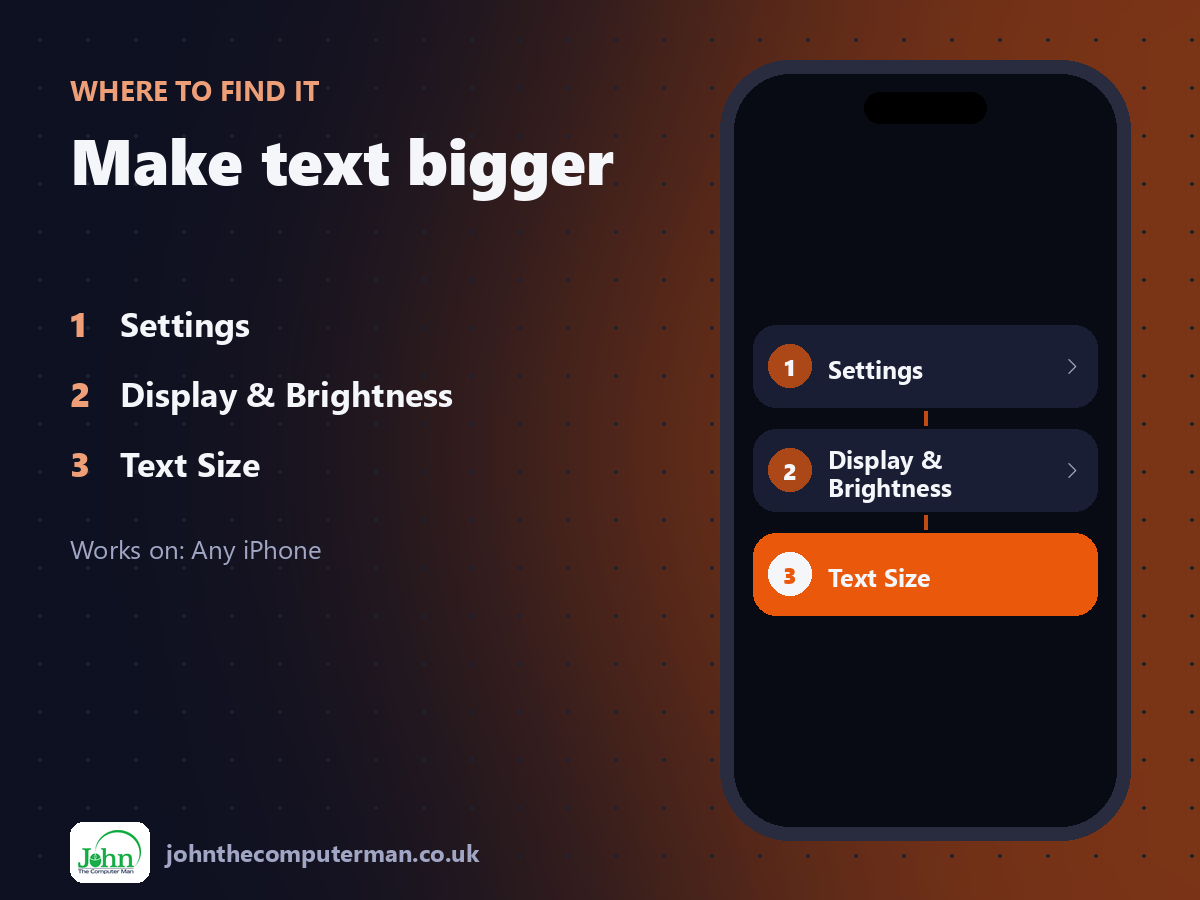
Settings > Display & Brightness > Text Size
Make text bigger: step by step
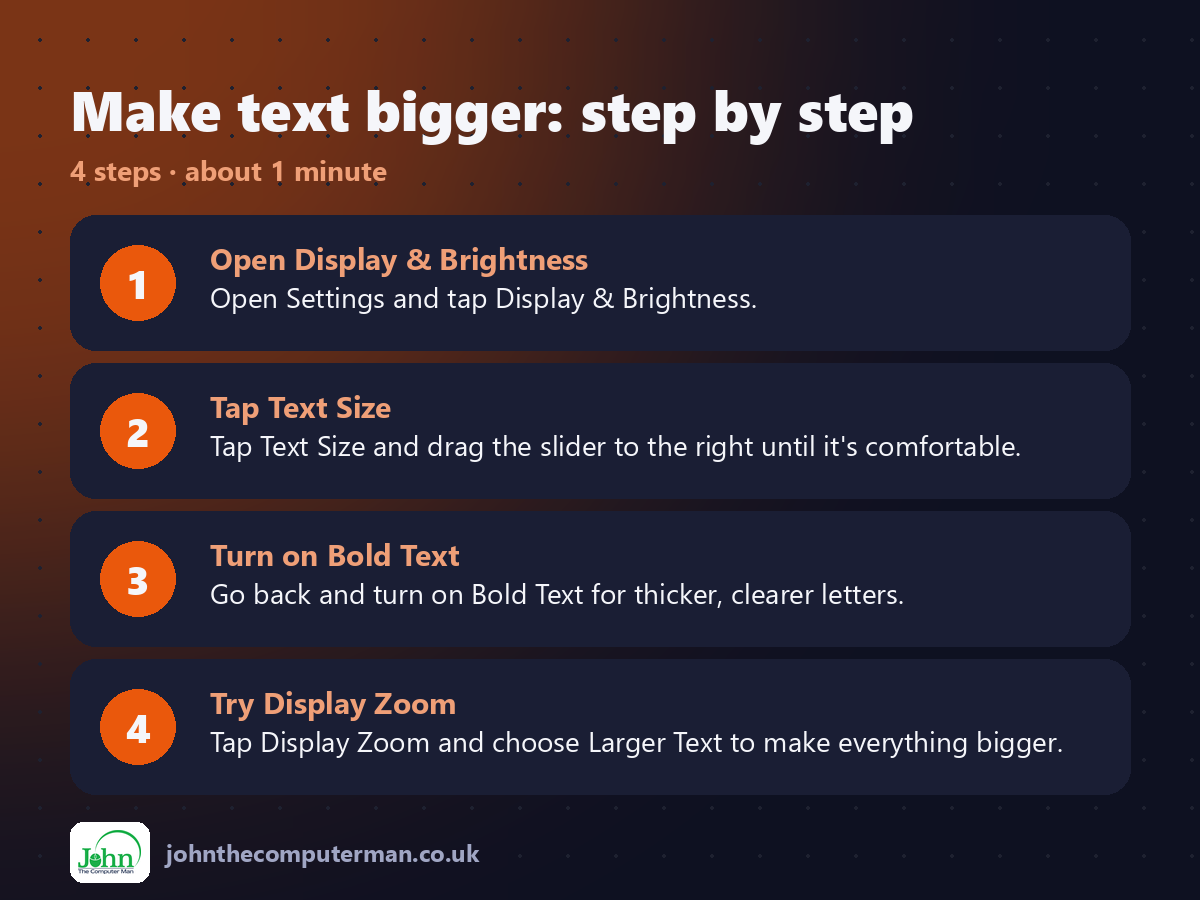
1. Open Display & Brightness. Open Settings and tap Display & Brightness.
2. Tap Text Size. Tap Text Size and drag the slider to the right until it's comfortable.
3. Turn on Bold Text. Go back and turn on Bold Text for thicker, clearer letters.
4. Try Display Zoom. Tap Display Zoom and choose Larger Text to make everything bigger.
2. Tap Text Size. Tap Text Size and drag the slider to the right until it's comfortable.
3. Turn on Bold Text. Go back and turn on Bold Text for thicker, clearer letters.
4. Try Display Zoom. Tap Display Zoom and choose Larger Text to make everything bigger.
Pro tip
💡 Need it even bigger? Settings > Accessibility > Display & Text Size > Larger Text unlocks extra-large sizes.
More tips
• Add Text Size to Control Centre to change it quickly, even for just one app.
• Increase Contrast in Accessibility > Display & Text Size can make text crisper.
• Pinch to zoom in on web pages in Safari, or tap the 'aA' button for larger page text.
• Great to set up for older relatives' phones.
• Increase Contrast in Accessibility > Display & Text Size can make text crisper.
• Pinch to zoom in on web pages in Safari, or tap the 'aA' button for larger page text.
• Great to set up for older relatives' phones.
FAQ
Why hasn't text got bigger in some apps?
Some apps don't support Dynamic Type. Try Display Zoom, which enlarges everything.
Can I change text size for one app?
Yes. Add Text Size to Control Centre, open the app, then choose 'This app only'.