How to Scan a QR Code on iPhone (and Spot a Fake One)
QR codes are everywhere: menus, parking meters, posters, parcels. Your iPhone camera scans them without any app.
But scammers stick fake QR codes over real ones to steal card details. A two-second check keeps you safe.
What does Scan QR codes safely do?
The Camera app recognises QR codes automatically and shows a link you can tap. The Code Scanner in Control Centre does the same and shows the full web address before you open it. Checking that address is the best defence against QR code scams.
Takes: 10 seconds · Works on: iOS 11 or later · Cost: free, built into your iPhone
Where to find it
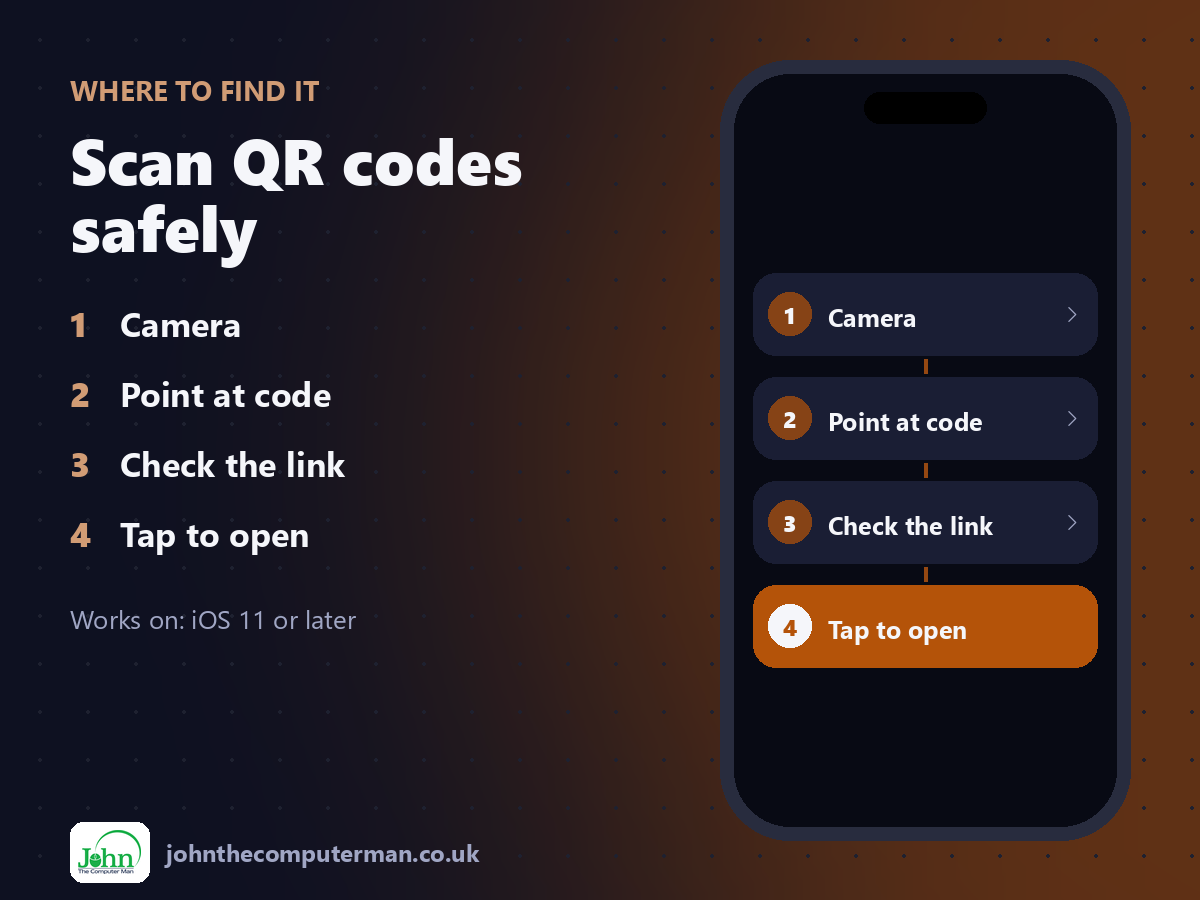
Camera > Point at code > Check the link > Tap to open
Scan QR codes safely: step by step
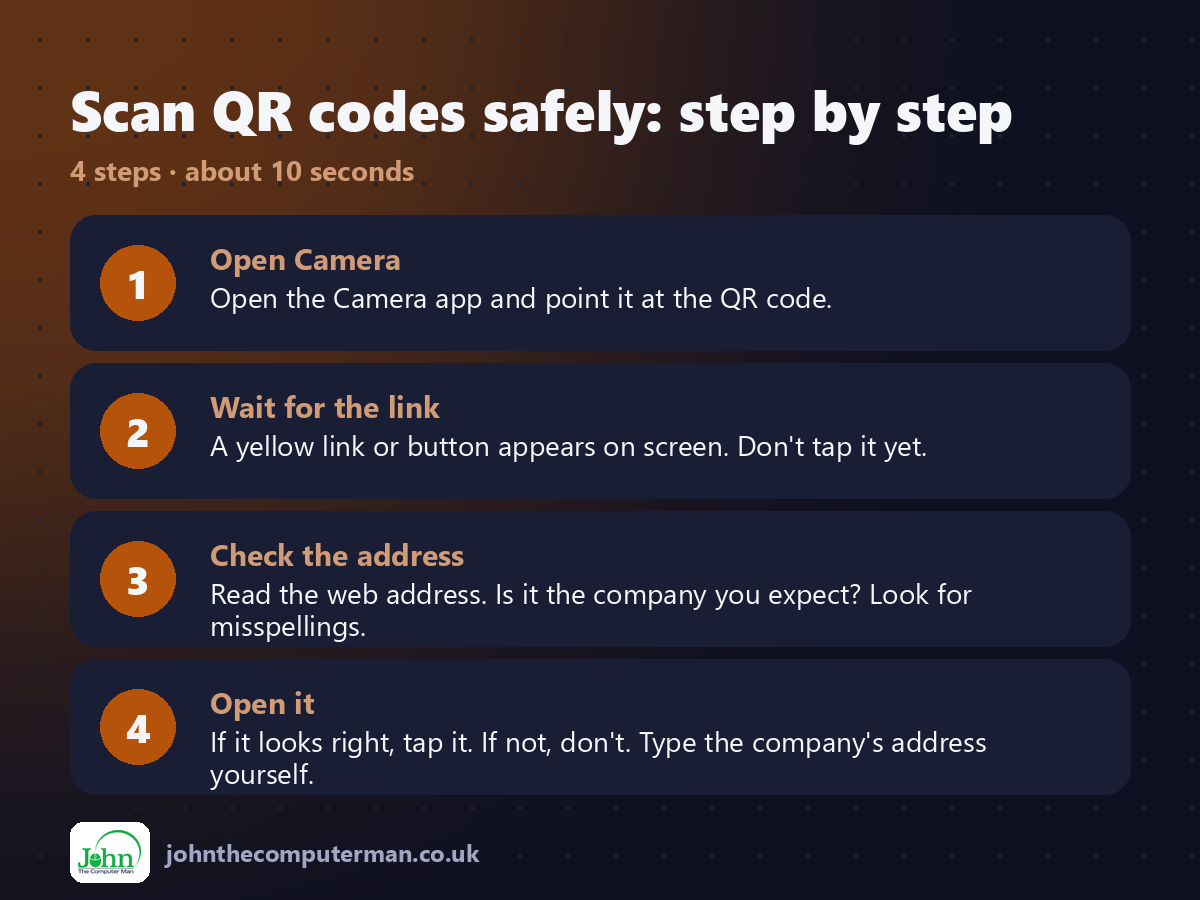
1. Open Camera. Open the Camera app and point it at the QR code.
2. Wait for the link. A yellow link or button appears on screen. Don't tap it yet.
3. Check the address. Read the web address. Is it the company you expect? Look for misspellings.
4. Open it. If it looks right, tap it. If not, don't. Type the company's address yourself.
2. Wait for the link. A yellow link or button appears on screen. Don't tap it yet.
3. Check the address. Read the web address. Is it the company you expect? Look for misspellings.
4. Open it. If it looks right, tap it. If not, don't. Type the company's address yourself.
Pro tip
💡 On a parking meter or poster, check for a sticker on top of the QR code. That's a classic scam. Use the official app instead.
More tips
• Add Code Scanner to Control Centre for a quicker scanner that shows the full link.
• Be very wary if a QR code takes you straight to a payment page.
• Never scan a QR code from an unexpected parcel note or letter asking you to pay.
• You can also scan QR codes in photos: open the photo and tap the code.
• Be very wary if a QR code takes you straight to a payment page.
• Never scan a QR code from an unexpected parcel note or letter asking you to pay.
• You can also scan QR codes in photos: open the photo and tap the code.
FAQ
Can a QR code hack my phone?
Scanning alone is very unlikely to. The risk is the website it opens, which may ask for your details.
Why doesn't my camera scan QR codes?
Check Scan QR Codes is turned on in Settings > Camera.