How to Schedule Night Shift and Dark Mode on iPhone
A bright white screen at 11pm feels like staring into a torch.
Night Shift warms the colours of your screen after sunset, and Dark Mode swaps white backgrounds for black. Both can switch on and off automatically.
What does Night Shift do?
Night Shift shifts your display towards warmer colours, which many people find more comfortable in the evening. Dark Mode changes the look of your iPhone and many apps to light text on dark backgrounds. You can schedule both from sunset to sunrise, or set your own times.
Takes: 1 minute · Works on: Any iPhone, iOS 13 or later for Dark Mode · Cost: free, built into your iPhone
Where to find it
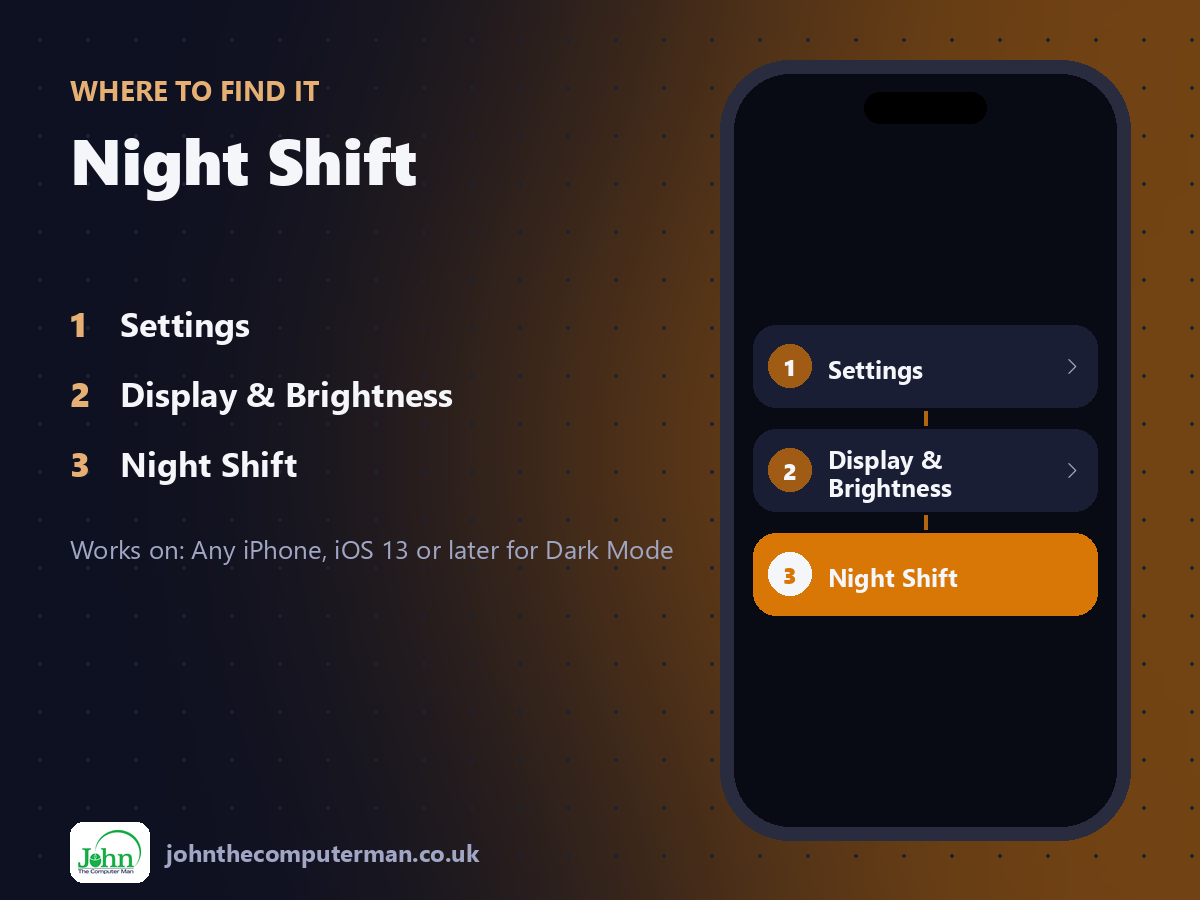
Settings > Display & Brightness > Night Shift
Night Shift: step by step
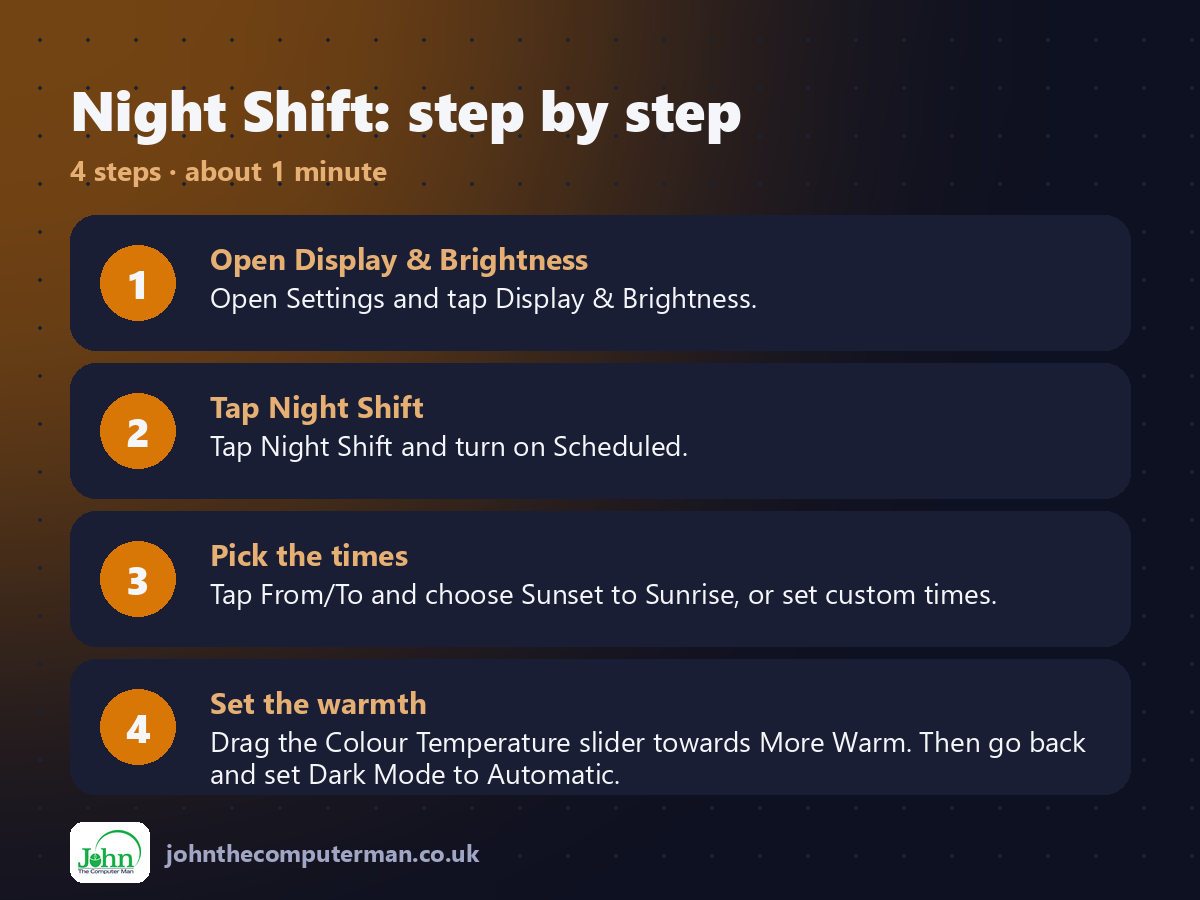
1. Open Display & Brightness. Open Settings and tap Display & Brightness.
2. Tap Night Shift. Tap Night Shift and turn on Scheduled.
3. Pick the times. Tap From/To and choose Sunset to Sunrise, or set custom times.
4. Set the warmth. Drag the Colour Temperature slider towards More Warm. Then go back and set Dark Mode to Automatic.
2. Tap Night Shift. Tap Night Shift and turn on Scheduled.
3. Pick the times. Tap From/To and choose Sunset to Sunrise, or set custom times.
4. Set the warmth. Drag the Colour Temperature slider towards More Warm. Then go back and set Dark Mode to Automatic.
Pro tip
💡 Turn Night Shift on now from Control Centre: press and hold the brightness slider, then tap the Night Shift button.
More tips
• Dark Mode can save battery on iPhones with OLED screens (iPhone X and most later models).
• Tap Options under Appearance to set Dark Mode to your own schedule.
• Photos and videos will look warmer with Night Shift on. That's normal.
• Turn down True Tone too if colours look too yellow for you.
• Tap Options under Appearance to set Dark Mode to your own schedule.
• Photos and videos will look warmer with Night Shift on. That's normal.
• Turn down True Tone too if colours look too yellow for you.
FAQ
Does Night Shift help me sleep?
It makes the screen more comfortable at night, but the evidence on sleep is mixed. Putting the phone down helps most!
Why is my screen yellow?
Night Shift or True Tone is probably on. Turn them off in Display & Brightness if you don't like it.