How to Set a Sleep Timer on iPhone to Stop Music or Podcasts
You drift off to a podcast and wake up at 3am to a completely different episode, and a flat battery.
Tucked away in the Clock app's timer is an option called Stop Playing. It works as a sleep timer for almost any app.
What does Sleep timer do?
Instead of playing a sound when a timer ends, the Clock app can stop whatever audio or video is playing. It works with Music, Podcasts, Audible, Spotify, YouTube and most other apps.
Takes: 30 seconds · Works on: Any iPhone · Cost: free, built into your iPhone
Where to find it
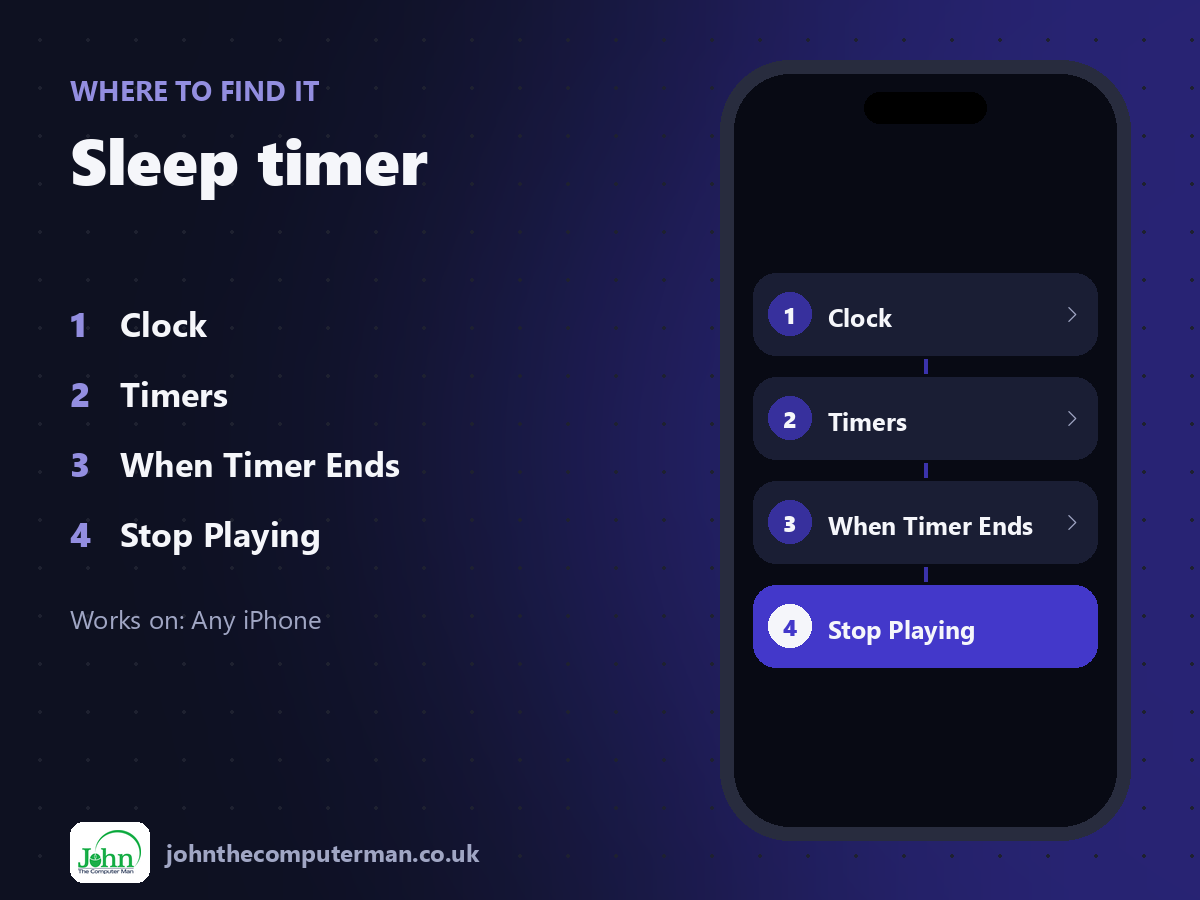
Clock > Timers > When Timer Ends > Stop Playing
Sleep timer: step by step
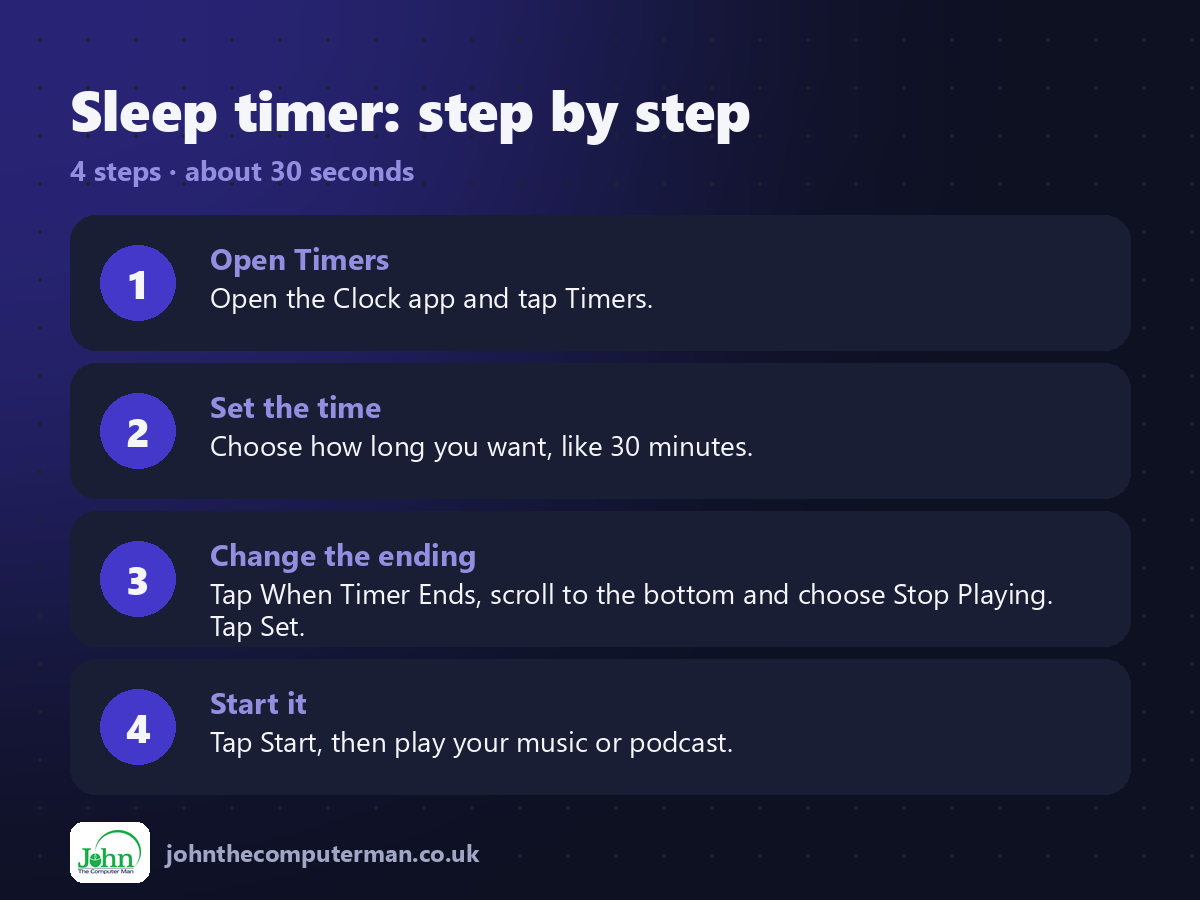
1. Open Timers. Open the Clock app and tap Timers.
2. Set the time. Choose how long you want, like 30 minutes.
3. Change the ending. Tap When Timer Ends, scroll to the bottom and choose Stop Playing. Tap Set.
4. Start it. Tap Start, then play your music or podcast.
2. Set the time. Choose how long you want, like 30 minutes.
3. Change the ending. Tap When Timer Ends, scroll to the bottom and choose Stop Playing. Tap Set.
4. Start it. Tap Start, then play your music or podcast.
Pro tip
💡 Your iPhone remembers the Stop Playing setting, so next time you only need to set the time and tap Start.
More tips
• Remember to switch back to a sound if you use timers for cooking!
• Many podcast and audiobook apps also have their own sleep timer.
• Set it up once, then just ask Siri: 'Set a timer for 30 minutes'.
• Pair it with Background Sounds for a calm bedtime routine.
• Many podcast and audiobook apps also have their own sleep timer.
• Set it up once, then just ask Siri: 'Set a timer for 30 minutes'.
• Pair it with Background Sounds for a calm bedtime routine.
FAQ
Does it work with Spotify?
Yes. Stop Playing works with most apps that play audio.
Will it lock my phone?
It stops the audio. Your screen will lock on its usual schedule.