How to Set App Time Limits on iPhone With Screen Time
We've all opened an app for a quick look and surfaced an hour later wondering where the evening went.
Screen Time can put a daily limit on any app or type of app. When time's up, the app is paused until tomorrow.
What does App limits do?
Screen Time shows how long you spend on your iPhone and in each app. App Limits let you set a daily allowance for an app or a whole category, like Social or Games. You get a warning five minutes before the limit, then the app greys out.
Takes: 2 minutes · Works on: iOS 12 or later · Cost: free, built into your iPhone
Where to find it
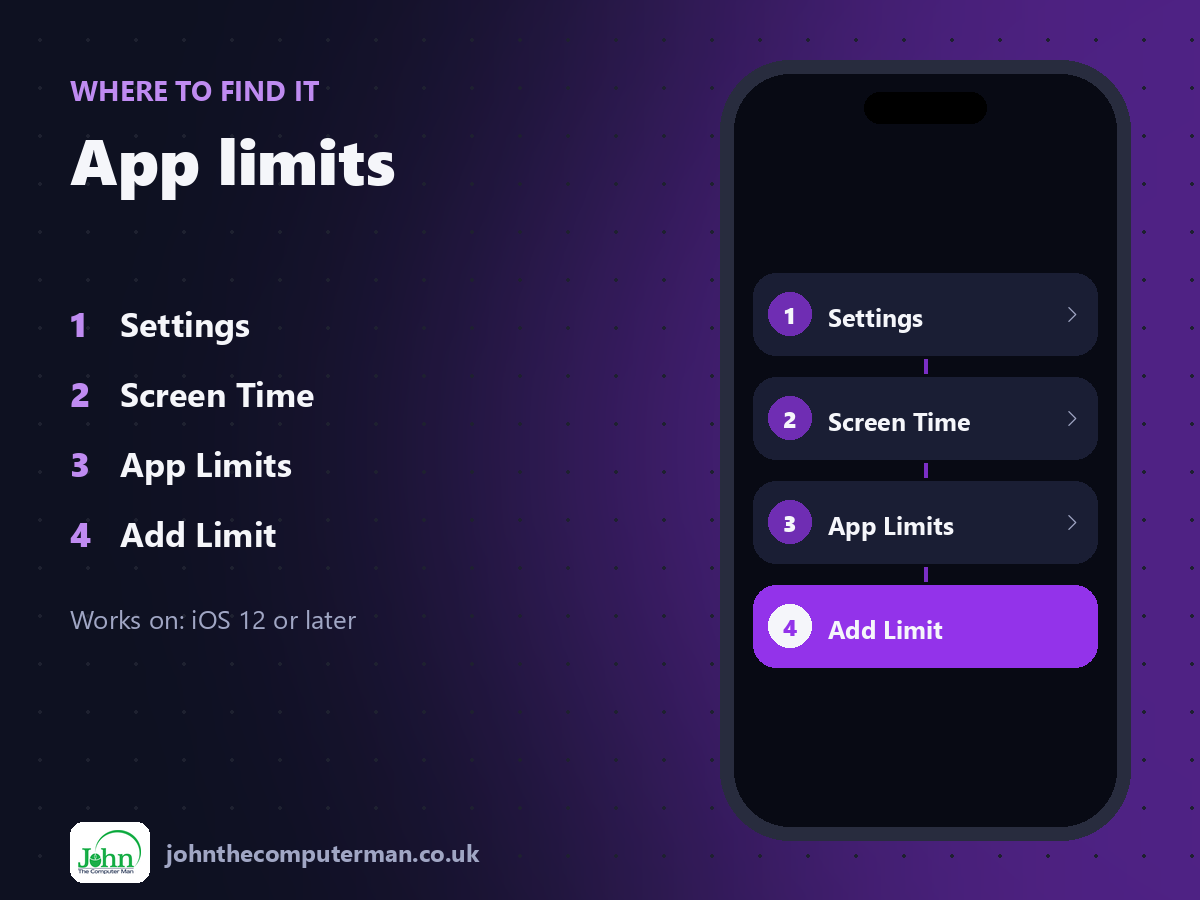
Settings > Screen Time > App Limits > Add Limit
App limits: step by step
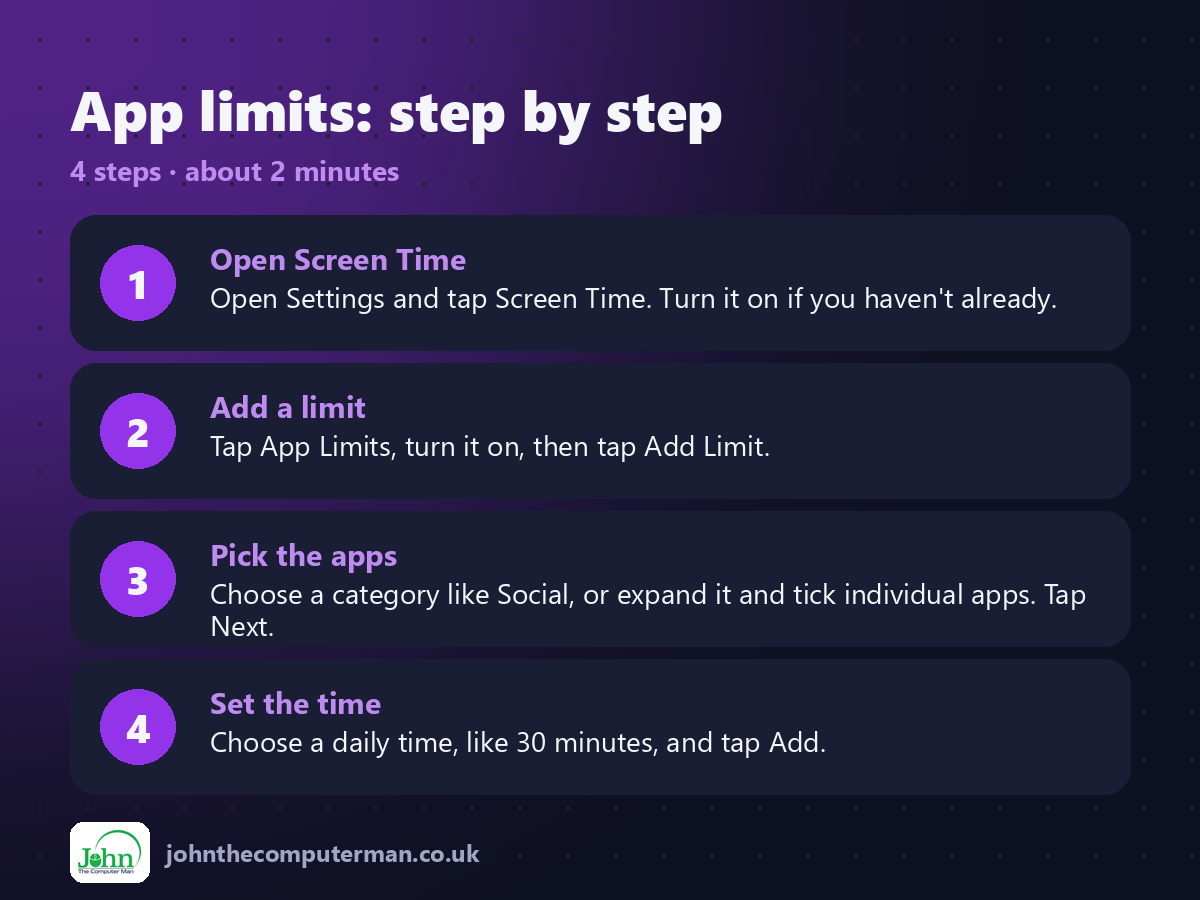
1. Open Screen Time. Open Settings and tap Screen Time. Turn it on if you haven't already.
2. Add a limit. Tap App Limits, turn it on, then tap Add Limit.
3. Pick the apps. Choose a category like Social, or expand it and tick individual apps. Tap Next.
4. Set the time. Choose a daily time, like 30 minutes, and tap Add.
2. Add a limit. Tap App Limits, turn it on, then tap Add Limit.
3. Pick the apps. Choose a category like Social, or expand it and tick individual apps. Tap Next.
4. Set the time. Choose a daily time, like 30 minutes, and tap Add.
Pro tip
💡 Check your weekly report first. Seeing your real daily average is often all the motivation you need.
More tips
• Tap Customise Days to allow more time at weekends.
• Use Downtime to block most apps overnight, except calls and the apps you choose.
• Setting it up for a child? Use Family Sharing so you manage limits from your own iPhone.
• Use a Screen Time passcode if you want limits you can't easily ignore.
• Use Downtime to block most apps overnight, except calls and the apps you choose.
• Setting it up for a child? Use Family Sharing so you manage limits from your own iPhone.
• Use a Screen Time passcode if you want limits you can't easily ignore.
FAQ
Can I ignore the limit?
Yes, unless a Screen Time passcode is set. You can tap Ignore Limit for one more minute, 15 minutes or the rest of the day.
Does the limit reset?
Yes, every day at midnight.