How to Share Contact Details by Holding Two iPhones Together (NameDrop)
Reading out your phone number, spelling your email, then waiting while they type it wrong. Swapping details is clumsy.
With NameDrop, you hold the top of your iPhone near someone else's and choose what to share. That's it.
What does NameDrop do?
NameDrop is part of AirDrop. When two unlocked iPhones come close together, both people can choose to share their contact cards, or just receive. You choose exactly which phone numbers and email addresses to share.
Takes: 10 seconds · Works on: iOS 17 or later on both iPhones · Cost: free, built into your iPhone
Where to find it
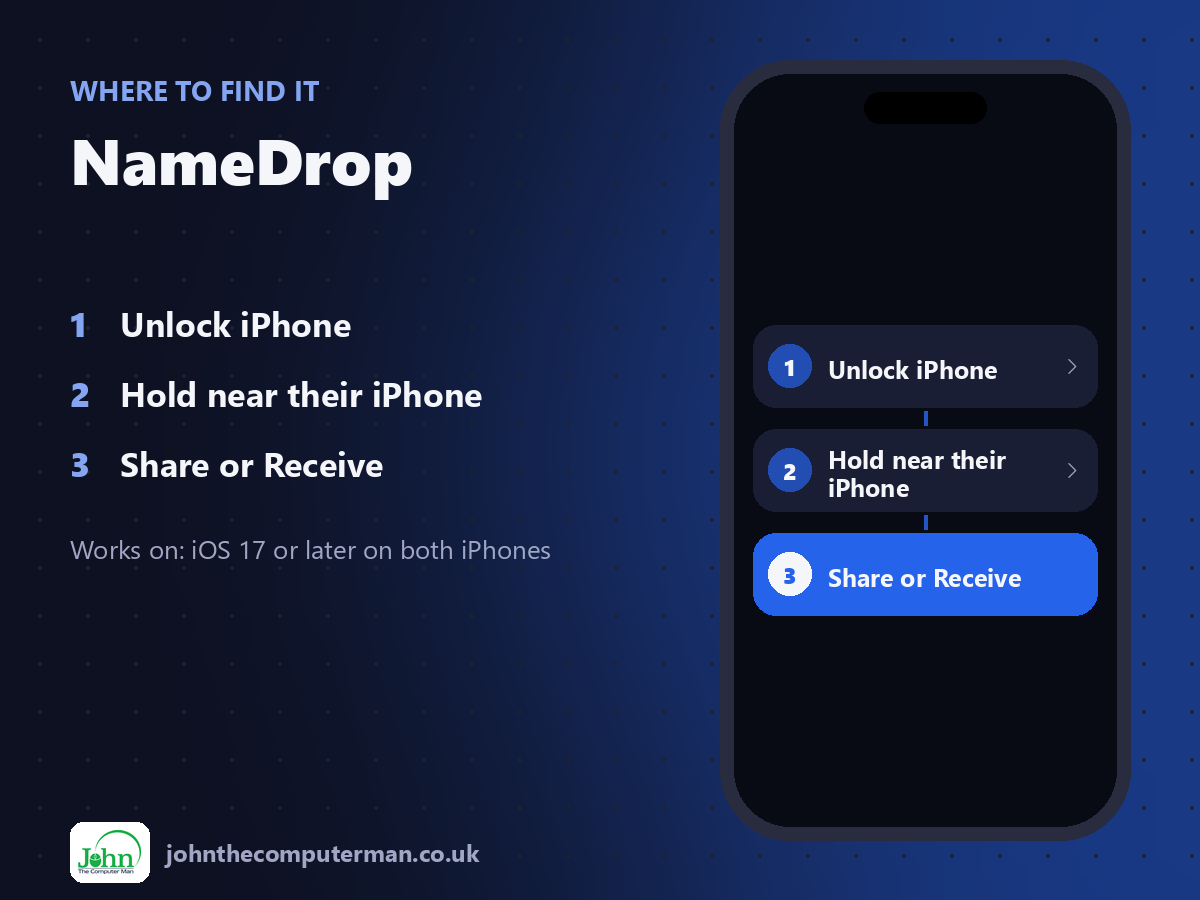
Unlock iPhone > Hold near their iPhone > Share or Receive
NameDrop: step by step
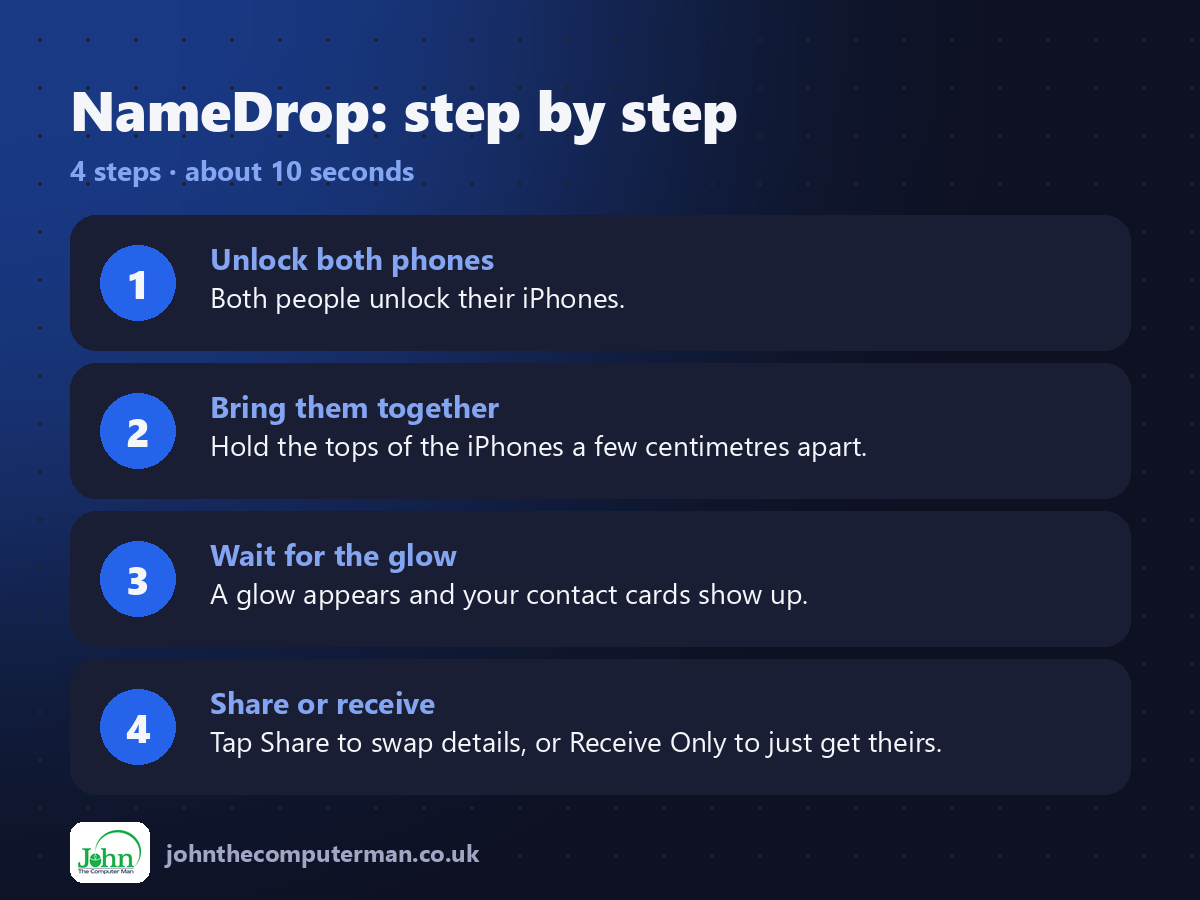
1. Unlock both phones. Both people unlock their iPhones.
2. Bring them together. Hold the tops of the iPhones a few centimetres apart.
3. Wait for the glow. A glow appears and your contact cards show up.
4. Share or receive. Tap Share to swap details, or Receive Only to just get theirs.
2. Bring them together. Hold the tops of the iPhones a few centimetres apart.
3. Wait for the glow. A glow appears and your contact cards show up.
4. Share or receive. Tap Share to swap details, or Receive Only to just get theirs.
Pro tip
💡 Set up your Contact Poster first (Contacts > My Card > Contact Photo & Poster), so you control how you appear.
More tips
• Before sharing, you can choose which of your phone numbers and email addresses to include.
• It works with an Apple Watch too.
• Move the phones apart to cancel.
• Turn off Bringing Devices Together in Settings > General > AirDrop if you don't want NameDrop.
• It works with an Apple Watch too.
• Move the phones apart to cancel.
• Turn off Bringing Devices Together in Settings > General > AirDrop if you don't want NameDrop.
FAQ
Can someone NameDrop me without me knowing?
No. Both phones must be unlocked and close together, and you choose whether to share.
Does it work with Android?
No. NameDrop only works between iPhones and Apple Watches.