How to Share Your Location on iPhone With Find My
Walking home late, travelling alone or meeting a friend somewhere busy, it helps when someone knows where you are.
Find My lets you share your live location with people you trust, for an hour, until the end of the day, or indefinitely.
What does Share your location do?
Location sharing in Find My shows your live location to the people you choose on their Apple devices. You can share for a set time or indefinitely, stop at any moment, and get notified when someone arrives at or leaves a place.
Takes: 1 minute · Works on: iOS 13 or later · Cost: free, built into your iPhone
Where to find it
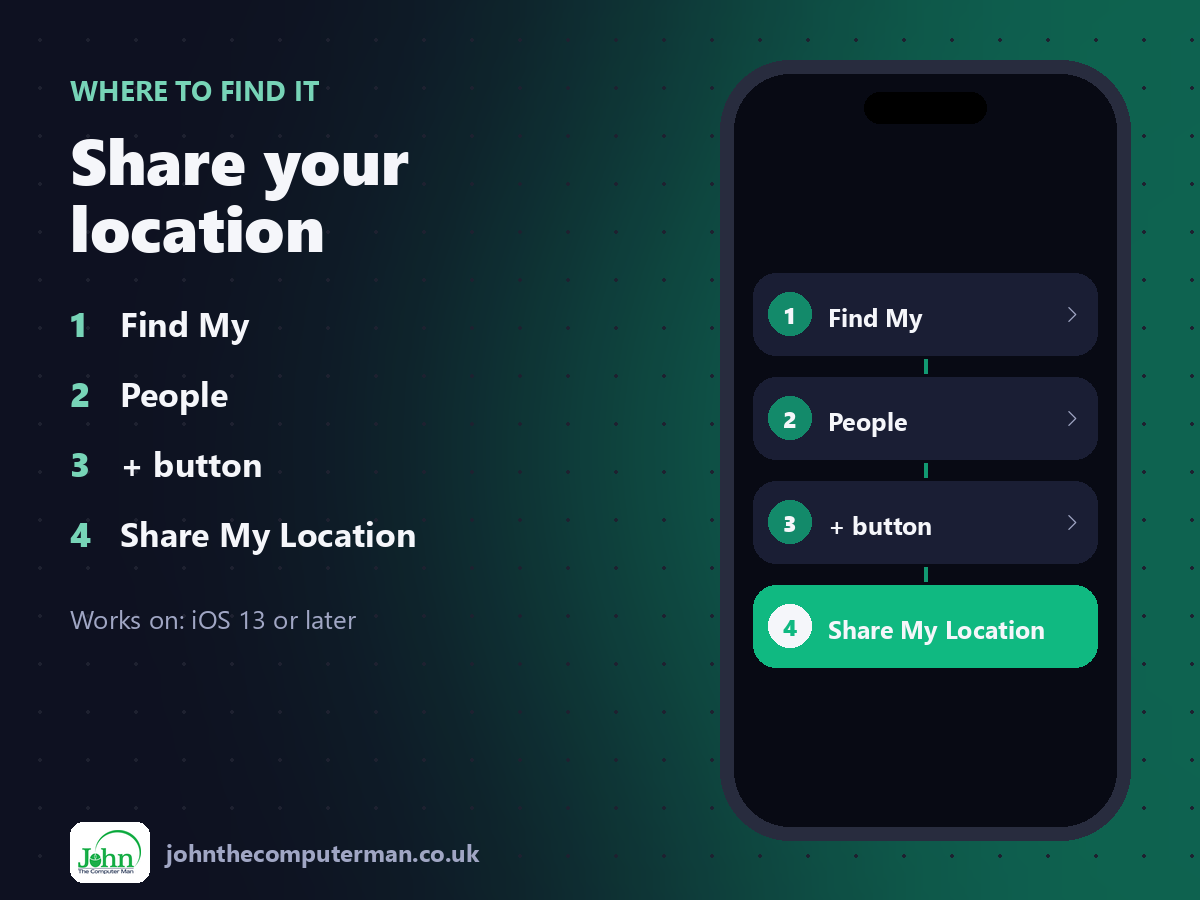
Find My > People > + button > Share My Location
Share your location: step by step
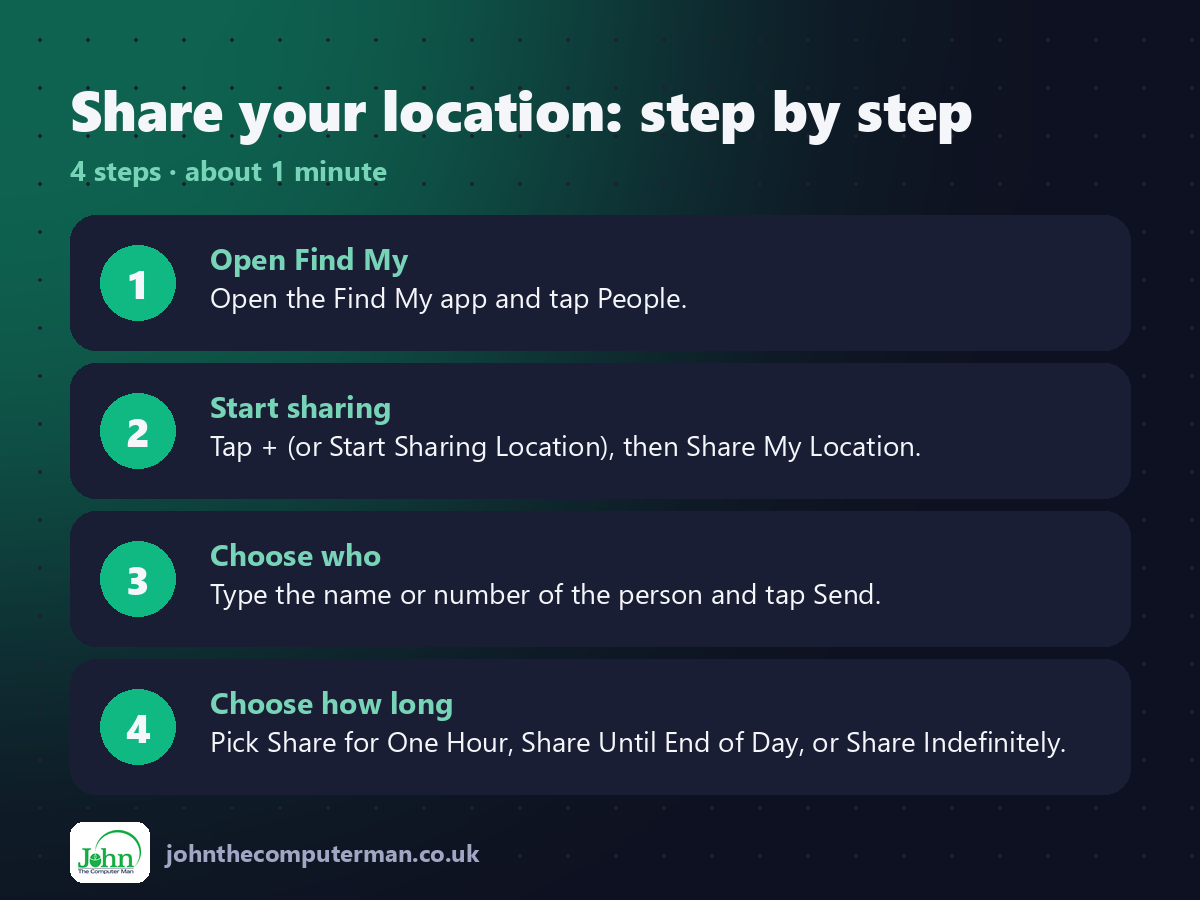
1. Open Find My. Open the Find My app and tap People.
2. Start sharing. Tap + (or Start Sharing Location), then Share My Location.
3. Choose who. Type the name or number of the person and tap Send.
4. Choose how long. Pick Share for One Hour, Share Until End of Day, or Share Indefinitely.
2. Start sharing. Tap + (or Start Sharing Location), then Share My Location.
3. Choose who. Type the name or number of the person and tap Send.
4. Choose how long. Pick Share for One Hour, Share Until End of Day, or Share Indefinitely.
Pro tip
💡 Tap a person, then Add under Notifications, to get an alert when they arrive home. No more 'are you back yet?' texts.
More tips
• In Messages, tap + then Location to share where you are for a single conversation.
• Check In in Messages alerts a friend automatically if you don't reach your destination when expected.
• To stop sharing, tap the person in Find My and choose Stop Sharing My Location.
• Review who can see you every few months in Find My > Me.
• Check In in Messages alerts a friend automatically if you don't reach your destination when expected.
• To stop sharing, tap the person in Find My and choose Stop Sharing My Location.
• Review who can see you every few months in Find My > Me.
FAQ
Does it drain the battery?
Very little. Your iPhone already knows its location for other features.
Can I share with an Android user?
Find My is Apple-only. With Android, share a location from Messages, Google Maps or WhatsApp instead.