How to Stop Apps Tracking You on iPhone
Ever looked at something once and seen adverts for it everywhere? Apps share what you do with advertisers to build a profile of you.
Your iPhone can ask every app not to track you, with one switch, so you never have to answer the pop-up again.
What does Stop app tracking do?
App Tracking Transparency makes apps ask permission before tracking you across other companies' apps and websites. Turn off Allow Apps to Request to Track and every app is automatically told no, and the pop-ups stop.
Takes: 30 seconds · Works on: iOS 14.5 or later · Cost: free, built into your iPhone
Where to find it
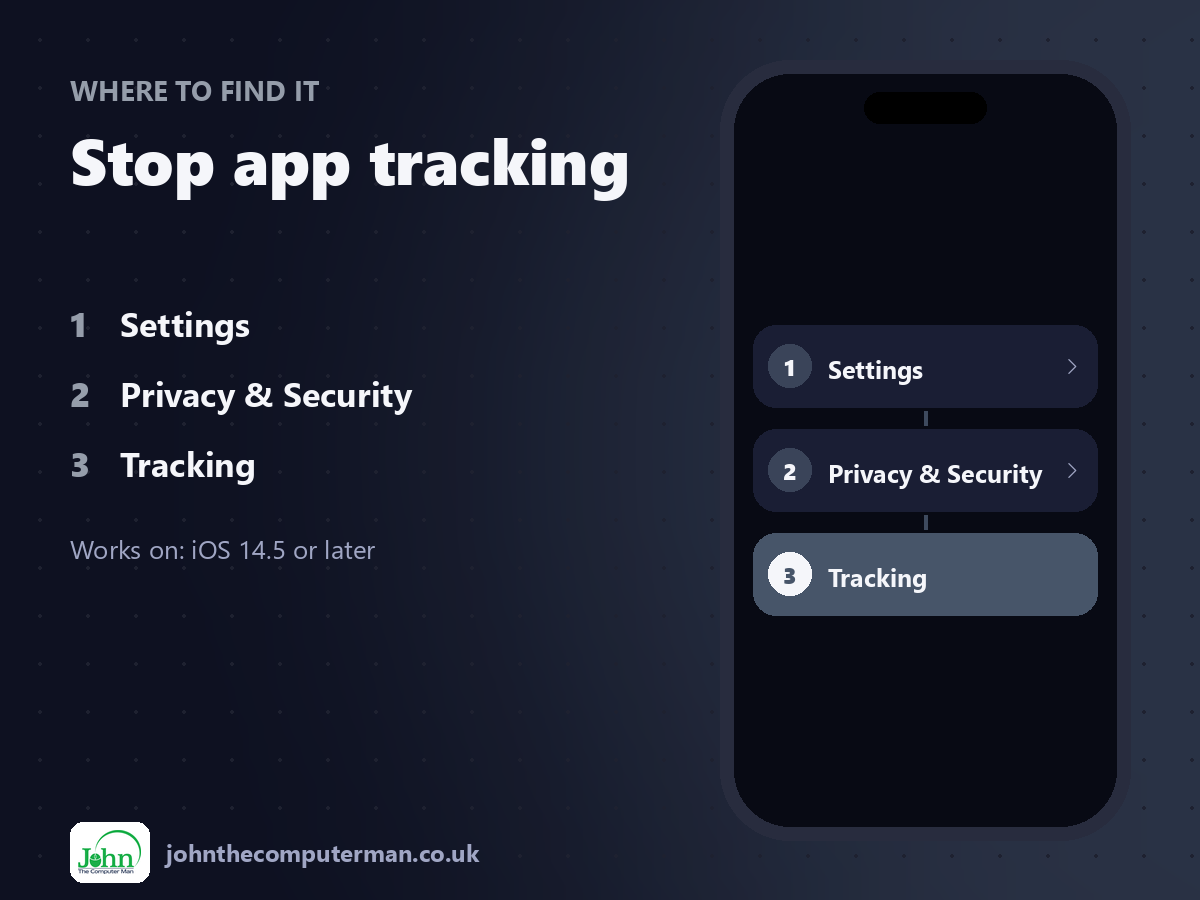
Settings > Privacy & Security > Tracking
Stop app tracking: step by step
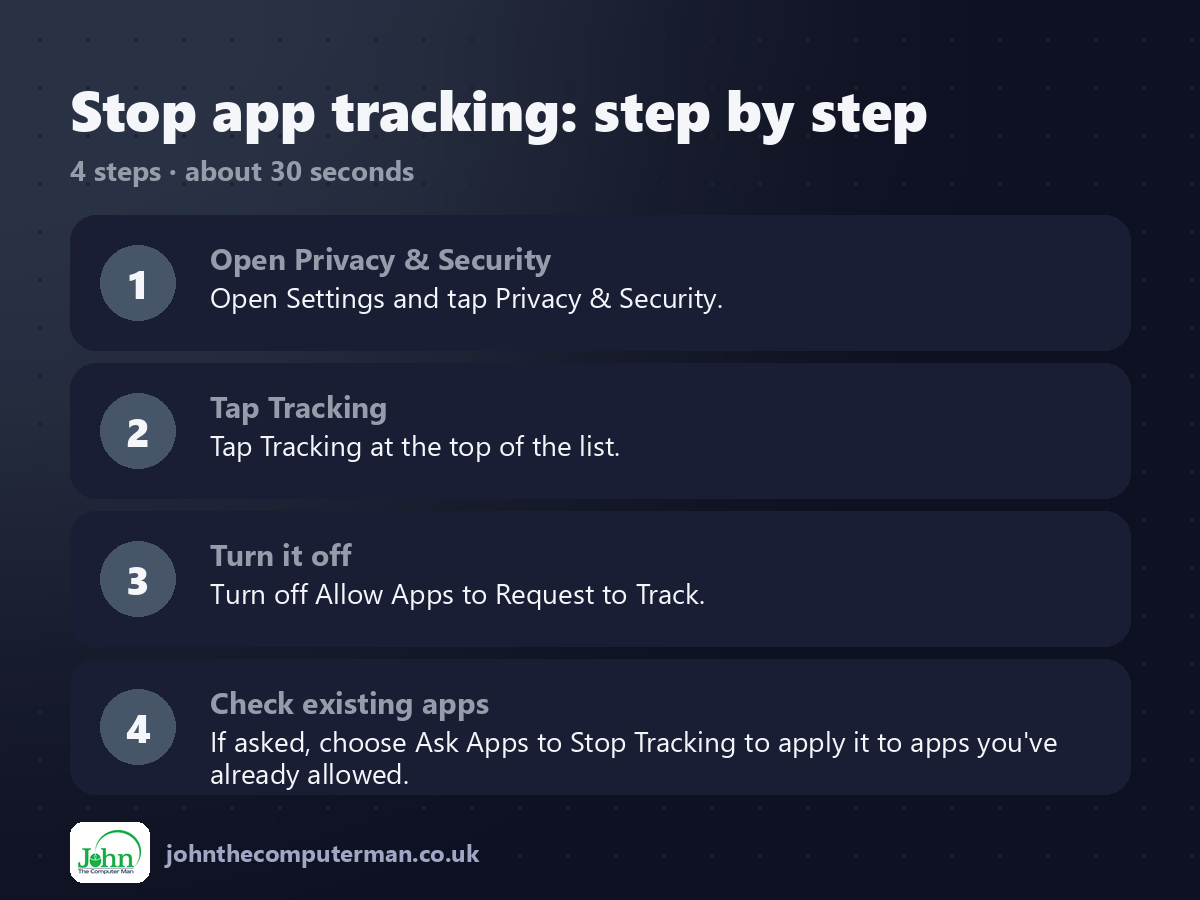
1. Open Privacy & Security. Open Settings and tap Privacy & Security.
2. Tap Tracking. Tap Tracking at the top of the list.
3. Turn it off. Turn off Allow Apps to Request to Track.
4. Check existing apps. If asked, choose Ask Apps to Stop Tracking to apply it to apps you've already allowed.
2. Tap Tracking. Tap Tracking at the top of the list.
3. Turn it off. Turn off Allow Apps to Request to Track.
4. Check existing apps. If asked, choose Ask Apps to Stop Tracking to apply it to apps you've already allowed.
Pro tip
💡 While you're there, check Location Services. Set apps to 'While Using' instead of 'Always' unless they really need it.
More tips
• This stops tracking across other companies' apps. Apps can still use what you do inside them.
• Check Privacy & Security > App Privacy Report to see which apps access your data and when.
• Review Photos, Contacts and Microphone permissions every few months.
• Turn off Personalised Ads in Privacy & Security > Apple Advertising too.
• Check Privacy & Security > App Privacy Report to see which apps access your data and when.
• Review Photos, Contacts and Microphone permissions every few months.
• Turn off Personalised Ads in Privacy & Security > Apple Advertising too.
FAQ
Will I still see adverts?
Yes, but they're likely to be less personalised.
Will apps stop working?
No. Apps must work the same whether or not you allow tracking.