How to Transfer Everything to a New iPhone With Quick Start
A new iPhone is exciting until you remember everything that lives on the old one: photos, messages, apps, logins, that one note with the alarm code.
Quick Start moves the lot. Hold the two iPhones together and your new one sets itself up as a copy of the old one.
What does Quick Start transfer do?
Quick Start uses your old iPhone to set up the new one. It signs you in, then transfers your data directly between the two phones, wirelessly or with a cable. Apps, photos, messages, settings, Home Screen layout and most logins all come across.
Takes: 1 hour · Works on: Any iPhone on iOS 12.4 or later · Cost: free, built into your iPhone
Where to find it
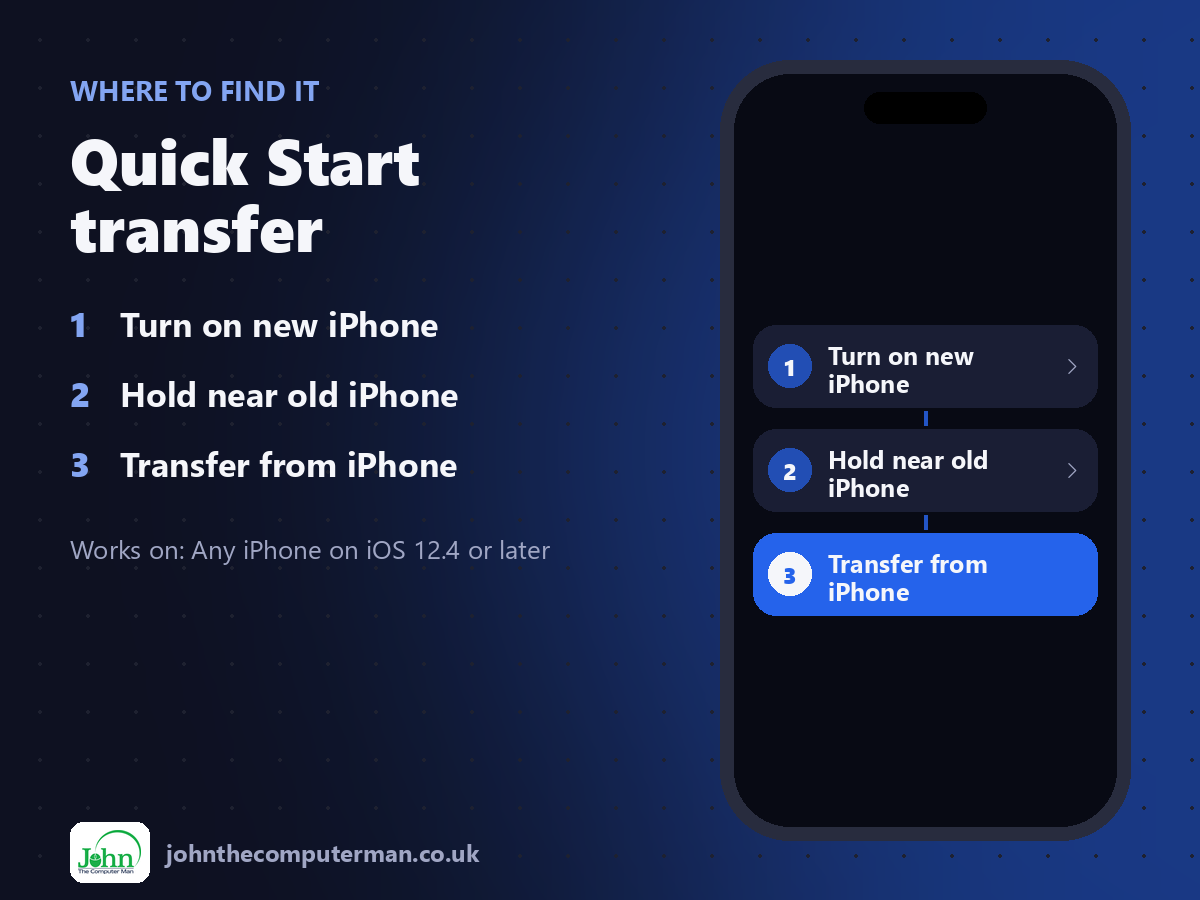
Turn on new iPhone > Hold near old iPhone > Transfer from iPhone
Quick Start transfer: step by step
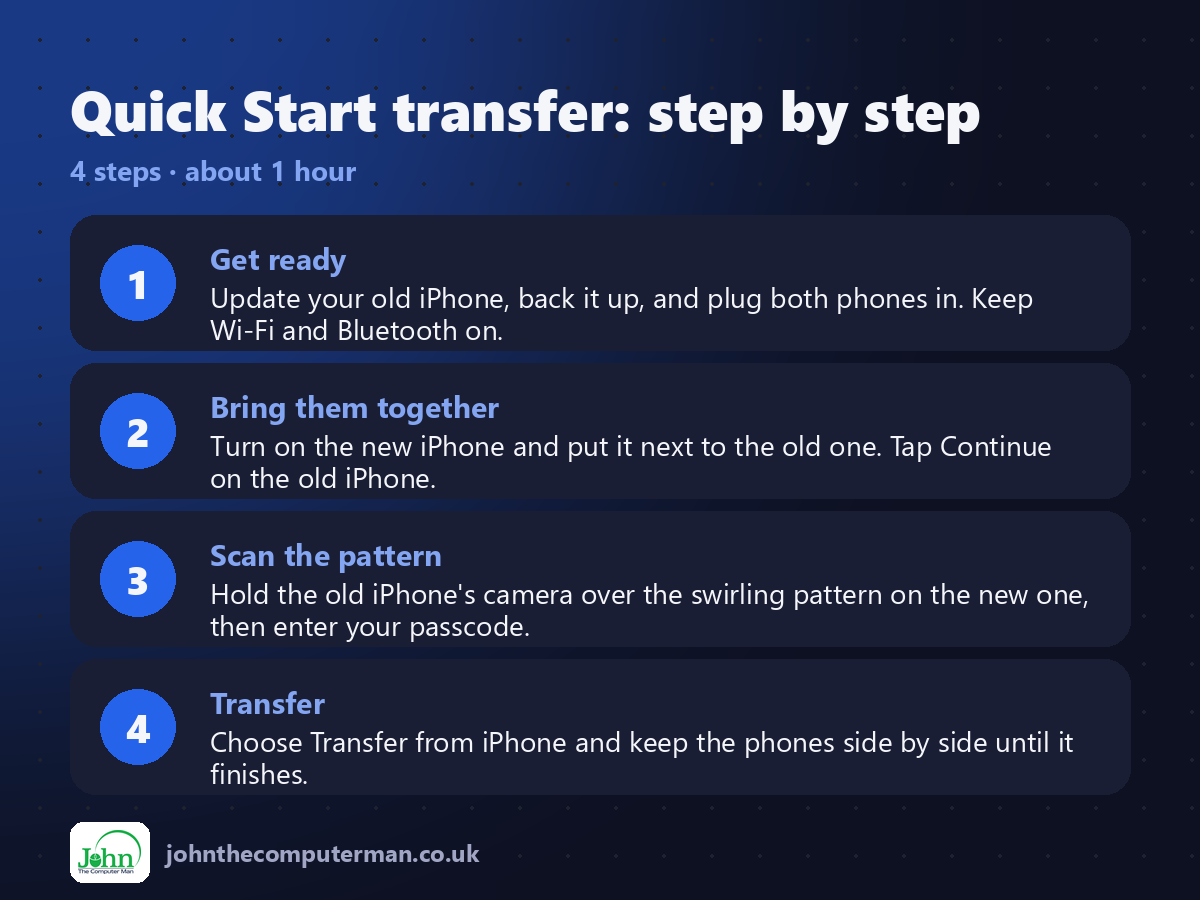
1. Get ready. Update your old iPhone, back it up, and plug both phones in. Keep Wi-Fi and Bluetooth on.
2. Bring them together. Turn on the new iPhone and put it next to the old one. Tap Continue on the old iPhone.
3. Scan the pattern. Hold the old iPhone's camera over the swirling pattern on the new one, then enter your passcode.
4. Transfer. Choose Transfer from iPhone and keep the phones side by side until it finishes.
2. Bring them together. Turn on the new iPhone and put it next to the old one. Tap Continue on the old iPhone.
3. Scan the pattern. Hold the old iPhone's camera over the swirling pattern on the new one, then enter your passcode.
4. Transfer. Choose Transfer from iPhone and keep the phones side by side until it finishes.
Pro tip
💡 Don't wipe or trade in your old iPhone until you've checked the new one: photos, messages, banking apps and authenticator codes.
More tips
• Allow an hour or so. It depends how much is on your phone.
• Some apps, like banking and authenticator apps, need you to sign in again.
• Your mobile number moves too if you use an eSIM. Follow the prompt, or move the SIM card across.
• Apple Watch? Your new iPhone offers to move it across during setup.
• Some apps, like banking and authenticator apps, need you to sign in again.
• Your mobile number moves too if you use an eSIM. Follow the prompt, or move the SIM card across.
• Apple Watch? Your new iPhone offers to move it across during setup.
FAQ
Is Quick Start better than restoring from iCloud?
It's usually quicker and doesn't depend on having enough iCloud storage. Both give the same result.
Can I use my old iPhone during the transfer?
No. Leave both phones alone until it finishes.