How to Use Low Power Mode on iPhone (and Turn It On Automatically)
It's 4pm, you're on 20%, and you won't be near a charger until tonight.
Low Power Mode cuts back the things that quietly drain your battery, and can add hours before your iPhone dies.
What does Low Power Mode do?
Low Power Mode reduces background activity to save power: it pauses background app refresh and automatic downloads, fetches email less often, dims the screen sooner and limits some visual effects. Calls, messages and apps all still work. The battery icon turns yellow while it's on.
Takes: 10 seconds · Works on: Any iPhone · Cost: free, built into your iPhone
Where to find it
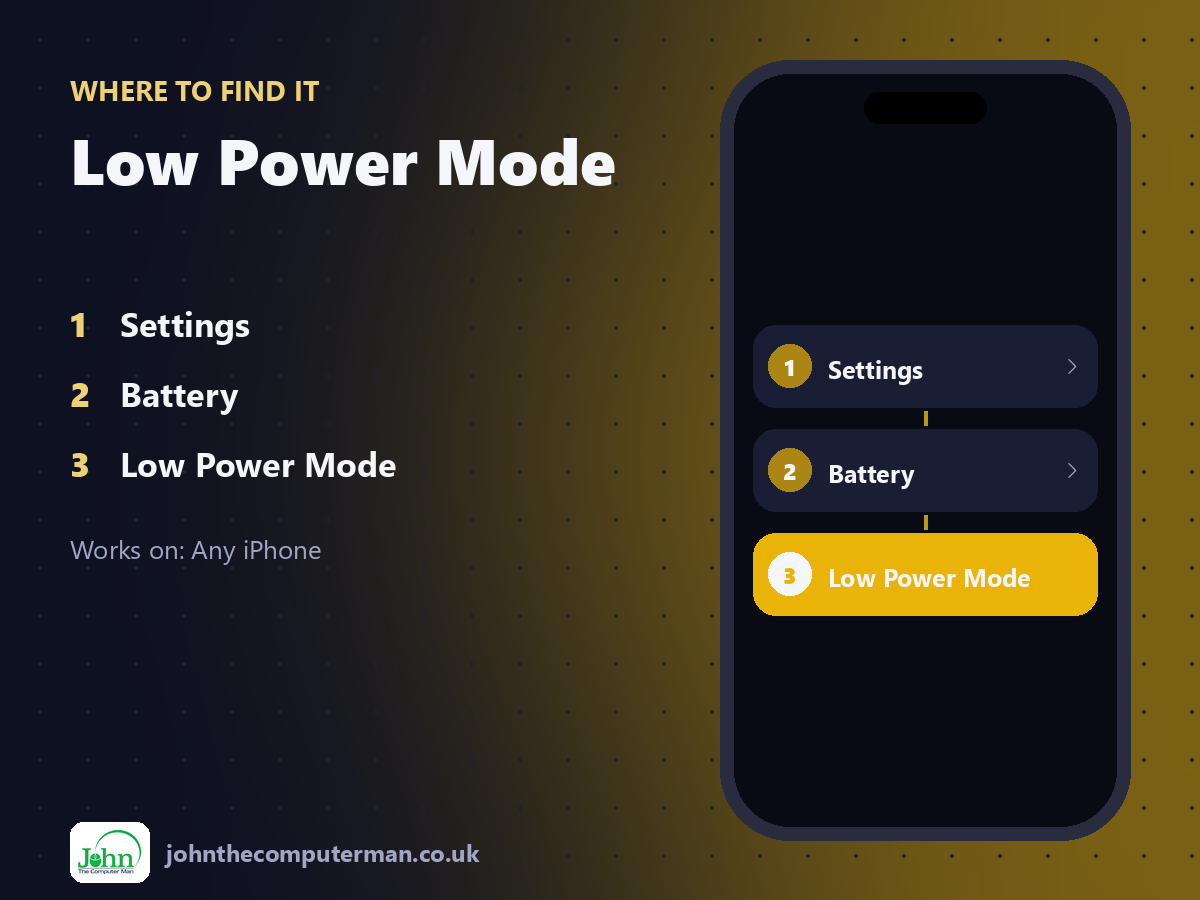
Settings > Battery > Low Power Mode
Low Power Mode: step by step
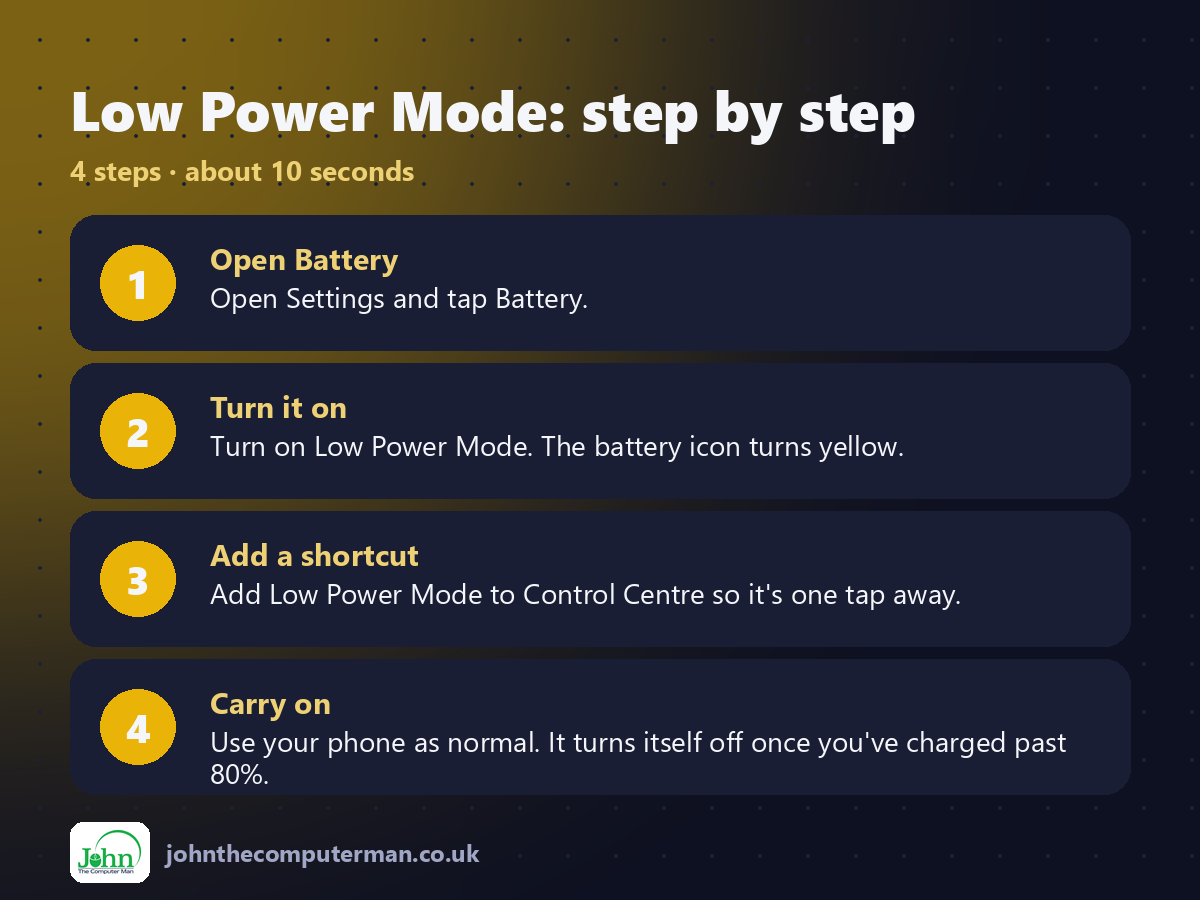
1. Open Battery. Open Settings and tap Battery.
2. Turn it on. Turn on Low Power Mode. The battery icon turns yellow.
3. Add a shortcut. Add Low Power Mode to Control Centre so it's one tap away.
4. Carry on. Use your phone as normal. It turns itself off once you've charged past 80%.
2. Turn it on. Turn on Low Power Mode. The battery icon turns yellow.
3. Add a shortcut. Add Low Power Mode to Control Centre so it's one tap away.
4. Carry on. Use your phone as normal. It turns itself off once you've charged past 80%.
Pro tip
💡 Automate it: in Shortcuts, tap Automation, choose Battery Level, set 'Falls Below 30%' and add Set Low Power Mode.
More tips
• You don't have to wait for 20%. Turn it on in the morning on a long day out.
• Lowering screen brightness saves even more.
• Poor signal drains batteries fast. Use Wi-Fi where you can.
• Say 'Hey Siri, turn on Low Power Mode'.
• Lowering screen brightness saves even more.
• Poor signal drains batteries fast. Use Wi-Fi where you can.
• Say 'Hey Siri, turn on Low Power Mode'.
FAQ
Is it bad to leave Low Power Mode on all the time?
It doesn't harm the battery, but email and app updates will be slower to arrive.
Why did it turn itself off?
It switches off automatically when your iPhone charges past 80%.