How to Use Text Replacement on iPhone to Type Faster
How many times a week do you type your email address, home address or 'I'll call you back in 5 minutes'?
Text Replacement lets you type a short code and have your iPhone swap it for the full phrase. Set it up once and it works in every app.
What does Text Replacement do?
Text Replacement is a keyboard feature that expands a shortcut you type into a longer phrase. It works in any app that uses Apple's keyboard, and your shortcuts sync to your other Apple devices through iCloud.
Takes: 2 minutes · Works on: Any iPhone · Cost: free, built into your iPhone
Where to find it
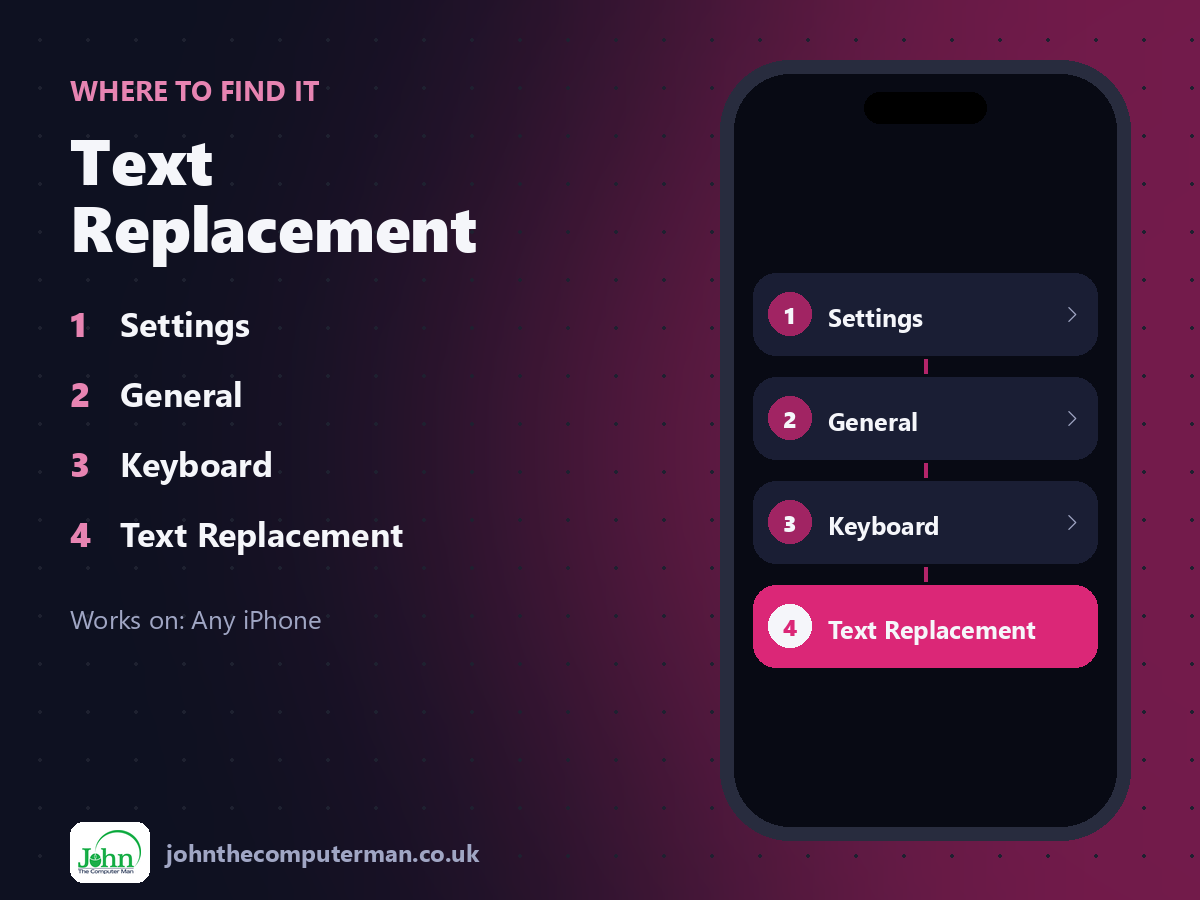
Settings > General > Keyboard > Text Replacement
Text Replacement: step by step
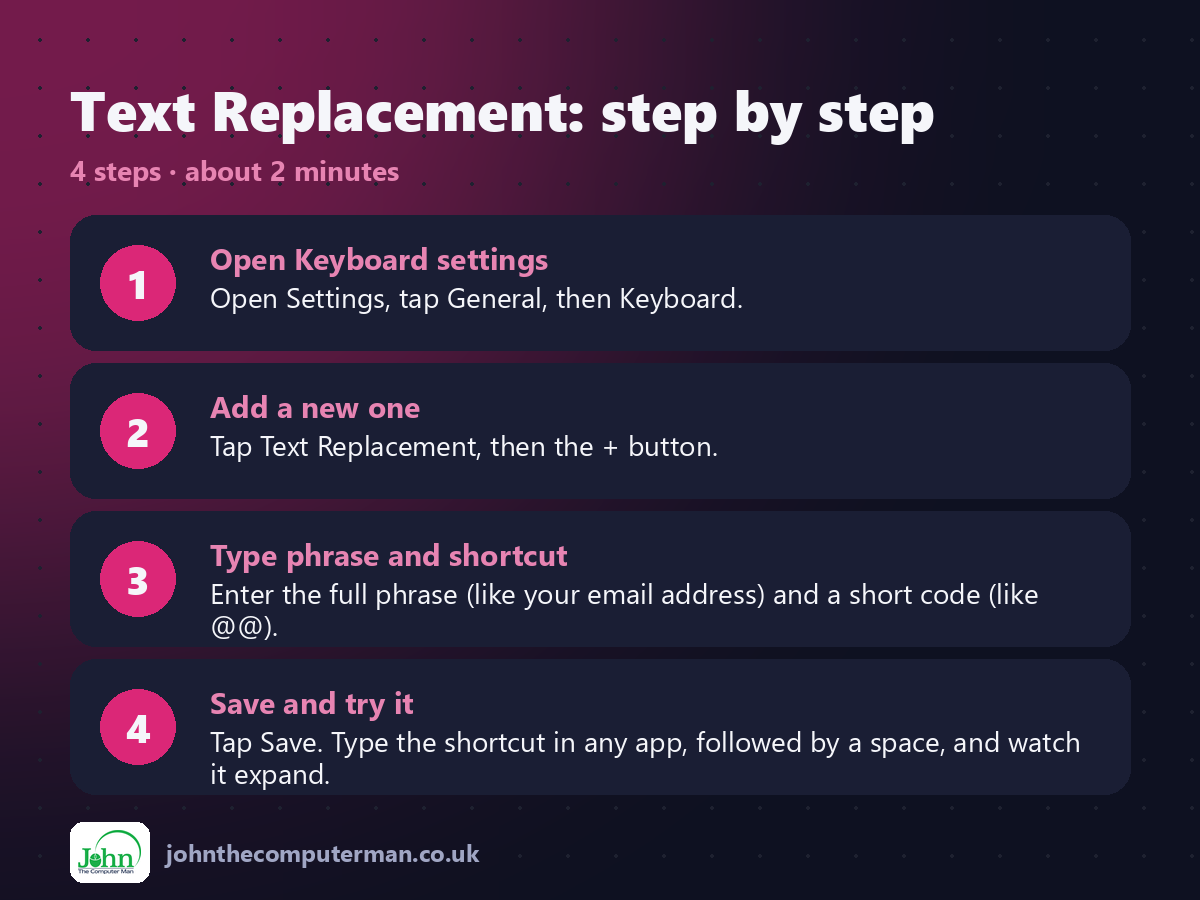
1. Open Keyboard settings. Open Settings, tap General, then Keyboard.
2. Add a new one. Tap Text Replacement, then the + button.
3. Type phrase and shortcut. Enter the full phrase (like your email address) and a short code (like @@).
4. Save and try it. Tap Save. Type the shortcut in any app, followed by a space, and watch it expand.
2. Add a new one. Tap Text Replacement, then the + button.
3. Type phrase and shortcut. Enter the full phrase (like your email address) and a short code (like @@).
4. Save and try it. Tap Save. Type the shortcut in any app, followed by a space, and watch it expand.
Pro tip
💡 Use shortcuts that aren't real words, like 'addr1' or '@@'. Otherwise they'll pop up when you don't want them.
More tips
• Good ones to add: email address, home address, phone number, and 'On my way!'.
• Leave the Phrase field blank and add an emoji to get quick emoji shortcuts.
• Your shortcuts sync to your iPad and Mac, so they work there too.
• Don't use it for passwords. Use the Passwords app instead.
• Leave the Phrase field blank and add an emoji to get quick emoji shortcuts.
• Your shortcuts sync to your iPad and Mac, so they work there too.
• Don't use it for passwords. Use the Passwords app instead.
FAQ
Why isn't my shortcut expanding?
Type a space or punctuation after it. If it still won't work, check you're using Apple's keyboard, not a third-party one.
Can I undo an expansion?
Yes. Tap the suggestion above the keyboard to keep what you typed, or press delete straight after it expands.