How to Use Voice Isolation on iPhone to Block Background Noise on Calls
Kids, traffic, the wind, a barking dog. Background noise makes calls hard work for the person on the other end.
Voice Isolation uses your iPhone's processing to filter out background noise and put your voice front and centre.
What does Voice Isolation do?
Voice Isolation is a microphone mode for phone calls, FaceTime and many video calling apps. It prioritises your voice and blocks out background noise. You turn it on during a call, and your iPhone remembers your choice for next time.
Takes: 10 seconds · Works on: iPhone XS, XR or later, iOS 16.4 or later for phone calls · Cost: free, built into your iPhone
Where to find it
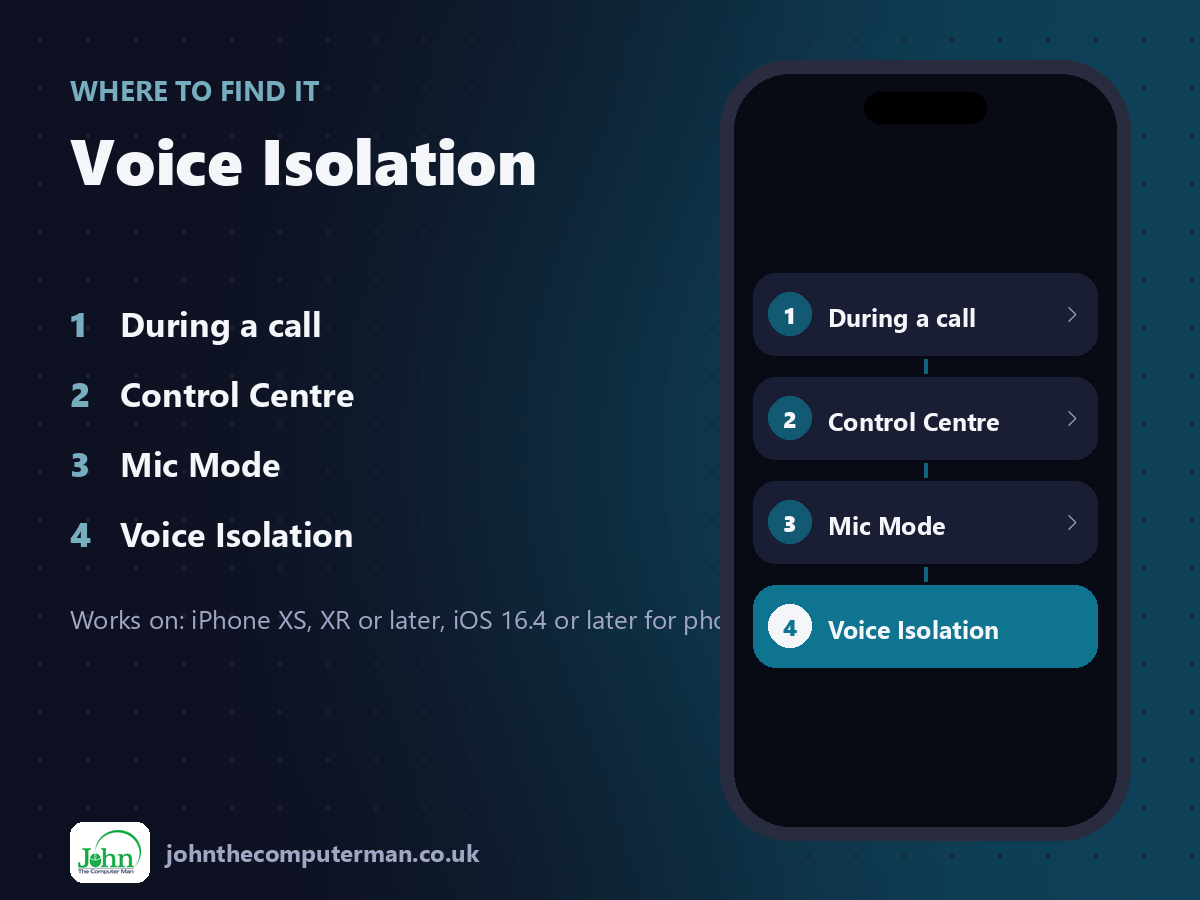
During a call > Control Centre > Mic Mode > Voice Isolation
Voice Isolation: step by step
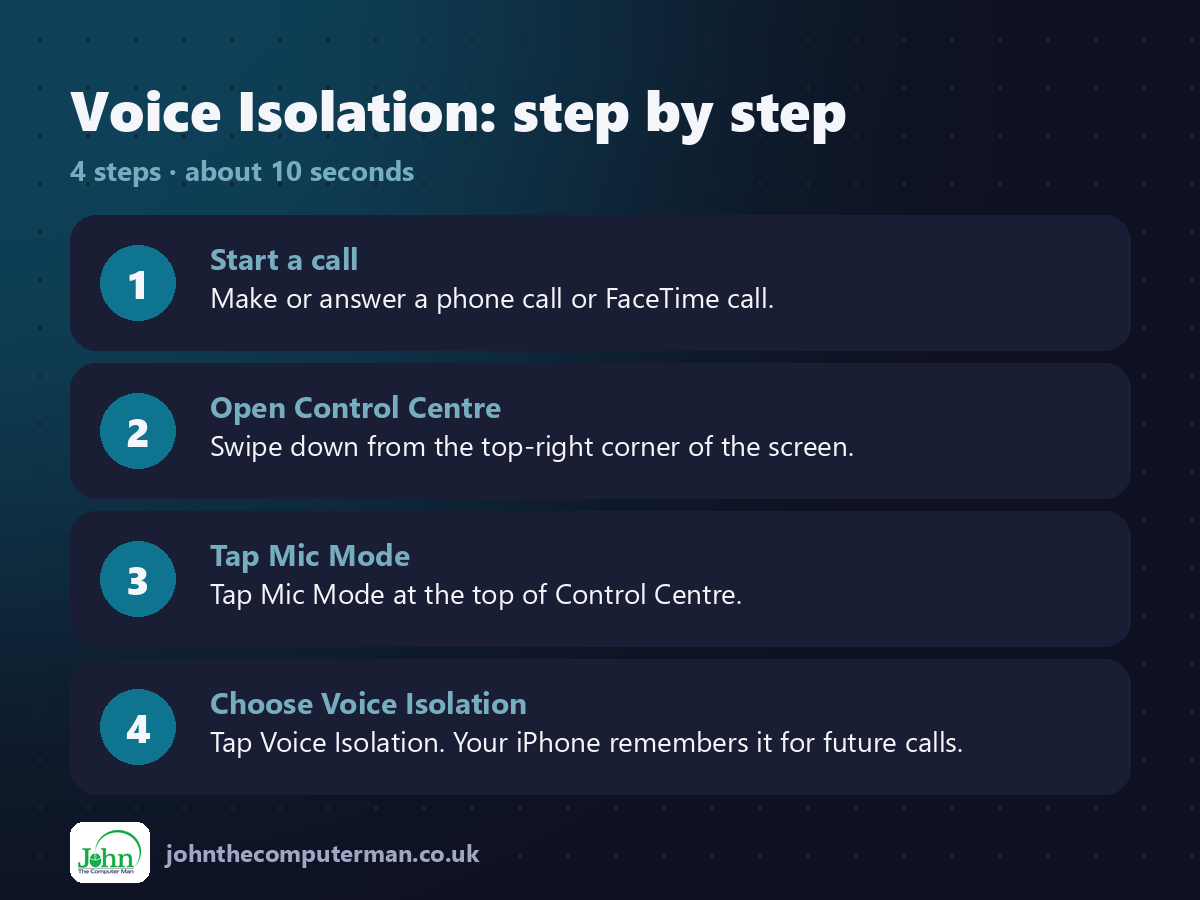
1. Start a call. Make or answer a phone call or FaceTime call.
2. Open Control Centre. Swipe down from the top-right corner of the screen.
3. Tap Mic Mode. Tap Mic Mode at the top of Control Centre.
4. Choose Voice Isolation. Tap Voice Isolation. Your iPhone remembers it for future calls.
2. Open Control Centre. Swipe down from the top-right corner of the screen.
3. Tap Mic Mode. Tap Mic Mode at the top of Control Centre.
4. Choose Voice Isolation. Tap Voice Isolation. Your iPhone remembers it for future calls.
Pro tip
💡 Recording a voice note or singing? Switch to Wide Spectrum instead, which keeps all the sound around you.
More tips
• It works in many third-party apps too, like WhatsApp and Zoom.
• The Mic Mode button only appears during a call.
• It works with AirPods and many other headphones.
• Ask the other person if you sound better. They'll notice the difference more than you.
• The Mic Mode button only appears during a call.
• It works with AirPods and many other headphones.
• Ask the other person if you sound better. They'll notice the difference more than you.
FAQ
Why can't I see Mic Mode?
It only appears while you're on a call, and it needs iOS 16.4 or later for normal phone calls.
Does the other person need an iPhone?
No. They hear the cleaner audio on any phone.